
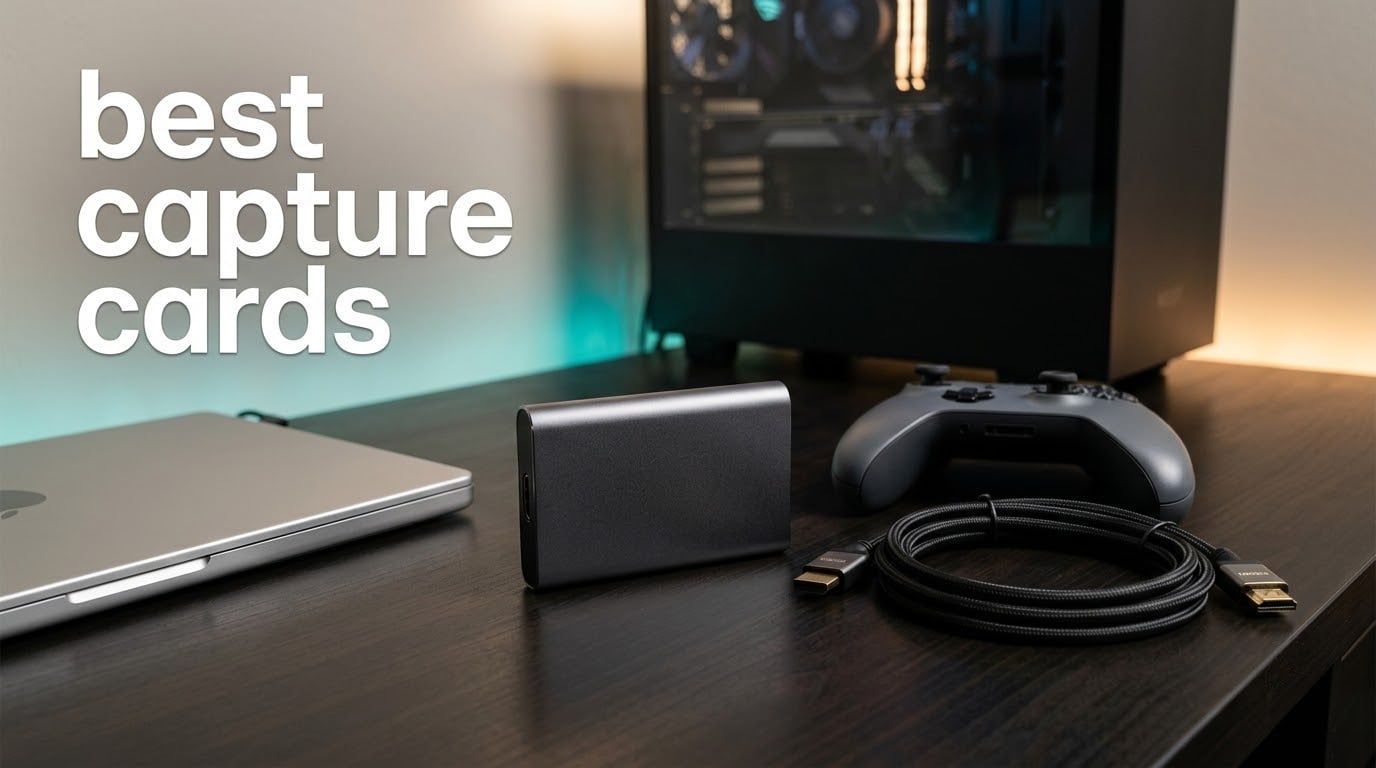
A capture card is a small box that sits between your console, handheld or camera and your PC, converting an HDMI signal into something OBS Studio or Streamlabs OBS can record. The HDMI loop-out passes the same picture to your TV so you can still play while the card feeds a clean copy to your computer. That is the whole idea, and in 2026 it remains the only reliable way to get console or camera video into streaming software.
Do streamers still use capture cards? More than ever, and the reason has shifted. Live streaming still draws most of the attention, but a large share of the questions we see on r/streaming and r/obs now come from people who are not streaming at all. They want their console on a second monitor, or they want local clips because their internet drops mid-broadcast. A capture card handles both, and the local-recording crowd cares about the same things streamers do: clean 1080p60, no compression mush, no added delay.
You also do not need one for everything. OBS game capture is free, instant and perfect for PC games, and it costs nothing. You need a capture card the moment the source device cannot be installed on the machine doing the recording, which means a PS5, an Xbox Series X, a Nintendo Switch, a Steam Deck or any DSLR or mirrorless body. If you are still choosing graphics cards for the streaming PC, our graphics card picks are the other half of that build.
Below are the ten capture cards we rate highest after reading the full review history on each one, checking the specifications against the manufacturer claims, and mapping them to the use cases people actually describe in forums. Ratings and review counts are the live figures from the product pages, and we flag the limits honestly because the gap between what a card advertises and what it records is where most buying mistakes happen.
Table of Contents
Top 3 Capture Card Picks in 2026


Elgato Cam Link 4K
- Turns DSLRs into webcams
- 1080p60 and 4K capture
- Zero drivers
- 2 year warranty

Our short list of three covers the three genuinely different jobs. The HD60 S is the card we hand to someone who wants console gameplay in OBS and nothing complicated. The Cam Link 4K is not a gaming card at all; it is the standard way to put a real camera behind a stream. The 4K X handles high-refresh 4K and VRR passthrough, and it is the pick if you have a display you care about as much as the capture.
Best Capture Cards in 2026: Quick Overview
| Product | Specifications | Action |
|---|---|---|
| Elgato HD60 S |
|
Check Latest Price |
| Elgato Cam Link 4K |
|
Check Latest Price |
| Elgato 4K X |
|
Check Latest Price |
 AVerMedia Live Gamer Mini GC311 AVerMedia Live Gamer Mini GC311 |
|
Check Latest Price |
 AVerMedia Live Gamer 4K 2.1 GC575 AVerMedia Live Gamer 4K 2.1 GC575 |
|
Check Latest Price |
 AVerMedia Live Gamer Duo GC570D AVerMedia Live Gamer Duo GC570D |
|
Check Latest Price |
 Blackmagic DeckLink Quad HDMI Blackmagic DeckLink Quad HDMI |
|
Check Latest Price |
 UGREEN 1080p60 Capture Card UGREEN 1080p60 Capture Card |
|
Check Latest Price |
 XIIXMASK USB 3.0 4K60 XIIXMASK USB 3.0 4K60 |
|
Check Latest Price |
 ASUS TUF Gaming CU4K30 ASUS TUF Gaming CU4K30 |
|
Check Latest Price |
Which of these ten you actually need comes down to one question: what are you capturing, and what is it plugged into. Console into a desktop streaming PC is the HD60 S or the Live Gamer Mini. Console into a laptop or a handheld is the Cam Link 4K or the UGREEN. A high-refresh PC signal with a 144Hz monitor in the chain is the 4K X. Two angles at once is the Live Gamer Duo. Four cameras in a live production rig is the DeckLink Quad.
1. Elgato HD60 S – Best Overall Capture Card
Elgato HD60 S, External Capture Card, Stream and Record in 1080p60 with ultra-low latency on PS5, PS4/Pro, Xbox Series X/S, Xbox One X/S, in OBS, Twitch, YouTube, works with PC/Mac
1080p60 capture
Zero-lag HDMI passthrough
Flashback Recording
1 year limited warranty
Pros
- Reliable 1080p60 capture with an enormous review history
- Zero-lag HDMI passthrough keeps console play responsive
- Flashback Recording saves moments retroactively
- Unlimited capture straight to disk for long sessions
- Works in OBS on both PC and Mac
Cons
- Capture resolution is limited to 1080p with no 4K recording
- No high-refresh capture at 120 or 240 fps
- Bundled software has been superseded by newer Elgato apps
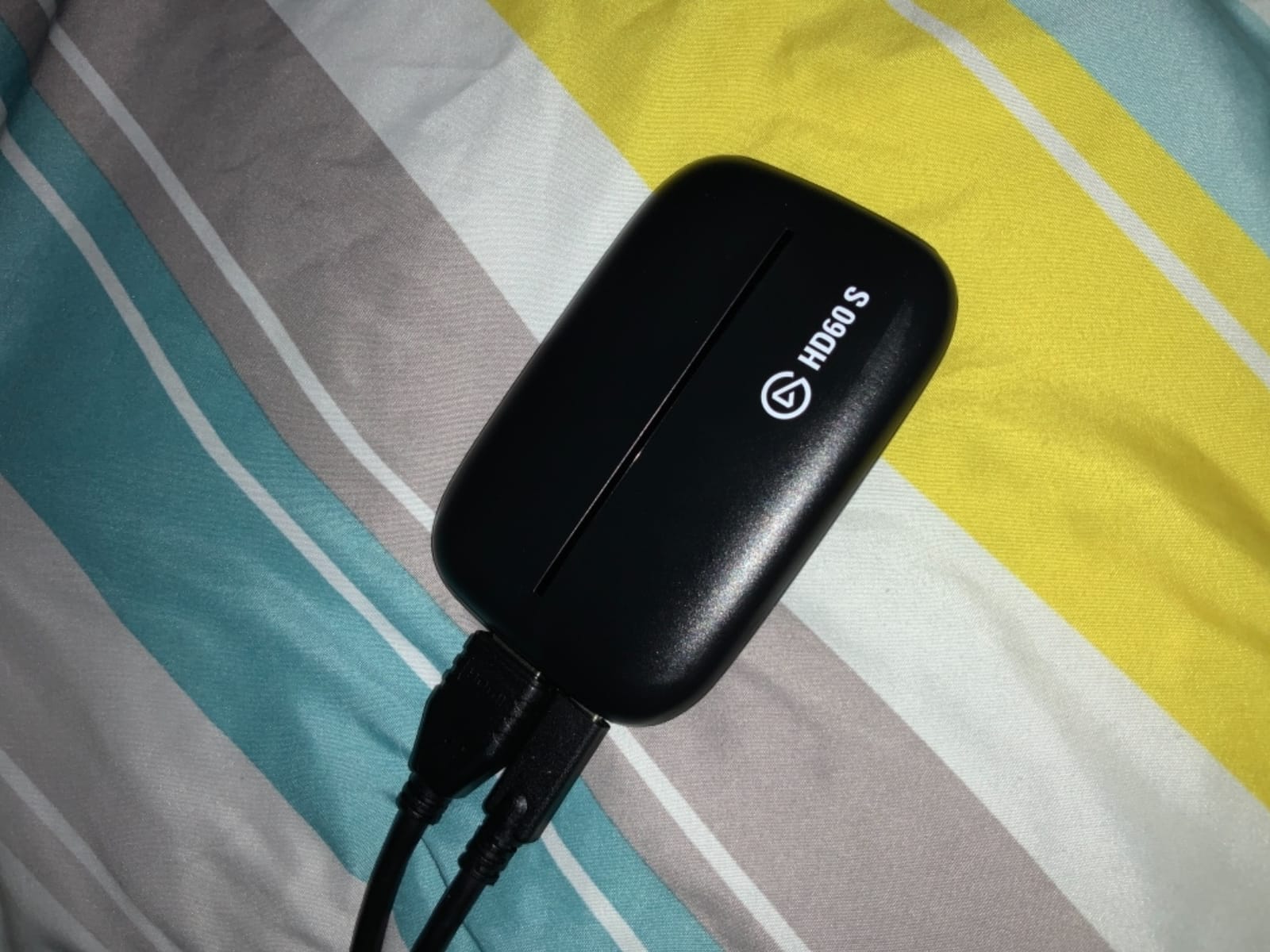
With more than 25,000 reviews averaging 4.6 stars, the HD60 S is not a risky recommendation. Reviewers describe it as the card that simply works: the passthrough does not add lag, and the picture lands in OBS cleanly at 1080p60.
That is genuinely all it does. Video capture resolution is 1080p, the output is HDMI, and the interface is USB. The unit measures 2.95 by 4.41 by 0.75 inches and weighs 12.7 ounces, and the package includes an HDMI cable, a USB 3.0 cable and a quick start guide, so you can have it capturing within a few minutes of opening it.
Host requirements are modest for a card of this class. Elgato lists Windows 10 64-bit with a fourth-generation quad-core Core i5, Intel HD or GeForce GTX 600 series graphics or better, and 4GB of RAM. The card also lists macOS support, which matters if your streaming machine is a Mac rather than a tower.
Flashback Recording is the feature that keeps coming up as a genuine favorite. It buffers recent gameplay and lets you clip a moment after it happened, which removes the frantic hotkey juggling that normally comes with making highlights. Combined with unlimited direct-to-disk capture, it suits someone recording hours of console play and pulling clips later rather than pushing a live broadcast.
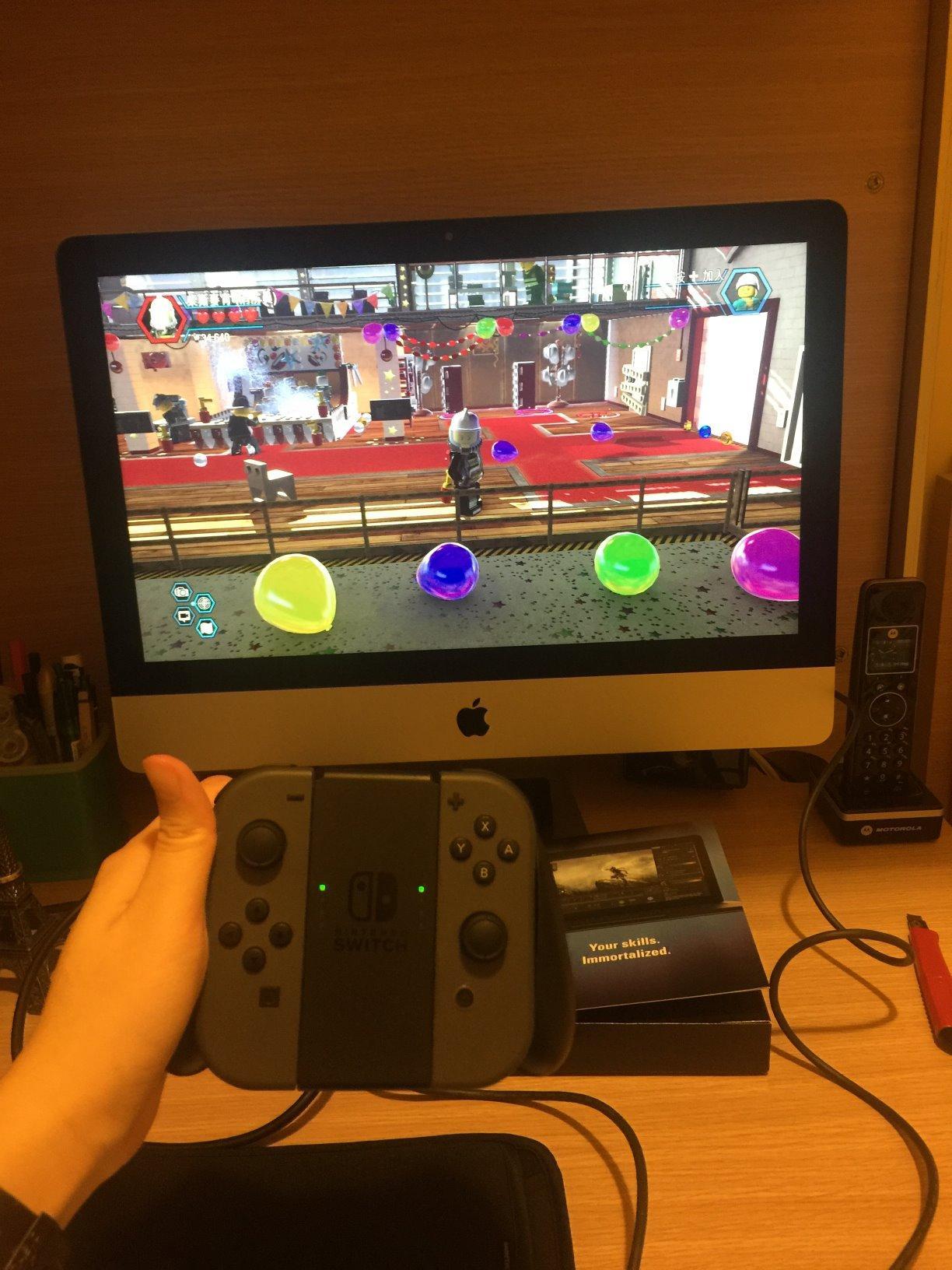
Is 1080p60 enough for what you are making?
For any live stream, yes. Streaming platforms ingest far less than a full 1080p60 feed, so a 1080p60 capture card has no practical ceiling for broadcast work. It is only short for people recording 4K footage for editing or for slow-motion 120 and 240 fps capture.
The one-year limited warranty is tied for the shortest in this group, and the bundled software has been superseded by newer Elgato apps, so treat the card as a simple capture device rather than something you tune over months.
Should you upgrade instead of buying this?
Move up to the Elgato 4K X if you play on a monitor above 120Hz and want variable refresh rate and HDR passthrough reaching that display untouched. The HD60 S has no 4K recording path at all, so a 4K editing workflow is out of reach on this card.
2. Elgato Cam Link 4K – Best for Cameras and DSLRs
Elgato Cam Link 4K Capture Card for DSLR, Camcorder, Action Cam, USB-A Connector, USB 3.0 Hardware Interface, Black, Windows 10/11 and macOS
1080p60 and 4K capture
USB 3.0 interface
PC and Mac
2 year warranty
Pros
- Turns any DSLR
- mirrorless body
- camcorder or action cam into a clean webcam source
- True zero-latency video and audio sync across long sessions
- Zero drivers so OBS
- Ecamm Live
- Zoom and TikTok Live Studio see it immediately
- 4K30 or 1080p60 output with natural color and smooth motion
- Stable through docks over three-hour back-to-back sessions
Cons
- Wide body can block adjacent USB-A ports on a dock
- 4K capture is capped at 30 fps
- No HDMI cable is included in the box
This is the pick for anyone whose video source is a camera rather than a console. A mirrorless body or DSLR often has a better sensor, better color and far more control over framing than any webcam, and the Cam Link 4K is the bridge that pulls that HDMI clean feed into your computer. At 4.6 stars across more than 14,000 reviews, with 80 percent five-star ratings, it is the most decorated non-gaming card here.
It weighs 20.14 grams and measures 3.19 by 1.22 by 0.47 inches, with a USB 3.0 interface and a two-year warranty. The package includes the capture card, a USB 3.0 extension cable and a quick start guide. Note what is not included: an HDMI cable. Some cameras come with one in the box, but budget bodies often do not, so plan for a Micro-HDMI cable if yours is missing one.
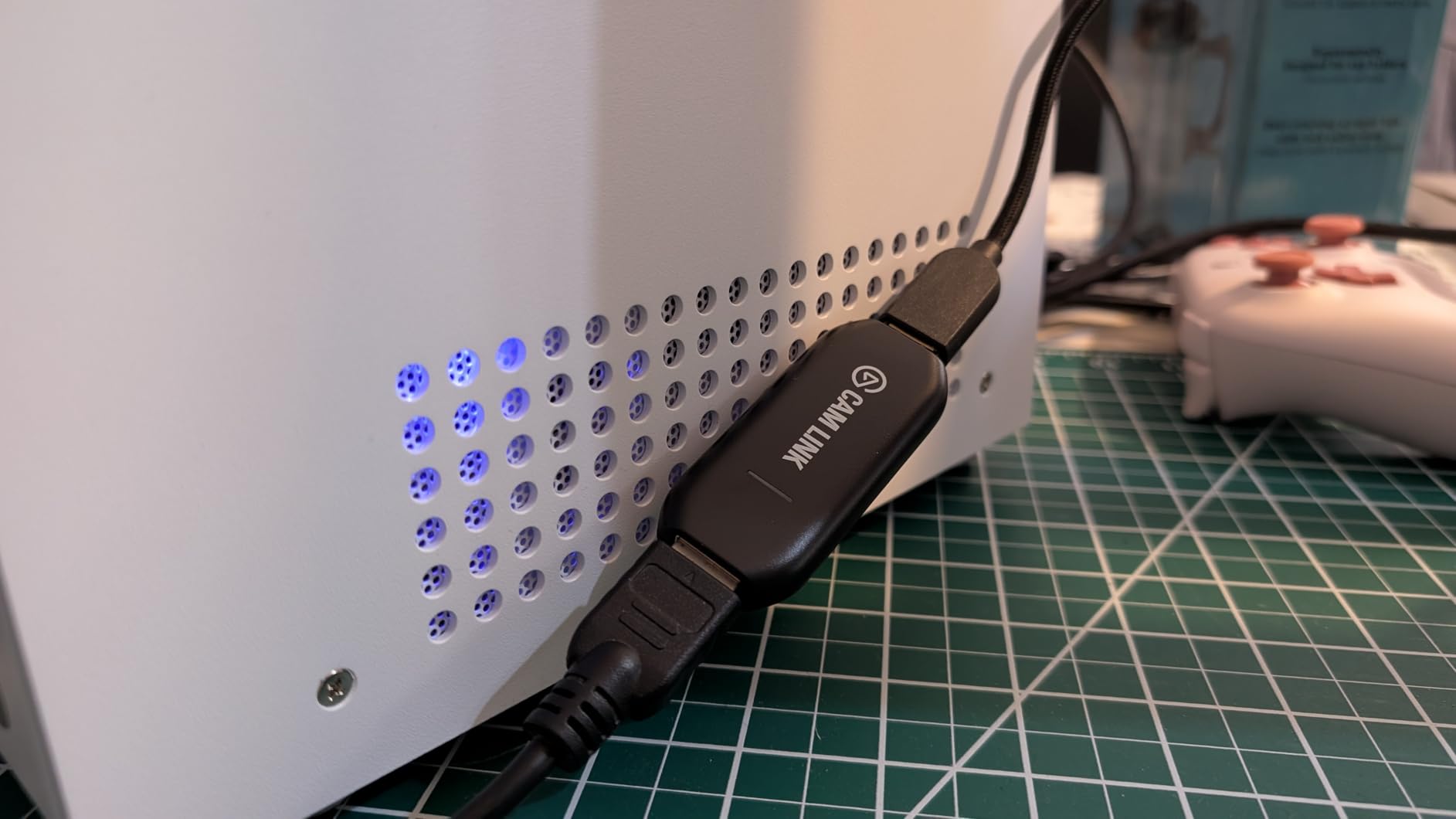
The no-driver behavior is the headline in the reviews. Because it presents as a standard UVC and UAC device, OBS, Ecamm Live, Zoom and TikTok Live Studio recognize it on plug-in, which removes the install step that makes new streamers give up. Buyers also report clean video and audio sync and stability when routed through a docking station over long sessions.
Compatibility spans PC and Mac on Windows 10 and 11 and macOS. The listed video capture resolutions are 1080p60 and 4K60, though in practice most camera bodies output 4K at 30 fps, which is where the 4K30 ceiling in the reviews comes from.
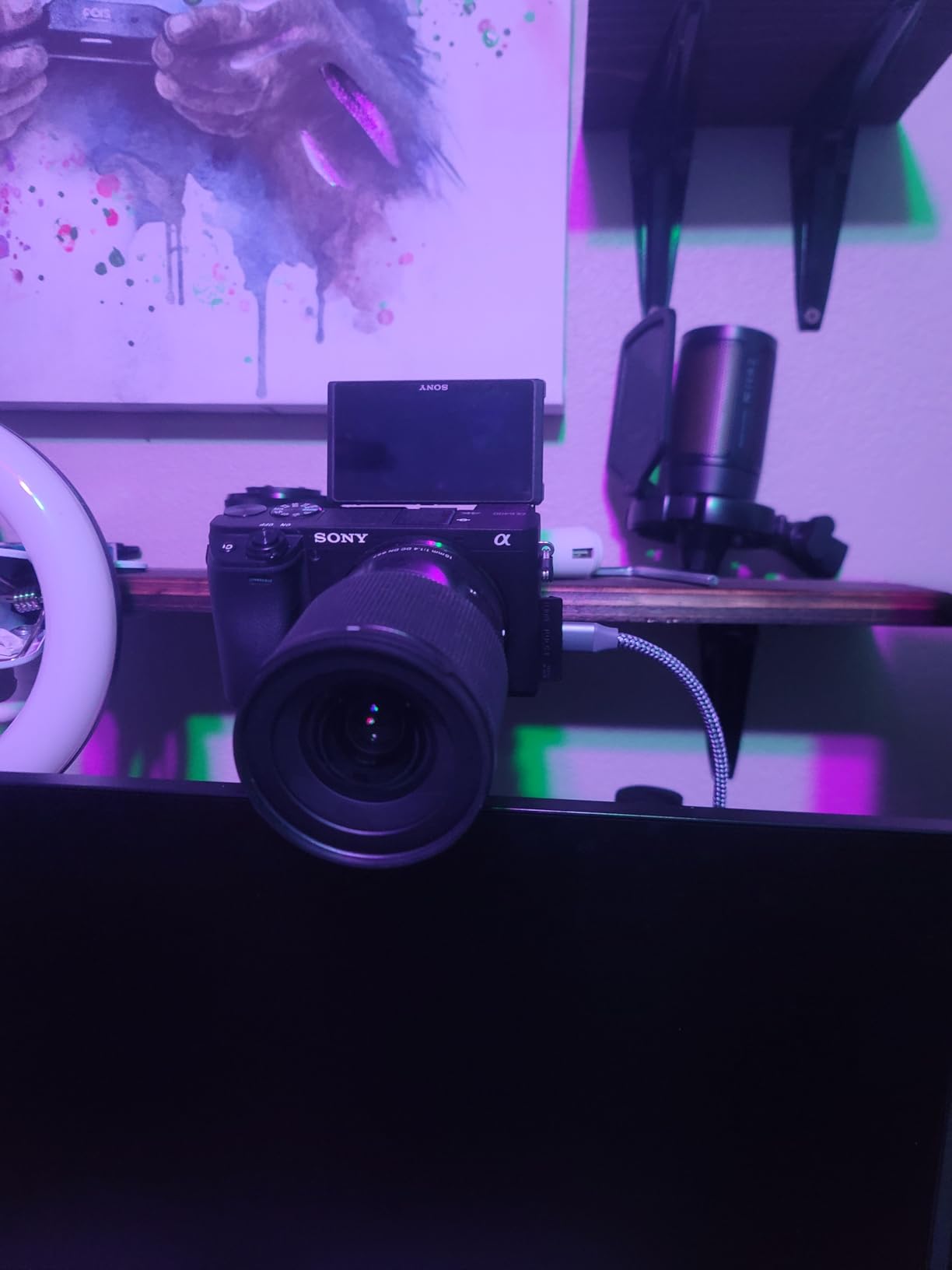
Is a mirrorless camera worth the extra setup?
Yes, if you already own one. The image quality jump over a built-in laptop camera is large, and the Cam Link adds latency you will not feel in a live stream or a call. The trade-off is that you now manage focus, exposure and framing yourself instead of relying on autofocus that never loses the subject.
One practical warning from owners: the body is wide enough to cover a neighboring USB-A port on a dock, and it runs warm when left plugged in continuously, so give it a clear port and do not expect 24/7 duty.
Do you need a capture card for a webcam?
No. A webcam is already a USB video device and goes straight into OBS as a camera source. The Cam Link earns its place only when the source has a real HDMI output worth capturing, which means DSLRs, mirrorless cameras, camcorders, action cams and some phones.
3. Elgato 4K X – Most Versatile for High-Refresh 4K
Elgato 4K X Capture Card, HDMI 2.1, 4K144 Ultra-Low Latency
HDMI 2.1 in and out
4K144 and 1080p240 capture
VRR and HDR10 passthrough
USB 3.2 Gen 2
Pros
- Captures up to 4K144 and passes HDMI 2.1 signals through without dropouts
- Supports up to 1080p240 capture for high-frame-rate recording
- VRR and HDR10 passthrough keep gameplay smooth on the second display
- USB 3.2 Gen 2 delivers low latency between capture and gameplay
- Works across PS5
- Xbox Series X
- Switch
- PC and Mac
Cons
- Needs a USB 3.2 Gen 2 port since Gen 1 forces reduced capture resolution
- Advertised capture resolution is listed as 1080p so 4K source frames depend on host encoding
- Asks for a relatively recent CPU and GPU for smooth 4K workflows
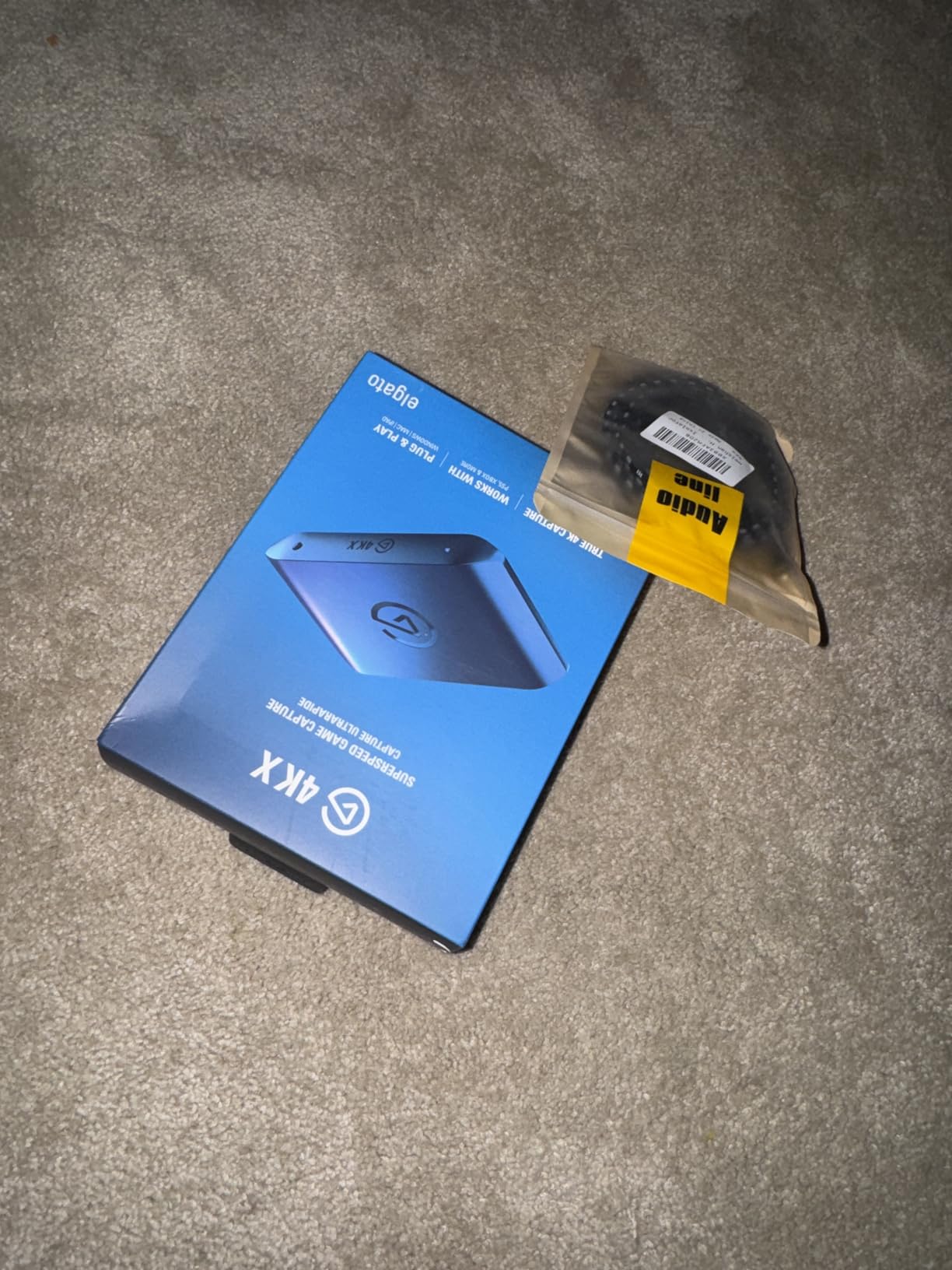
The 4K X is the external card in this roundup that treats HDMI 2.1 as a working feature rather than a label. It captures 4K at up to 144 fps and 1080p at up to 240 fps, and it passes variable refresh rate and HDR10 through to your second display so a high-end monitor keeps its full behavior. Owners consistently name the 4K144 capture, the HDMI 2.1 bandwidth and the VRR passthrough as the reasons they bought it.
At 4.5 stars from just over 1,000 reviews with 79 percent five-star ratings, the rating is solid but the sample is small compared with the cards below it. The physical footprint is 0.67 by 4.41 by 2.83 inches and 0.09 kg, and the box contains an installation guide, so plan on having your own HDMI cable ready.
The requirement that matters is the port. Elgato specifies USB 3.2 Gen 2, and Gen 1 ports work with reduced capture resolution. That single line explains most of the disappointment in the negative reviews: plugging into a blue USB-A port on an older machine quietly caps what you get. The stated minimum system is Windows 10 64-bit, macOS 11 or iPadOS 17, with a 6th-generation Core i5 or Ryzen 5, a GTX 10xx or better, and a Gen 2 port.
It lists compatibility with consoles, PCs and tablets, and works with OBS, Streamlabs, Twitch Studio, Restream, Zoom and Teams. For a PS5 or Xbox Series X owner running a 120Hz display, this is the card that keeps the second screen behaving properly while the capture runs.
Do you actually need HDMI 2.1?
You need it if your source can output above 4K60 or above 1080p120 and your display can show it. A PS5 in its 120Hz mode, a high-end PC running a 144Hz panel, or a 4K144 monitor all push past what HDMI 2.0 handles. Below that ceiling, the extra bandwidth buys you nothing visible.
Watch one detail before buying. The listed video capture resolution is 1080p even though the headline says 4K144, so verify how your host encoder and software treat 4K source frames rather than trusting the marketing line alone.
Is a Gen 2 port realistic on your machine?
On a desktop with a modern motherboard, usually. On a laptop, check the port markings carefully, because many machines only expose USB 3.2 Gen 1 and you will silently lose capture resolution. If your only option is Gen 1, the HD60 S in this list is a better buy for the money.
4. AVerMedia Live Gamer Mini GC311 – Best Value External Card
AVerMedia Live Gamer Mini, 1080p60 Capture Card with HDMI Pass-Thru, Plug & Play, for OBS, Xbox Series X/S, PS5, Switch, Win 11/macOS 12 (GC311)
1080p60 capture
USB 2.0 interface
Driver-free UVC
3 year warranty
Pros
- Genuinely zero-latency 1080p60 HDMI passthrough
- Driver-free UVC detection on Windows and Mac
- Built-in H.264 hardware encoder keeps work off the host CPU
- Compact body that suits a small desk or a portable rig
- Works with OBS
- Streamlabs and AVerMedia RECentral
Cons
- 1080p60 is the maximum capture format so there is no 4K recording
- Bitrate can drop during fast camera movement and show visible quality loss
- Some units stopped recording or were unrecognized within months
The Live Gamer Mini is the value pick in this list, and the reasons are unglamorous ones that matter. It does 1080p60 with zero-latency passthrough, it needs no drivers, and it carries a three-year manufacturer warranty, which is longer than most cards in this roundup. Beginners repeatedly recommend it as the card that removed the setup barrier for them.
It measures 3.93 by 2.24 by 0.74 inches and weighs 2.63 ounces. The package includes the card, a quick guide and a USB micro to Type-A cable, and it is listed for Windows 10, Windows 11 and macOS 12 with a USB 2.0 port, so it will work on older hardware that lacks a blue USB-A port.
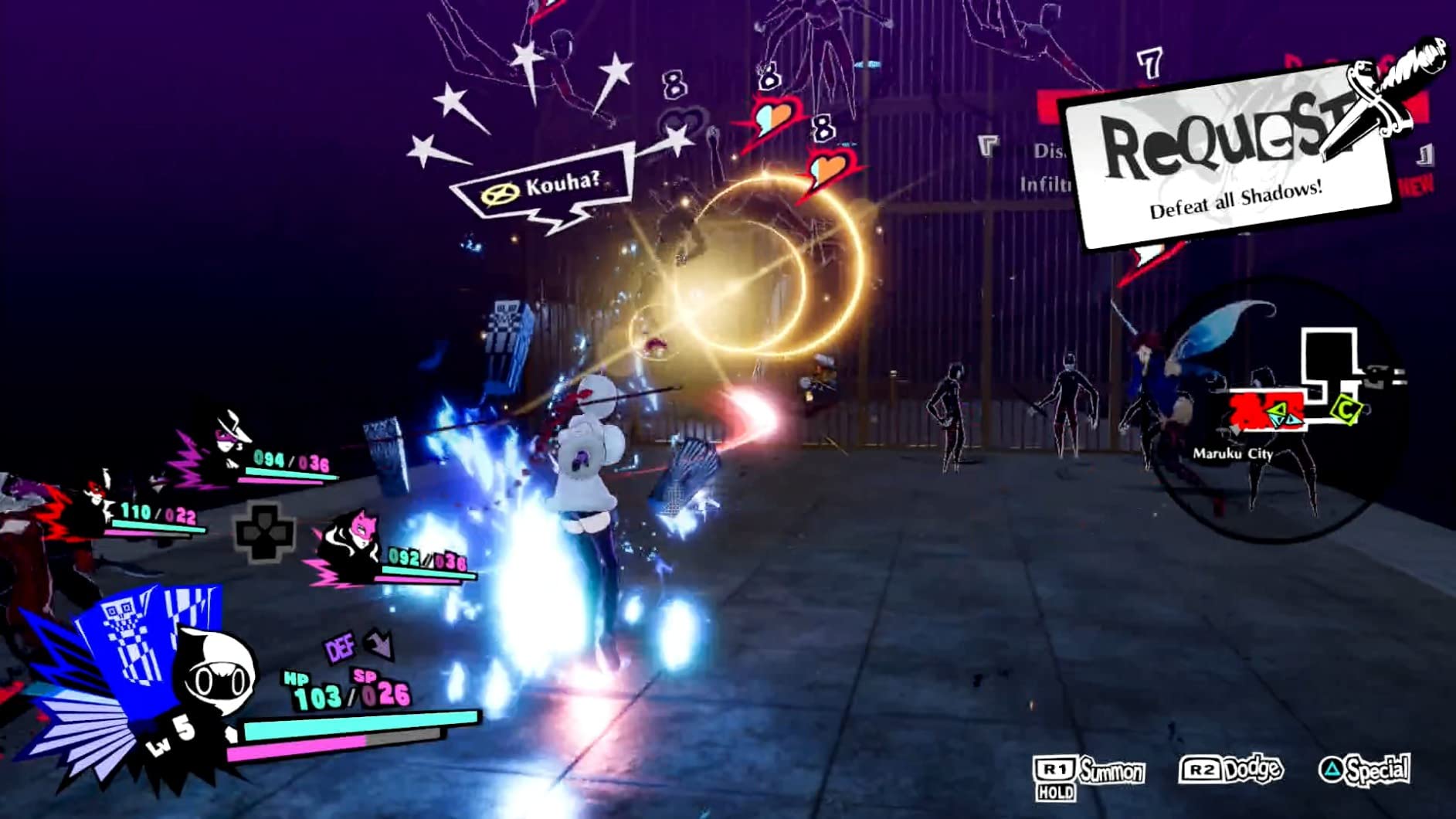
The built-in H.264 hardware encoder is the sleeper feature. It processes video and audio without loading the host CPU, which on a modest streaming PC means more headroom for the game itself. Compatible devices span the Switch, PS4, PS5, Xbox One and Xbox Series X and S, and it works in RECentral 4, OBS Studio and Streamlabs OBS.
The rating breakdown explains the mixed reviews better than the average does. At 4.3 stars from about 1,450 reviews, 66 percent are five-star and 18 percent are four-star, but the negative tail is concentrated on reliability after extended use and bitrate drops during fast motion.

Is 1080p60 the right ceiling for you?
For streaming, yes. If you are broadcasting to Twitch or YouTube, 1080p60 is the format the platform expects and the format the card delivers without touching the host encoder. Think carefully only if you are recording 4K source footage for an editor.
Because the interface is USB 2.0, expect bitrate to suffer on high-motion scenes. Fast camera pans and particle-heavy games are where the compression shows first, and that is the specific complaint reviewers raise rather than a general quality problem.
When should you spend more?
Move to the Elgato 4K X when you need high-refresh passthrough and a Gen 2 port, or to the ASUS TUF CU4K30 when you want 1080p120 and 1440p60 capture. Stay on the Mini if your source is a console at 1080p60 and your PC already streams comfortably.
5. AVerMedia Live Gamer 4K 2.1 GC575 – Best Internal PCIe Card
AVerMedia HDMI 2.1 Internal PCIe Capture Card for Streaming and Recording 4K60 with Ultra-Low Latency on PS5, PS4 Pro, Xbox Series X/S, Xbox One X, Switch Games – GC575 Live Gamer 4K 2.1
PCI Express 3.0 interface
4K144 HDR passthrough
1080p240 and 1440p120 capture
3 year warranty
Pros
- HDMI 2.1 internal card with 4K144 HDR passthrough
- Supports refresh rates up to 240Hz with capture up to 1080p240 and 1440p120
- PCIe 3.0 plug-and-play installation with no driver setup
- HDMI 2.1 cable included in the box
- NDAA and TAA compliant for regulated deployments
Cons
- Requires a free PCIe slot and a Windows host so it is not portable
- HDR passthrough can be limited by the source device output settings
- Small review base so long-term reliability data is limited
An internal card removes the USB bottleneck entirely, and the GC575 is the one in this list that combines that with genuine HDMI 2.1 bandwidth. It passes 4K144 HDR through to your display and captures up to 1080p240 or 1440p120, which is exactly the pairing you want for a high-refresh PC signal feeding a game capture on the same machine.
The output formats listed are YUY2, NV12, RGB24 and P010 for HDR, and the interface is PCI Express 3.0. It measures 4.76 by 6.32 by 0.83 inches and weighs 5.31 ounces, and the package includes an HDMI 2.1 cable, which is a nice touch since comparable cards often leave it out.
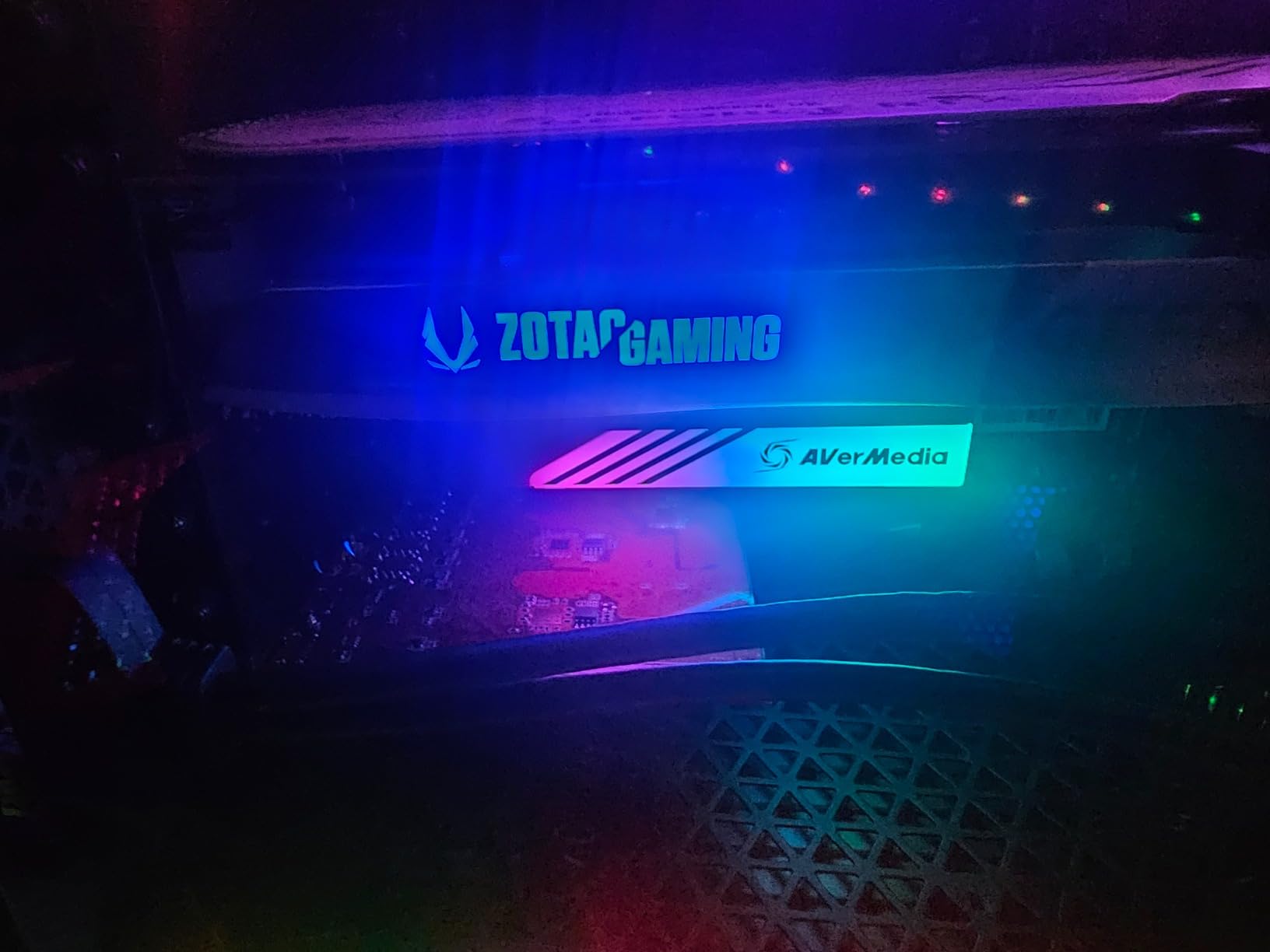
The rating is 4.3 across 128 reviews, with 66 percent five-star but a 7 percent one-star share. That combination is a small-sample warning: enthusiasts with high-refresh PS5 and Xbox setups love the passthrough behavior, but 128 reviews is not enough history to make a durability claim, and we would treat it accordingly.
One detail makes it interesting beyond the hobbyist tier. The card is listed as NDAA and TAA compliant, which matters if you build for a school, a government contractor or any regulated environment that cannot source restricted components.
Is an internal card worth the installation effort?
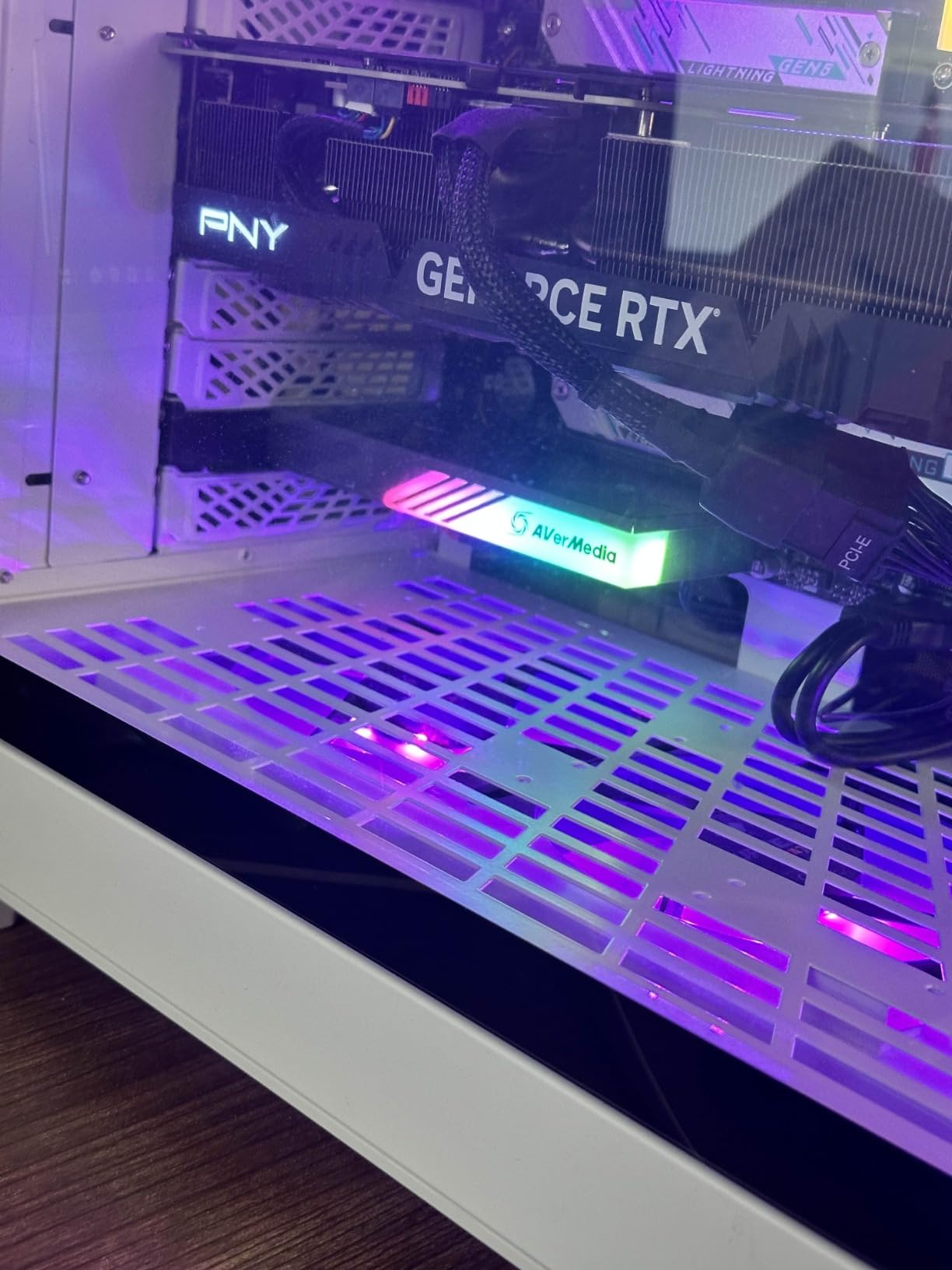
It is if your source is a PC on the same machine. Data moves across the PCIe bus instead of across a USB cable, so there is no bandwidth negotiation to lose and no external power or driver to manage. The trade-off is that you need a Windows desktop with a free PCIe slot.
If your source is a console or a camera, external cards are simpler and this one adds nothing you would use. Internal capture earns its keep in the dual-PC streaming setup, where the game PC sends a clean HDMI signal to a dedicated streaming rig.
What about laptops and handhelds?
This card cannot help there. There is no PCIe slot in a laptop, a Steam Deck or a Switch, so every portable and console-to-laptop scenario in this roundup is served by a USB card instead. Check your motherboard has a spare slot before buying.
6. AVerMedia Live Gamer Duo GC570D – Best Dual Input Card
AVerMedia Live Gamer Duo. Dual HDMI 1080p PCIe Video Capture Card, Stream with 4k60 HDR and FHD 240fps Pass-Through, Work with DSLR, Xbox Series x/s, PS5, Nintendo Switch, Windows 11 (GC570D)
Dual HDMI inputs
PCIe x4 interface
4K60 HDR passthrough
3 year warranty
Pros
- Two independent HDMI inputs in one PCIe slot for simultaneous 1080p60 recording
- Onboard HDR to SDR tone mapping and 4K to 1080p downscale before encoding
- Zero-lag passthrough of 4K60 HDR and 1080p240 signals
- Frame rate conversion to 60 fps handled on the card
- Works with RECentral 4
- Streamlabs
- OBS
- vMix and XSplit
Cons
- Requires a PCIe x4 slot in a Windows desktop
- Both inputs capture at 1080p60 so 4K is passthrough only
- Onboard processing adds a step some software pipelines duplicate
The Duo exists to solve one problem: you want your gameplay and your face or a second camera in the same recording. Two independent HDMI inputs sit in a single PCIe x4 slot, and both capture uncompressed 1080p60 at the same time. Console or PC gameplay on one input, DSLR or mirrorless on the other, one card, one timeline.
The onboard processing is the part that separates it from two cheap cards in a splitter. It does HDR to SDR tone mapping, 4K to 1080p downscaling and frame rate conversion to 60 fps on the card itself, which means your CPU is not doing that work in software while the game is running.
It measures 9 by 8 by 3 inches and weighs 7.37 ounces, carries a three-year manufacturer warranty and includes an HDMI 2.0 cable and a quick guide. Supported software includes RECentral 4, Streamlabs, OBS, vMix and XSplit Broadcaster, and the operating system requirement is Windows 10 or later.
At 4.4 stars from 178 reviews with 71 percent five-star, the sentiment is positive but drawn from a modest base. Reviewers concentrate on recording two angles at once and on the onboard processing saving CPU during a live stream.
Do you actually need two inputs?
If you have ever tried to place a camera angle over gameplay in OBS, you know the alternative is a second capture device and a fiddly arrangement of sources. The Duo collapses that into one card and one USB-free pipeline, which is the whole argument.
If your stream is gameplay only, this is wasted capability and you should look at an external card instead. The second input does nothing for a single-source stream.
Is passthrough-only 4K a limitation?
Understand it precisely. The passthrough path carries 4K60 HDR and 1080p240 to your monitor untouched, while both capture inputs record at 1080p60. For streaming, that is exactly right. For 4K master recording, it is not, and you would need the Blackmagic DeckLink Quad below.
7. Blackmagic Design DeckLink Quad HDMI – Best for Multi-Source Production
Blackmagic Design DeckLink Quad HDMI PCIe Capture Card, Up to 4K60, 4 HDMI 2.0b inputs (BDLKDVQDHDMI4K)
Four HDMI 2.0b inputs
Uncompressed 4K60 capture
8 channels of 24-bit 48 kHz audio
3 year warranty
Pros
- Four independent HDMI 2.0b inputs in one PCIe slot for simultaneous multi-source capture
- Captures uncompressed 8
- 10 and 12-bit 4:4:4 and 4:2:2 up to 4Kp30 DCI and 4K60
- Rock solid running three to four sources continuously in live production
- Works on Mac
- Windows and Linux including older Mac Pro hardware
- Eight channels of embedded 48 kHz audio with Rec. 601
- 709 and 2020 color support
Cons
- Requires a PCI Express 8 lane generation 3 slot which narrows motherboard compatibility
- Desktop Video driver and setup documentation are not intuitive
- HDMI ports have no strain relief so heavy cables can stress the sockets
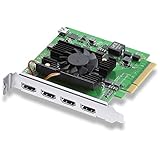
The DeckLink Quad HDMI is the professional choice and the least consumer one. Four independent HDMI 2.0b inputs in a single PCIe slot, capturing uncompressed 8, 10 and 12-bit RGB 4:4:4 and YUV 4:2:2 up to 4Kp30 DCI and 4K60, plus eight channels of embedded 24-bit 48 kHz audio. Nothing is compressed before it reaches your machine, which is why it holds up in multi-camera live production.
It is also the only card here that runs on Linux, alongside Mac and Windows, which answers a recurring question about capture hardware that works outside Windows. The warranty is three years, and the weight is 128 grams at 6 by 6 by 1 inches.
Color support covers Rec. 601, Rec. 709 and Rec. 2020 with Deep Color and HDR, and it works with Blackmagic Design Media Express, Wirecast, vMix and OBS. Reviews from professional streamers and small broadcast operators describe running three or four sources continuously without trouble, and the 4.4-star average from 158 reviews carries a 9 percent one-star share.
Two limitations deserve a hard look. It cannot capture copy-protected HDMI sources, so streaming services that output HDCP will record as a black screen, and the PCI Express requirement is 8 lane generation 3, compatible with 8 and 16 lane slots, which rules out many budget motherboards.
When does four inputs change the result?
When you are building a live production switch rather than a single-source stream. Four sources means two cameras, a console and a remote guest feed, all captured uncompressed into one machine that vMix or OBS can cut between. For a one-source stream the extra inputs simply sit idle.
The 4K60 uncompressed capture is the other differentiator. Every other card here compresses before it reaches your PC; this one does not, so the color and detail survive a 4K source intact.
Is it over-engineered for a single streamer?
Almost certainly, yes. You would be paying for four inputs, uncompressed capture and broadcast audio channels that a single-source stream never uses, and you would take on driver friction that the simpler cards avoid. Check your board has an x8 slot in the right lane layout before considering it.
8. UGREEN 1080p60 Capture Card – Budget Pick for Laptops and Consoles
UGREEN 2K@30Hz 1080P 60FPS Video Capture Card 4K Input HDMI to USB 3.0
4K30 input with 2K30 output
1080p60 output
Driver-free
USB-A and USB-C
Pros
- Low cost entry point for 1080p60 capture on a tight budget
- 4K30 input with 2K30 or 1080p60 output options
- Driver-free on Windows
- macOS
- Linux and iPadOS 17 or later
- Both USB-A and USB-C connectors for broad device compatibility
- Aluminum alloy casing dissipates heat and shields against EMI
Cons
- 2K at 30Hz is the top output so it cannot deliver 4K capture
- Output is unidirectional only so there is no passthrough to a display
- HDCP must be disabled on consoles before the card accepts a signal
The UGREEN card exists for a specific situation: you want clean 1080p60 out of a console or a headset and you are recording on a laptop, on Linux, or on a tablet. It presents as a standard UVC device, needs no drivers on Windows, macOS or Linux, and works with iPadOS 17 or later as well.
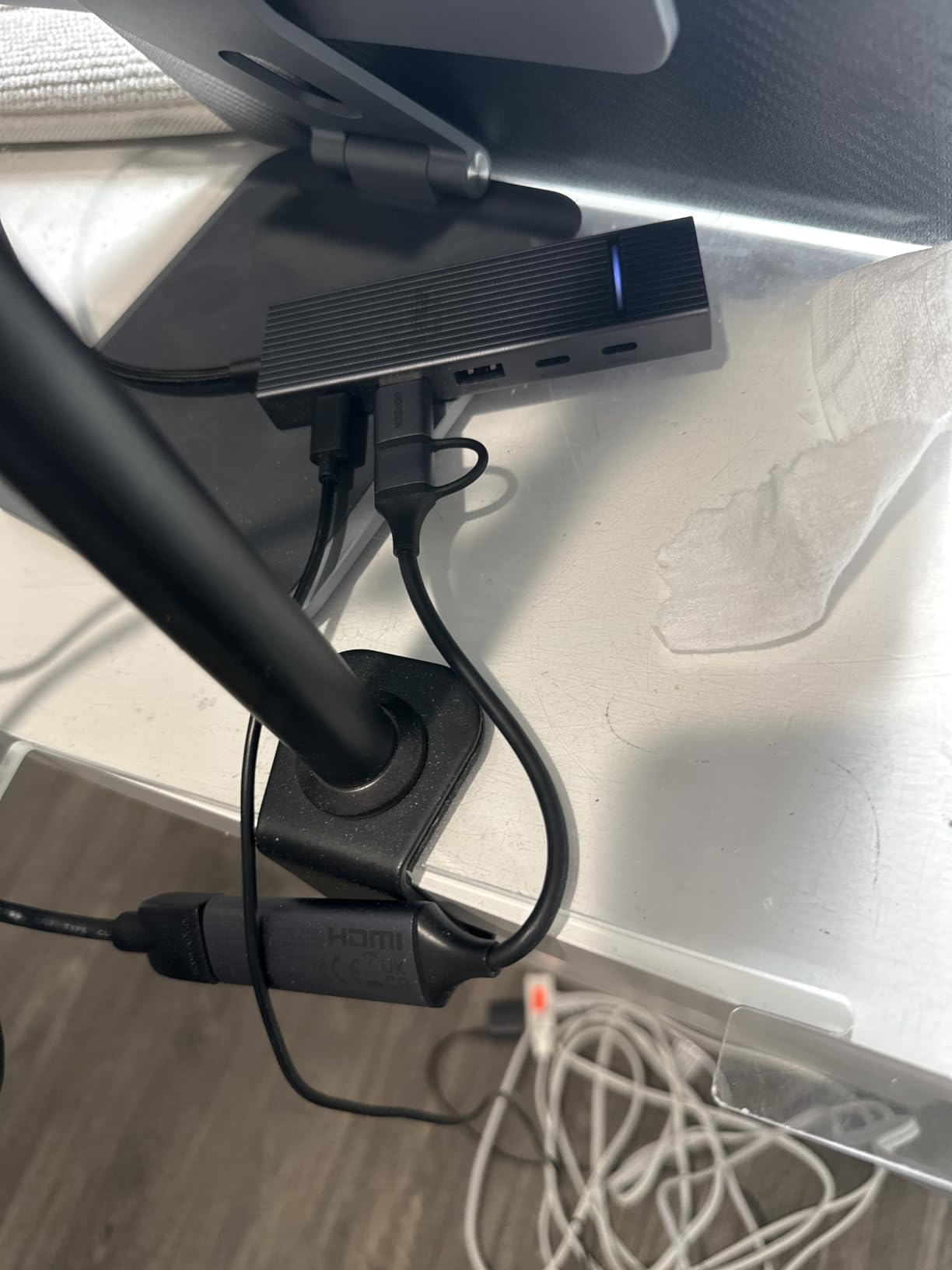
Both USB-A and USB-C connectors are on the body, and having both removes the dongle question entirely. The unit weighs 50 grams and measures 5.91 by 3.94 by 0.67 inches, with a 24-month warranty, and the aluminum alloy casing with 26AWG and 30AWG tinned copper conductors is there for heat dissipation and EMI shielding.
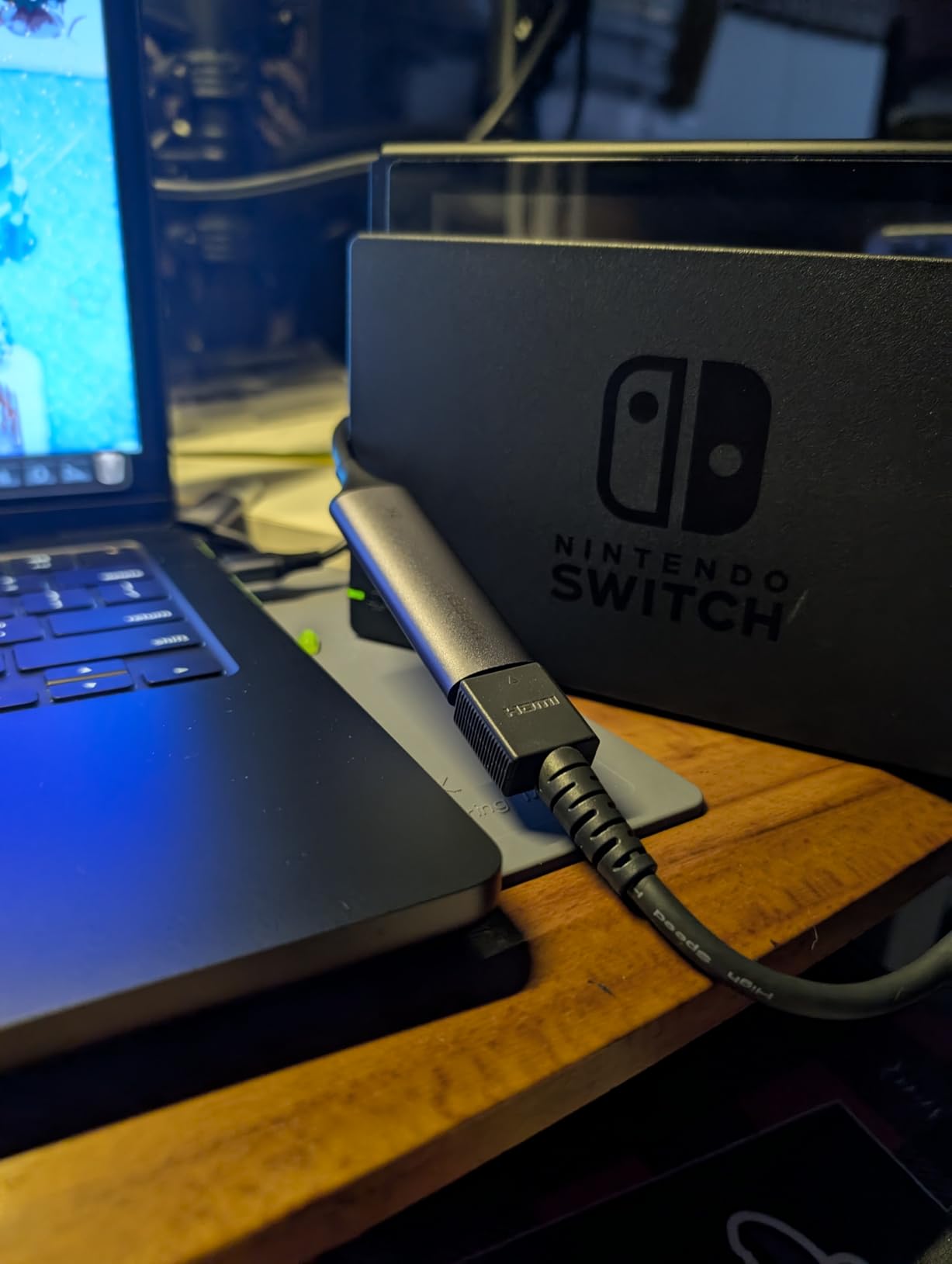
The rating is 4.5 from 861 reviews with 79 percent five-star, which is strong for a card in this class. The listed input is 4K at 30Hz with 2K at 30Hz output, backward compatible with 1080p60, and the stated data path is a unidirectional HDMI input to USB output at 5 Gbps over USB 3.0. Supported sources include laptops, iPads, phones, the Switch, Switch 2, PS4, PS5, Xbox, Xbox Series X and Meta Quest headsets.
Reviewers treat it as a budget capture option rather than a streaming centerpiece, and the 2K30 ceiling plus the missing passthrough are the two reasons. Both are fixable if you understand what they mean.
What do you give up without passthrough?
Nothing on a laptop, because the laptop screen is already showing the source. Passthrough only matters when the device is a console feeding a separate TV, and without it you would need a splitter to keep the picture on the television. If your setup is console to a capture PC with no TV involved, this card does everything you need.
Set your source to 1080p60 rather than 4K30. At 4K30 input the card outputs 2K at 30Hz, which is below what a 1080p60 stream wants.
Is a cheap card like this safe to buy?
At this level, yes, with one condition: it must sit on a genuine USB 3.0 port. The 5 Gbps data path is the whole product, and plugging it into a USB 2.0 port caps the resolution. Also turn off HDCP on your console before connecting, or the card will see nothing.
9. XIIXMASK USB 3.0 – Best Cheap Card With 4K60 Capture
XIIXMASK USB 3.0 HDMI Capture Card, 4K60FPS Capture with Pass-Through
4K60 capture with passthrough
1080p120 support
USB-A and USB-C
2 year warranty
Pros
- Supports 4K60 capture along with 4K HDMI passthrough for real-time monitoring
- Handles 1080p120 high-frame-rate input and recording
- Driver-free with no external power and both USB-A and USB-C options
- 3.5mm audio-in and mic-out ports let you mix commentary into the stream
- Wide device support including PS5
- Xbox Series X
- Switch 2
- Quest and cameras
Cons
- No model number
- weight or dimension data is published for the product
- Mixed review distribution with a notable share of 3-star and 1-star feedback
- 4K60 passthrough stability depends heavily on the host USB port and cable
Few cards in this roundup give you 4K60 capture alongside 4K passthrough, which is why the XIIXMASK earns a place here. It handles 1080p120 as well, covers the common color formats including MJPEG, YUY2, NV12 and XRGB, and needs no drivers and no external power.
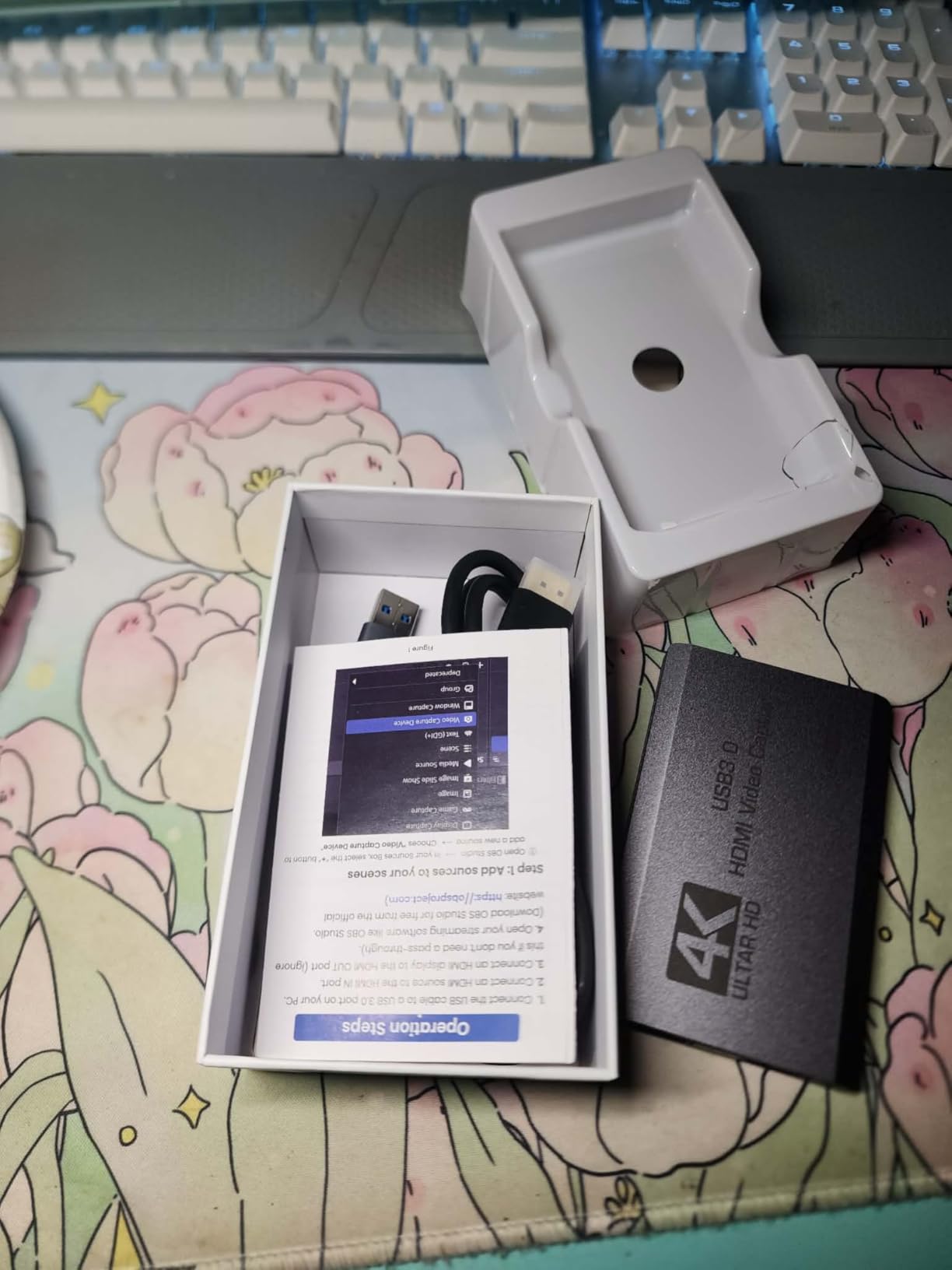
The box is unusually complete for the category: a capture card, a USB 3.0 to USB-A or USB-C cable, an HDMI cable and an English manual. The 3.5mm audio-in and mic-out ports are the feature most often overlooked, and they are exactly what you need if you want to talk over your gameplay without a mixer.
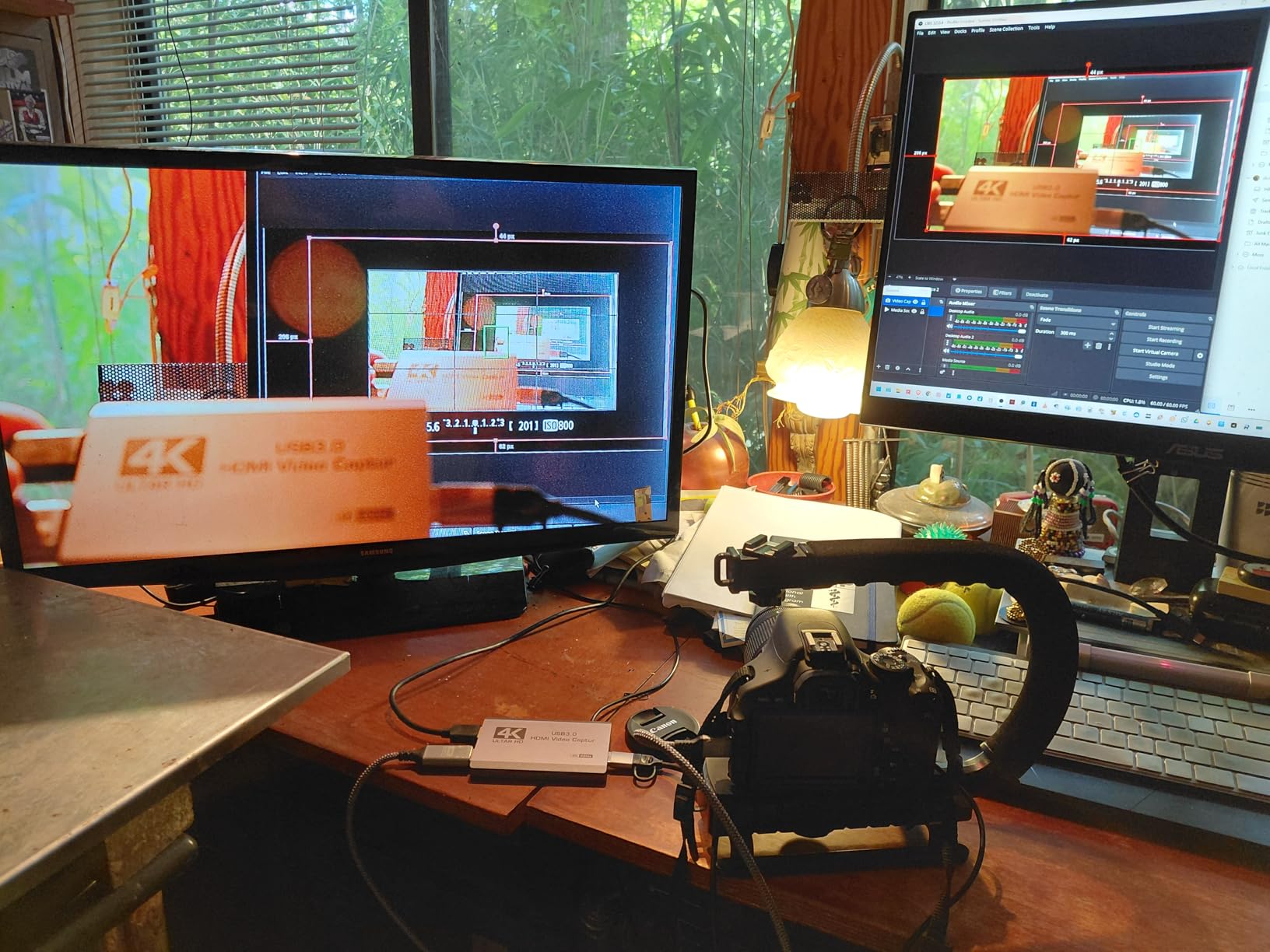
Supported systems span Windows, macOS, Linux, Android 5.0 and later and iPadOS 17 or later, and the software list includes OBS Studio, Streamlabs, VLC, PotPlayer and Zoom. Sources include PS4 and PS5, Xbox and Xbox Series X and S, Switch and Switch 2, Quest headsets, and DSLRs and webcams.
The 4.2-star average from 596 reviews tells you where the risk sits. Sixty-three percent are five-star, but 10 percent are three-star and 5 percent are one-star, and the less favorable reviews reflect inconsistency in real-world stability and a thinner support record than the established brands. The warranty is two years.
Is 4K60 capture worth the trade-offs?
Only if you are recording locally for editing. Streaming platforms do not ingest 4K60, so for a live broadcast the more useful ceiling is 1080p60, which this card also handles along with 1080p120 input. For someone building a clips channel, the 4K60 path is genuinely valuable.
Check your USB port before you commit. The card runs on USB 3.0, and stability at 4K60 depends on the host port and the cable, so a shared hub port is the most common route to a disappointing result.
Should you choose a named brand instead?
If this is your main streaming device and you cannot afford to troubleshoot, yes. Elgato and AVerMedia publish consistent specifications, carry longer warranties and have support paths that answer. Pick the XIIXMASK when the feature list at the price matters more to you than the support history.
10. ASUS TUF Gaming CU4K30 – Best for 1080p120 Capture
ASUS TUF Gaming Video Capture Card (CU4K30) 4K/2K/1080P 120 FPS & HDR Passthrough, Near-Zero Latency, Certified for OBS, USB 3.2, Plug & Play, Record & Stream with PC, PS5, Xbox, Switch
4K HDR passthrough
4K30, 2K60 and 1080p120 capture
USB 3.2 Type-C
1 year warranty
Pros
- Streams in 4K up to 30 fps
- 2K up to 60 fps and Full HD up to 120 fps
- HDR passthrough at up to 4K 60Hz to a second display
- Genuine plug-and-play UVC with no extra drivers or utilities
- Certified OBS Studio compatibility for predictable streaming behavior
- Metal alloy shell is durable while staying slim
Cons
- Aluminum casing traps heat and can freeze after streaming beyond about three hours
- Intermittent dropouts force users to replug cables until it is recognized again
- 4K capture is limited to 30 fps so passthrough 4K60 is not matched on the capture side
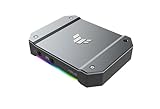
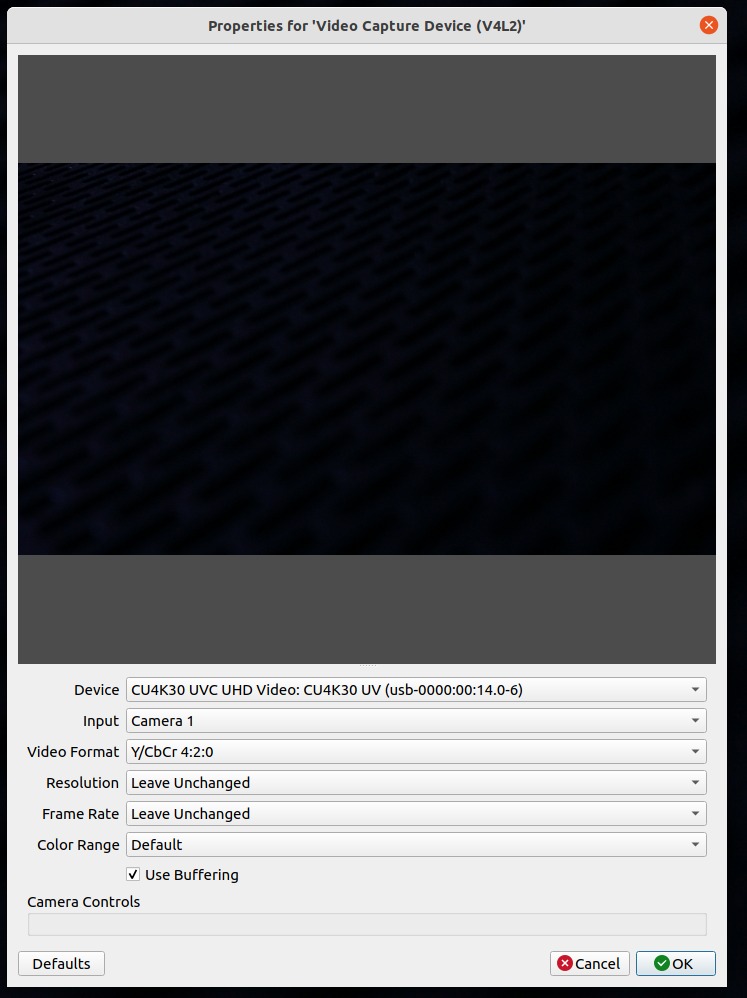
The TUF Gaming CU4K30 covers the resolution ladder that most people actually want: 4K at 30 fps, 2K at 60 fps and Full HD at 120 fps, with HDR passthrough up to 4K 60Hz to a second display. The output formats are H.264 and H.265, and the card is certified for OBS Studio compatibility, which matters more than it sounds because it removes guesswork from source setup.
It connects over USB 3.2 Type-C, runs on Windows, and needs a host capable of handling the resolution and frame rate you want along with the OBS system requirements. It is heavier than the pocket-sized dongles here, at 423 grams and 6.4 by 5.5 by 2.5 inches, and the alloy shell is doing thermal work. The warranty is one year.
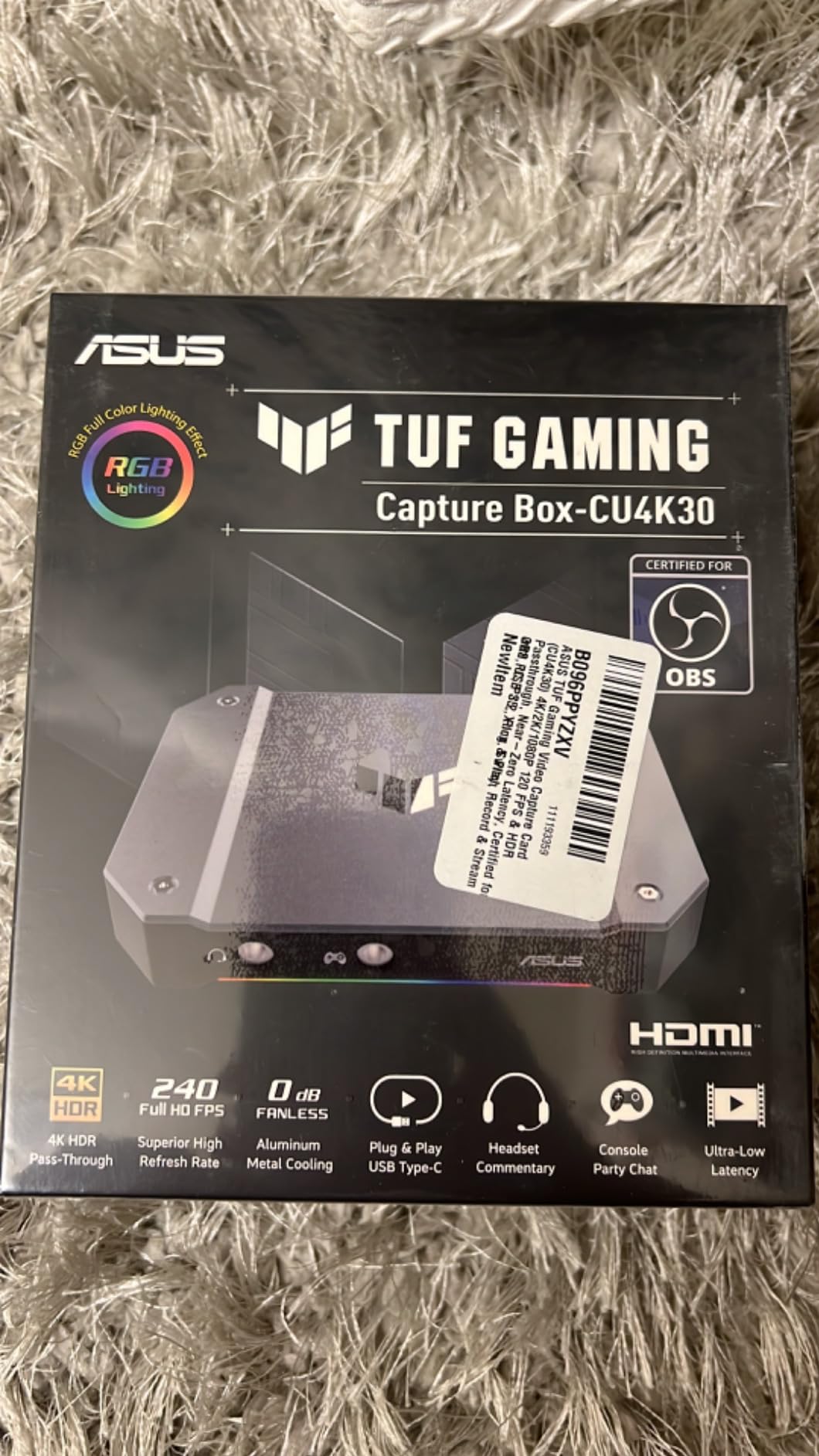
It is a capture box rather than an internal card despite the category label, so it works with a console, a PC or a camera without opening a case. Controller and headset audio can be shared with the audience, which reviewers moving up from older capture hardware appreciate.
The rating spread is the widest in the group. At 4.2 stars from 291 reviews, 65 percent are five-star but 10 percent are one-star, and the complaints are specific: heat-related freezing after long sessions in a warm room, intermittent dropouts, and slow vendor support on warranty claims. A firmware update is often required out of the box through the Video Capture Console utility.
Is 1080p120 capture worth choosing this card for?
If your display runs at 120Hz and you record slow-motion gameplay, yes. Few external cards handle 1080p120, and a certified OBS path removes the trial-and-error that usually comes with high-frame-rate sources.
Keep the machine in a ventilated room if you buy it. The heat complaint is the most consistent in the reviews, and a freeze after a three-hour session is a real possibility in a warm space.
How does the one-year warranty compare?
It is the shortest here, alongside the HD60 S, and both of those are also the two most established cards in the list with the largest review bases. AVerMedia offers three years on the Mini and the GC575, and Blackmagic offers three on the DeckLink, which is worth factoring into a long-term purchase.
How to Choose the Right Capture Card
Do you even need a capture card?
You do not need one for PC games, because OBS game capture hooks the graphics card directly and costs nothing. You do not need one for a webcam, because a webcam is already a USB video source that OBS sees as a camera. You need one whenever the source device cannot be installed on the machine doing the recording, which covers every console, every handheld and every camera with an HDMI output.
There is a fourth group that keeps surfacing in forums: people who do not stream and do not record, and only want a console on a second monitor. A capture card solves that, though a second HDMI input on the television is often the cheaper answer. Check that before you buy hardware.
External USB or internal PCIe?
Choose external if the source is a console, a camera, a handheld or a different machine, and if you might move the setup. Plug it in, and OBS sees it. Choose internal if the source is a PC sitting in the same chassis, particularly in a dual-PC streaming build, because the signal crosses PCIe instead of a USB cable and never contends for bandwidth.
Internal cards have real costs: a free slot, a Windows host for most models, and no portability. The GC575 needs a PCIe 3.0 slot and the DeckLink Quad needs eight lanes of PCIe generation 3, so verify the board before buying either. Whichever route you take, the streaming machine still needs a capable GPU, which is why our graphics card guide is worth a look for a build from scratch.
Capture resolution versus passthrough resolution
This is the single most misunderstood spec pair in the category. Passthrough is the HDMI loop-out to your display, and capture is what gets recorded to disk. They are different numbers on the same box, and only one of them affects your video file. A card advertising 4K passthrough while capturing at 1080p is common, and the ASUS TUF CU4K30 in this list is a clear example.
For streaming, capture resolution is what matters, and 1080p60 covers every major platform. For local recording and editing, you need 4K capture, which is a much smaller group: the 4K X, the XIIXMASK and the DeckLink Quad at genuine 4K capture, and the GC575 for high-refresh 1440p and 1080p240.
HDMI 2.0 versus HDMI 2.1, VRR and HDR
HDMI 2.0 tops out around 4K60, which covers a standard console setup completely. HDMI 2.1 raises the ceiling to 4K120 and 4K144 and to 1080p240, and it is what carries variable refresh rate and HDR10 through to a capable second display. If your monitor is a high-refresh panel and your console can output above 4K60, you want 2.1.
VRR and HDR passthrough are about the second screen, not the recording. The Blackmagic DeckLink cannot pass copy-protected HDMI, which is a different problem entirely, and HDR handshake issues on PS5 are one of the most common failures we see and are covered in the troubleshooting section below.
Elgato versus AVerMedia
Elgato wins on software polish and on the low end. The HD60 S and the Cam Link 4K carry the two largest review bases here, and the 4K X is the external card in the roundup with HDMI 2.1 plus VRR and HDR passthrough. A recurring complaint about the brand is its premium compared with generic cards that appear far cheaper.
AVerMedia wins on hardware variety and on warranty length. Three-year manufacturer warranties on the Live Gamer Mini, the GC575 and the Live Gamer Duo are the longest here, the GC575 is the pick for a high-refresh internal build, and the Live Gamer Duo is the only dual-input card in the group. If you want HDMI 2.1 internally or two simultaneous angles, AVerMedia is the answer.
What latency numbers actually mean
Passthrough latency is what you feel while playing, and on the cards in this list it is either zero or close to it, because the loop-out is a direct relay rather than a processed signal. Capture latency is what you see in the OBS preview, and it is where compressed external cards add delay through their encoder. Stream latency is a third, separate thing caused by your encoder bitrate and your upload speed.
What actually causes visible lag in OBS is usually a software problem, not the card. Preview stuttering that drops to 30 or 40 fps for a few dozen seconds is a USB bandwidth or encoder issue, not a capture latency figure. We cover it below.
When a cheap card is genuinely the right call
A low-cost card is fine for three specific jobs: sharing a console or headset to a laptop or tablet, putting a video call on a second screen, and learning whether you enjoy streaming before spending properly. The UGREEN card covers the first two cleanly, with driver-free UVC on Windows, macOS and Linux and both USB-A and USB-C on the body.
Buy a named brand instead when latency, color accuracy and long-session stability matter, when you record long sessions rather than clips, or when a failure would end a live broadcast. The difference shows up in the review distributions: established cards cluster near five stars, while budget cards carry a visible one-star tail.
Fixing the Four Failures Everyone Hits
Black screen in OBS and in the capture utility
A black screen in both OBS and the manufacturer’s own utility almost always means the card is not receiving a signal, rather than a software problem. Work through these in order: connect the source directly to the card and the card to the display, confirm the card’s input is selected in the capture software, and try a different HDMI port on the source device. If the source is a console, HDCP protection blocks the signal until you disable it, and the DeckLink cannot capture copy-protected HDMI at all.
If it works on one machine and not another, the difference is usually the USB port. A shared or hub port often cannot supply the 5 Gbps the card needs, and the fix is a direct port on the machine itself.
OBS is not picking up audio from the card
Audio usually arrives as a separate UAC device from the video, so OBS needs it enabled independently. In OBS, open Settings, go to Audio, and check that the capture card’s audio input is set to default and not muted per source. On the source itself, the Audio Input setting should match the card rather than your default microphone.
Also check the source device is sending audio at all. Consoles can output video-only over HDMI, and a camera in a photo mode may stop sending sound. Add a headphone monitoring check to confirm the card is receiving anything before you debug software.
Stuttering preview and dropped frames
A preview that stutters down to 30 or 40 fps for around 45 seconds while you are not even recording points at USB bandwidth or encoder settings, not the card’s latency. Move the capture card to a direct USB 3.0 or Gen 2 port rather than a hub, and drop the capture resolution by one step to see if the problem follows the resolution or the port.
On the software side, switch OBS to hardware encoding with NVENC or QuickSync, and lower the output bitrate rather than the frame rate. A 1080p60 stream at a moderate bitrate will hold frame rate far better than a 4K60 capture you are re-encoding.
Nothing works on PS5 or Xbox Series X
When a modern console will not start a capture on an otherwise working card, start with the console’s output setting. Put the PS5 or Xbox into 4K or 120Hz mode and confirm the card supports the resulting signal, because a card without HDMI 2.1 bandwidth will not negotiate a 4K120 stream. On a PlayStation, disable HDCP in the capture and broadcast settings, and check that no other HDMI splitter is sitting in the chain.
Reconnect the whole chain in a known-good order: console to card, card to display, card to PC. Swap the HDMI cable before anything else, since a cable that negotiates HDMI 2.0 will silently cap the whole chain. If the card has a companion utility, confirm the signal is visible there before you touch OBS at all.
Frequently Asked Questions
Is Elgato or AVerMedia better?
Elgato leads on software polish and beginner friendliness, with the HD60 S and Cam Link 4K carrying the largest review bases in this roundup. AVerMedia leads on hardware choice and warranty length, offering three-year warranties, the only dual-input card and the strongest HDMI 2.1 internal option. Pick Elgato for console streaming simplicity and AVerMedia for internal or dual-source builds.
Do streamers still use capture cards in 2026?
Yes, and the use case has broadened. A capture card remains the only way to get console, handheld or camera video into OBS, and a growing share of users now buy one purely for local recording and clips because unreliable internet pushes them away from live broadcasting. The hardware needed for 1080p60 streaming is also cheaper and more reliable than it has ever been.
Is a capture card better than OBS game capture?
They solve different problems. OBS game capture hooks your graphics card directly and is free, instant and lossless for PC games. A capture card is required for anything you cannot install on the recording machine, including consoles, handhelds and cameras. If your source is a PC game on the same machine, a capture card adds cost and a small amount of latency for no benefit.
Why is my capture card not working with my PS5?
Check four things in order. Confirm the PS5 output resolution is one the card supports, since 4K120 needs HDMI 2.1 bandwidth. Disable HDCP in the console’s capture and broadcast settings. Make sure no HDMI splitter sits between console and card. Finally, connect the card directly to a USB 3.0 or Gen 2 port on the PC rather than through a hub, and swap the HDMI cable first.
Why is OBS not picking up audio from my capture card?
Audio arrives as a separate device from video. In OBS, open Settings, go to Audio, and set the capture card’s audio input as the default. On the video source itself, change Audio Input from your default microphone to the capture card. Then confirm the source device is actually sending sound, because consoles can output video only and cameras often stop audio in photo mode.
The Capture Card Shortlist for 2026
If you buy one card, buy the Elgato HD60 S. It holds a 4.6-star average across more than 25,000 reviews, it captures 1080p60 cleanly, its passthrough adds no lag, and the review history behind it is the most established of any card here. For a console into a PC, that combination of reliability and evidence is the shortest path to a working stream.
Match the rest to your source. Use the Cam Link 4K when a camera is your video source. Use the Elgato 4K X when a high-refresh display and VRR passthrough matter. Use the AVerMedia Live Gamer Mini for a budget external setup, the GC575 for an internal high-refresh build, the Live Gamer Duo for two simultaneous angles, the DeckLink Quad for multi-source production, and the UGREEN or XIIXMASK when the budget is genuinely tight.
Ratings and review counts on this page reflect the product listings as of September 2026. Capture card specifications do not change often, but firmware updates and host software requirements do, so check the current compatibility notes before you buy. If you are still working out the rest of the build, our graphics card picks cover the other component that decides whether your encoder keeps up.