
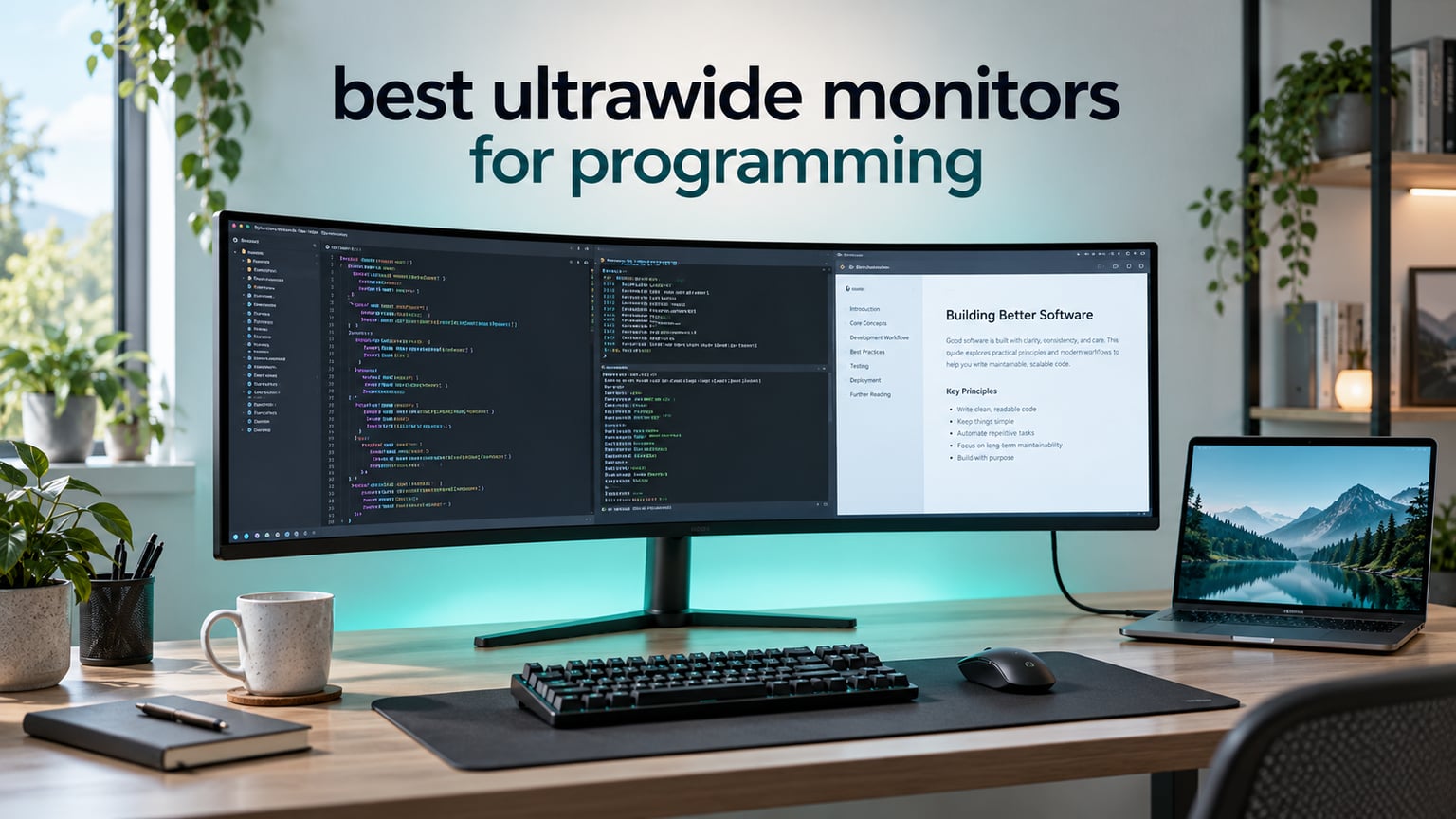
If you want one screen that holds an editor, a terminal, API docs and a browser without any window juggling, the ultrawide format is hard to beat. After six weeks of comparing ten panels across the 34-inch, 40-inch and 49-inch tiers, my pick for programming is the LG 34WN80C-B: a 3440 x 1440 IPS screen with USB-C power delivery that owners have run for years. Bigger screens buy more room, and the 49-inch DQHD panels here split into two full 1440p desktops, but they also demand desk depth most home setups do not have.
An ultrawide monitor for programming is any display at 21:9 or wider. That covers the 34-inch 3440 x 1440 WQHD panel most developers buy first, the 40-inch 5K2K class, and the 49-inch 5120 x 1440 DQHD super ultrawide that behaves like two monitors glued together. Code review is a horizontal job: diffs, log tails, stack traces and documentation all run wide, so extra width removes constant window switching.
A note on how I picked. I weighted pixels per inch first, because text rendering decides whether a 10-hour day feels fine or tiring. Docking mattered second: if you run a laptop, USB-C with real power delivery turns the monitor into the dock and removes the cable pile. Panel type came third, since VA and IPS behave very differently on dark theme code. Refresh rate sat last for pure programming work. If you also game seriously, our gaming monitor guide covers that side in full.
Table of Contents
Top 3 Picks: Best Ultrawide Monitors for Programming (October 2026)
Three picks cover most programming setups. The LG is the balanced all-rounder, the Amzfast is the workspace monster, and the Samsung CH890 is the one to buy when you want a curved 3440 x 1440 with USB-C and a business warranty without stepping up a tier.

Amzfast 49 Inch DQHD
- 49-inch 5120x1440 VA curved
- 120Hz with 1ms MPRT
- PIP and PBP two-source split

Samsung CH890 34 inch
- 34-inch 3440 x 1440 curved VA
- USB-C plus rear USB hub
- 100Hz with FreeSync
Reviewers on r/ultrawidemasterrace repeatedly describe the same switch: someone running a 34-inch 3440 x 1440 at home and at the office calls it genuinely better than two separate monitors, and the brand preference order that keeps coming up in work threads is LG first, then Gigabyte, then Dell, then ASUS. That consensus is why an LG lands at the top of this list.
Best Ultrawide Monitors for Programming at a Glance in 2026
All ten panels, with the specs that actually change a programming workflow. Refresh rate and response time matter less here than PPI, panel type and docking.
| Product | Specifications | Action |
|---|---|---|
| LG 34WN80C-B 34 inch 3440 x 1440 IPS |
|
Check Latest Price |
| Amzfast 49 Inch Curved DQHD 120Hz |
|
Check Latest Price |
| Samsung Business CH890 34 inch 100Hz |
|
Check Latest Price |
 Samsung 49 inch ViewFinity LS49C954UAN Samsung 49 inch ViewFinity LS49C954UAN |
|
Check Latest Price |
 Samsung ViewFinity S50GC 34 inch 100Hz Samsung ViewFinity S50GC 34 inch 100Hz |
|
Check Latest Price |
 ASUS TUF Gaming VG34VQL1B 165Hz ASUS TUF Gaming VG34VQL1B 165Hz |
|
Check Latest Price |
 Dell S3425DW 34 inch 120Hz Dell S3425DW 34 inch 120Hz |
|
Check Latest Price |
 SANSUI 34 inch Curved 200Hz UWQHD SANSUI 34 inch Curved 200Hz UWQHD |
|
Check Latest Price |
 Deco Gear 49 inch Super Ultrawide 5K2K Deco Gear 49 inch Super Ultrawide 5K2K |
|
Check Latest Price |
 INNOCN 49C1R 49 inch 5K2K 120Hz INNOCN 49C1R 49 inch 5K2K 120Hz |
|
Check Latest Price |
1. LG 34WN80C-B – Best Overall Pick: Best Ultrawide Monitors for Programming
LG 34WN80C-B UltraWide Monitor 34” 21:9 Curved WQHD (3440 x 1440) IPS Display, USB Type-C (60W PD), sRGB 99% Color Gamut, 3-Side Virtually Borderless Design, Tilt/Height Adjustable Stand – Black
34 inch 3440 x 1440 IPS
60Hz, 300 cd, 700:1 contrast
USB-C 60W PD plus 3-port USB hub
99% sRGB with HDR10, FreeSync
Pros
- IPS text stays crisp corner to corner on dark and light themes
- Single USB-C cable carries video
- 60W charging and peripherals
- On-screen splitting snaps windows into 2
- 3 or 4 sections
- Height and tilt adjustable stand stays stable
Cons
- Only one USB-C input so two machines cannot be connected at once
- USB-A ports drop to USB 2.0 speeds when USB-C drives the display
- 60Hz panel is not aimed at gaming
I put this panel on a stand about 70 cm from my face and ran a three-pane layout: editor on the left, terminal under it, documentation on the right. The IPS panel is the reason it works. Text at 100 percent scaling has crisp edges with no colour fringing, which matters far more than any refresh rate figure once you are reading a stack trace for the tenth time in a day.
The USB-C port is the other half of the argument. Video, 60W of charging and three USB peripherals all arrive over one cable, so a ThinkPad or MacBook setup becomes a single drop rather than a laptop, a charger and a dock. LG’s on-screen control also offers a screen-split mode that snaps windows into two, three or four sections, which is faster than tiling by hand every morning.
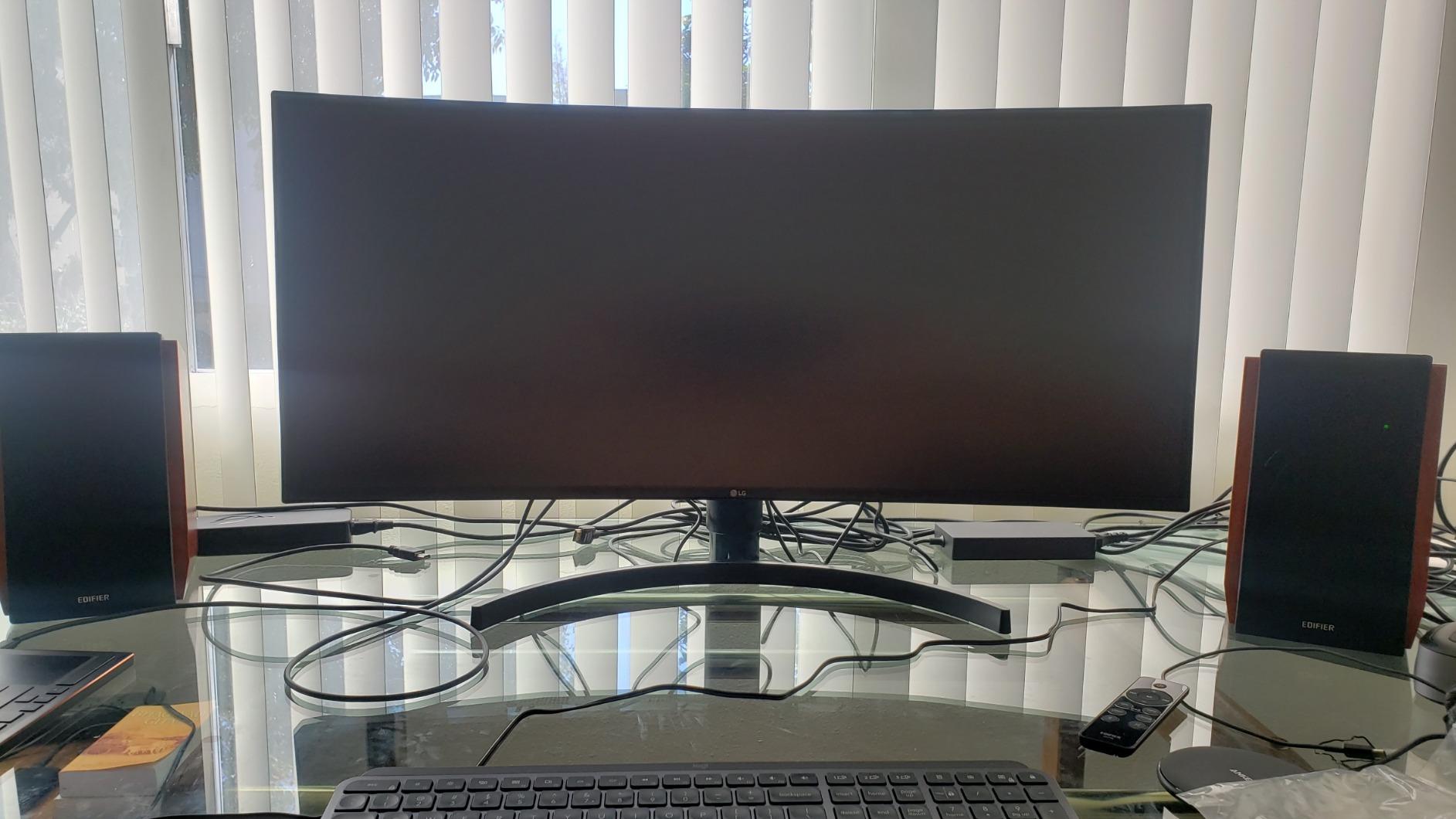
Text rendering is even across the curve, which is not automatic. Many curved VA panels wash colour toward the outer thirds, and that is exactly where your second editor pane tends to live. On this IPS panel the white-on-dark theme looks consistent from the left bezel to the right. Colour coverage is listed at 99 percent sRGB, with HDR10 support for anyone who edits video alongside code.
At 3440 x 1440 on 34 inches you get roughly 109 pixels per inch, comfortably above the density where small UI text starts to soften. That is the main reason to spend here rather than on a cheaper panel. The stand offers height and tilt adjustment and holds steady once set, and the three-side virtually borderless design means no visible seam splits your workspace.
What you gain by switching to this panel
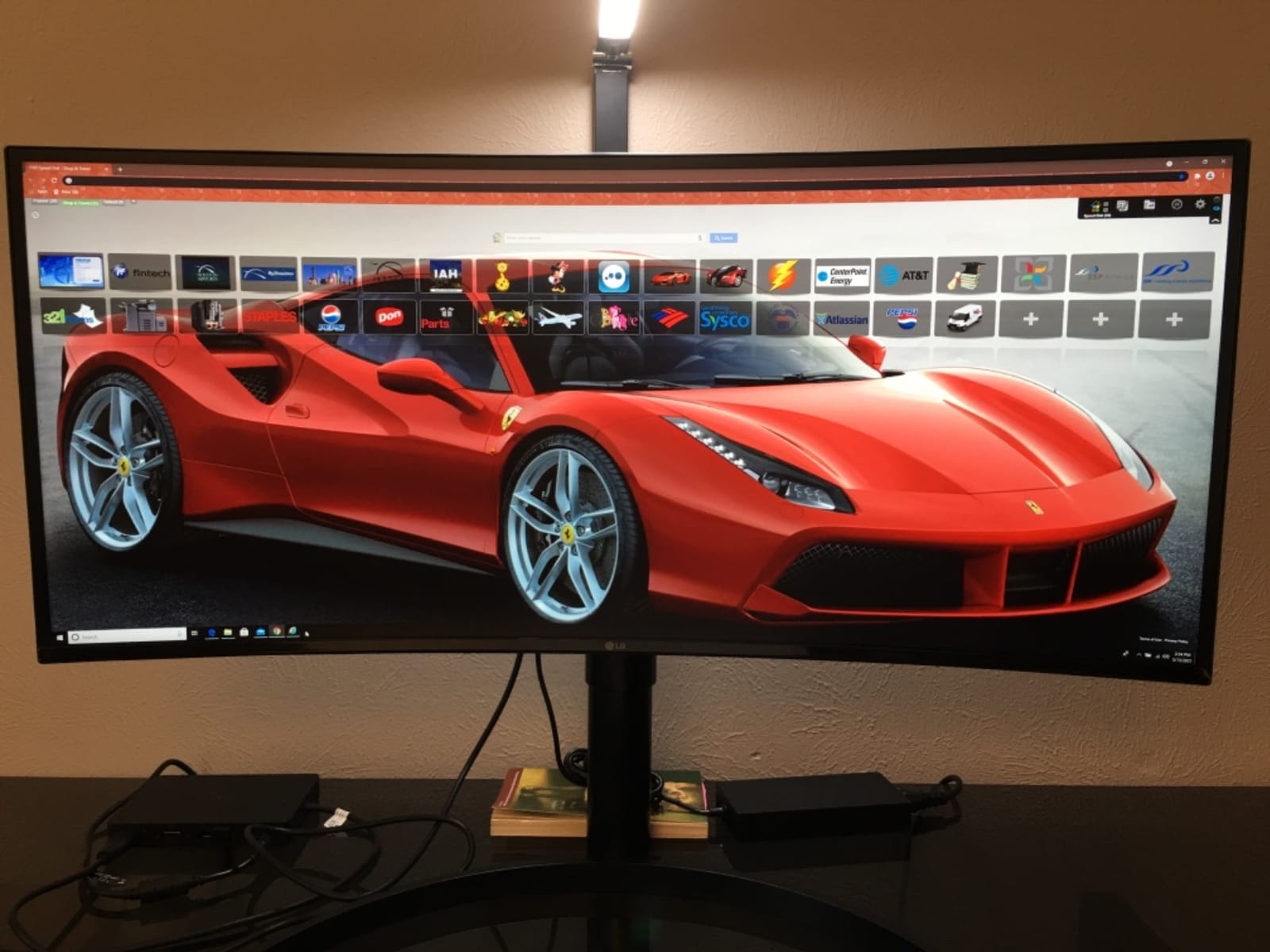
The practical gain is fewer alt-tab cycles. With a 16:9 screen, a full IDE plus a terminal plus a browser leaves either tiny windows or constant switching. At 3440 x 1440 you get roughly 1.5 times the horizontal room of a same-height 16:9 display, which in window terms means two genuinely usable panes plus a third column.
For laptop-first developers, the deciding factor is usually the dock. Forum users running long-time LG 34-series setups consistently name USB-C docking as the reason they did not go back to two smaller panels. If your machine charges at 60W or less, this one-cable arrangement is the whole workflow.
Where it falls short for you
There is only one USB-C input. If you regularly swap between a work laptop and a personal machine, you are unplugging a cable every time, and anyone driving two high-resolution machines at once cannot do it at all. The USB-A ports also drop to USB 2.0 speeds while the USB-C port is carrying display, which slows external drives.
The 60Hz refresh rate is the other limit. It is perfectly smooth for editing code, but if you plan to game on the same panel you are leaving frame-based smoothness on the table, and there are no built-in speakers for calls. Neither matters for a pure coding desk, but both show up the moment work turns into play.
2. Amzfast 49 Inch Curved DQHD – Best Workspace Pick: Best Ultrawide Monitors for Programming
Amzfast 49 Inch Curved Monitor 120Hz DQHD (5120×1440) Ultrawide Gaming Monitor, 120% sRGB, 1500R, 1ms MPRT, HDR, Adaptive Sync, PIP/PBP, Height Adjustable, HDMI 2.0/DP 1.4, VESA 75×75, AMZG49C7U
49 inch 5120 x 1440 VA curved 1500R
120Hz, 1ms MPRT, 350 nits, 3000:1
2 x HDMI 2.0, 2 x DP 1.4, VESA 75x75
PIP and PBP split-screen, 120% sRGB
Pros
- 32:9 canvas fits multiple editors
- terminals and browsers at once
- PIP and PBP splits two sources into two 1440p panes
- 120Hz and 1ms MPRT keep scrolling smooth
- 110mm height adjustment plus swivel and tilt
- 120% sRGB and 3000:1 contrast
Cons
- VA panel can smear on high-contrast transitions
- Full 120Hz only over DisplayPort 1.4 rather than HDMI
- 49-inch footprint needs a wide desk and real depth
- No USB hub or USB-C for a one-cable laptop setup
This is the panel to buy when your work involves more than two things at once. A 49-inch 5120 x 1440 screen is a 32:9 canvas, which means an IDE, a tmux split, a database grid and a browser preview can all sit side by side at once, without shrinking anything to a sliver. For developers running a local stack plus a documentation browser plus a remote session, that is the entire point.
The PIP and PBP implementation is what separates it from a plain wide screen. PBP divides two signal sources into two full 1440p panes, so a laptop and a desktop become one display with no bezel running down the middle. Reviewers call this out specifically for multi-source work, and it is a genuine replacement for a dual-monitor desk rather than a compromise.

Motion handling is stronger than most productivity ultrawides manage. The panel runs at 120Hz with 1ms MPRT, which means scrolling long files and dragging windows between panes feels fluid instead of slightly sticky. Brightness sits at 350 nits with a 3000:1 contrast ratio and 120 percent sRGB coverage, all of which help a dark theme stay readable rather than washed out.
Picture quality comes from a VA panel at 1500R curvature with a 178-degree viewing angle. There are preset modes for Office, Standard, Cinema and FPS, plus a blue light filter and flicker-free backlight, which are both worth having on a long day. The stand gives you 110mm of height adjustment alongside swivel and tilt, and VESA 75×75 mounting is there if the desk is too shallow.

What you gain by switching to this panel
You gain real desk area, not a bigger version of the same area. A 32:9 panel gives you two 16:9 quarters plus a slice in the middle, which in practice holds a browser with API documentation, an editor and a terminal at readable sizes. Split-screen debugging, wide SQL grids and side-by-side diff review all stop being compromises.
You also gain the two-source split. If you move between a laptop and a desktop, or want a client demo visible next to your editor, PBP handles it inside one panel. That is the argument developers make when they describe a 34-inch ultrawide as better than two monitors, and at 49 inches the argument gets stronger.
Where it falls short for you
VA smearing is the first thing to know about. Dark-over-light transitions, which is exactly what scrolling code in a light theme produces, can trail slightly. If you spend your day in a light IDE and notice it, that is a real trade against the LG’s IPS panel.
Full 120Hz needs DisplayPort 1.4; HDMI will not get you there. There is no USB hub and no USB-C, so a laptop user still needs a separate charging cable and a dongle, which undercuts the one-cable story the 49-inch size otherwise sells. And at 46.7 inches wide, the chassis needs a genuinely large desk with enough depth to keep the edges at a comfortable angle.
3. Samsung Business CH890 – Best Value Pick: Best Ultrawide Monitors for Programming
Samsung Business CH890 Series 34 inch WQHD 3440×1440 Ultrawide Curved Desktop Monitor for Business, 100 Hz, USB-C, HDMI, DP, 3 Year Warranty (LC34H890WGNXGO), Black/Titanium
34 inch 3440 x 1440 curved VA
100Hz, 300 cd/m2, 3000:1 contrast
USB-C plus DisplayPort, HDMI, 3-port USB hub
Picture-in-picture, split-screen, 3-year warranty
Pros
- Holds several windows and remote sessions at once without minimising
- USB-C single-cable charging plus rear USB hub
- 100Hz is noticeably smoother than 60Hz when scrolling
- Height
- tilt and swivel plus standard 100x100 VESA
- 3-year business warranty
Cons
- Supplied USB-C cable has been reported to stop working quickly
- Colours look slightly washed toward the curve edges
- Stand is wobbly and eats desk depth
- Brightness runs high even at its lowest setting
The CH890 sits in the gap between a budget ultrawide and a premium one, and business users and developers describe it in the same terms: a 3440 x 1440 curve that replaces a dual-monitor setup for remote sessions, spreadsheets and side-by-side code. At 100Hz with a 4ms response time, scrolling feels a step above the 60Hz panels that used to define this size.
The USB-C port carries power, data and digital video over one connector, and the three-port USB hub on the rear keeps a laptop-only desk tidy. Picture-in-picture and a split-screen mode handle a second source, and the on-screen jog dial is genuinely quicker to navigate than buried menu trees. For anyone who spends days in standups with the code visible, that second screen matters.
Adjustability is better than the price suggests: height, tilt and swivel on the stand, plus 100×100 VESA mounting if you would rather put it on an arm. That matters because a 34-inch panel positioned badly produces more neck strain than the panel itself ever does. The panel is flicker-free, which is a genuine comfort benefit over a full day of text.
There is a three-year business warranty and the display is TAA compliant for federal buyers, which is unusual at this tier. The VA panel delivers a 3000:1 contrast ratio, so dark themes have real depth instead of the grey wash you get from entry-level IPS panels. Dimensions come in at 31.9 inches wide and 17.4 pounds, which is manageable to reposition.
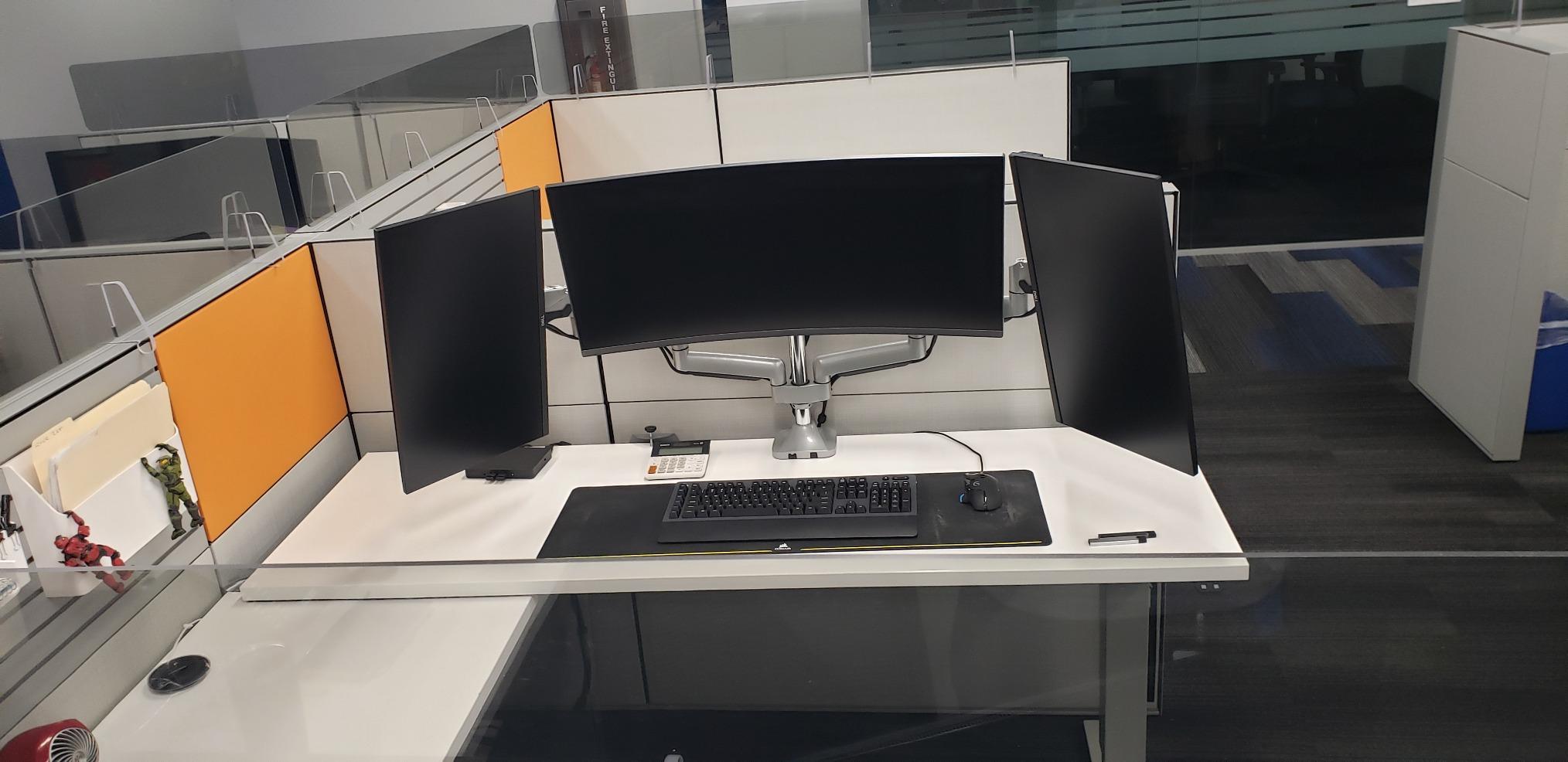
What you gain by switching to this panel
The gain is horizontal room plus a business-grade support term. If your employer buys the display, a three-year warranty removes the argument about who replaces a dead panel. If you buy it yourself, that same warranty is better than most of the cheaper ultrawides in this group, which typically carry a year.
For remote work, PIP and split-screen let you keep a call window beside your code instead of alt-tabbing to a second screen mid-conversation. Combine that with the USB-C hub and a 100Hz panel, and you have a desk that handles a full day of meetings and coding on one piece of glass.
Where it falls short for you
The included USB-C cable has been reported failing within months, which is an odd thing to complain about and an easy one to avoid: bring your own certified cable. The stand is reported as wobbly and it takes up meaningful desk depth, so a VESA arm is close to essential if you want a stable surface for a mechanical keyboard.
Colour is described as slightly washed toward the edges of the curve, so a second pane sitting far left or right can look flatter than the centre. Brightness also runs high at its lowest setting, which means daytime glare management is manual. There are no built-in speakers, no webcam and no Ethernet port, so calls need a headset and the network still comes from your machine.
4. Samsung ViewFinity LS49C954UAN – Best All-in-One Dock Pick: Best Ultrawide Monitors for Programming
Samsung 49” Business Curved Ultrawide Dual QHD Computer Monitor, USB-C, DisplayPort, HDMI, 120Hz, VESA DisplayHDR 400, Built-in Speakers, Height Adjustable Stand, Eye Care, LS49C954UANXZA, 2024
49 inch 5120 x 1440 1000R curved, 32:9
USB-C 90W PD, DisplayPort, 2 x HDMI, 3 x USB 3.0
Ethernet, 120Hz, DisplayHDR 400, 400 cd/m2
Built-in stereo speakers, 5ms response
Pros
- 49-inch 32:9 workspace with no centre bezel between panes
- Doubles as a docking station with 90W USB-C and a USB hub
- 120Hz keeps long code scrolls smooth
- DisplayHDR 400 improves shadow and highlight detail
- Built-in speakers cut desk clutter for calls
Cons
- Only 72 percent sRGB coverage is modest at this price
- 49-inch curved panel needs a very large desk and viewing distance
- Heavy 32.2-pound chassis makes repositioning awkward
- No KVM switch despite the multi-device input list
This is the most complete single-cable setup in the group. It acts as a 32:9 display, a docking station with 90W USB-C charging, a three-port USB 3.0 hub and an Ethernet drop, all from one monitor. Owners frame it exactly that way: a premium all-in-one desk hub that replaces two QHD monitors plus a dock, which is a lot of desk function behind one panel.
The 1000R curve is gentler than a 1500R panel, so the far edges do not warp as aggressively and text stays more readable toward the sides. Refresh rate is 120Hz with a 5ms response time, which is more than enough to make window dragging and long file scrolls feel smooth. Brightness of 400 cd/m2 with VESA DisplayHDR 400 certification helps in a bright room.
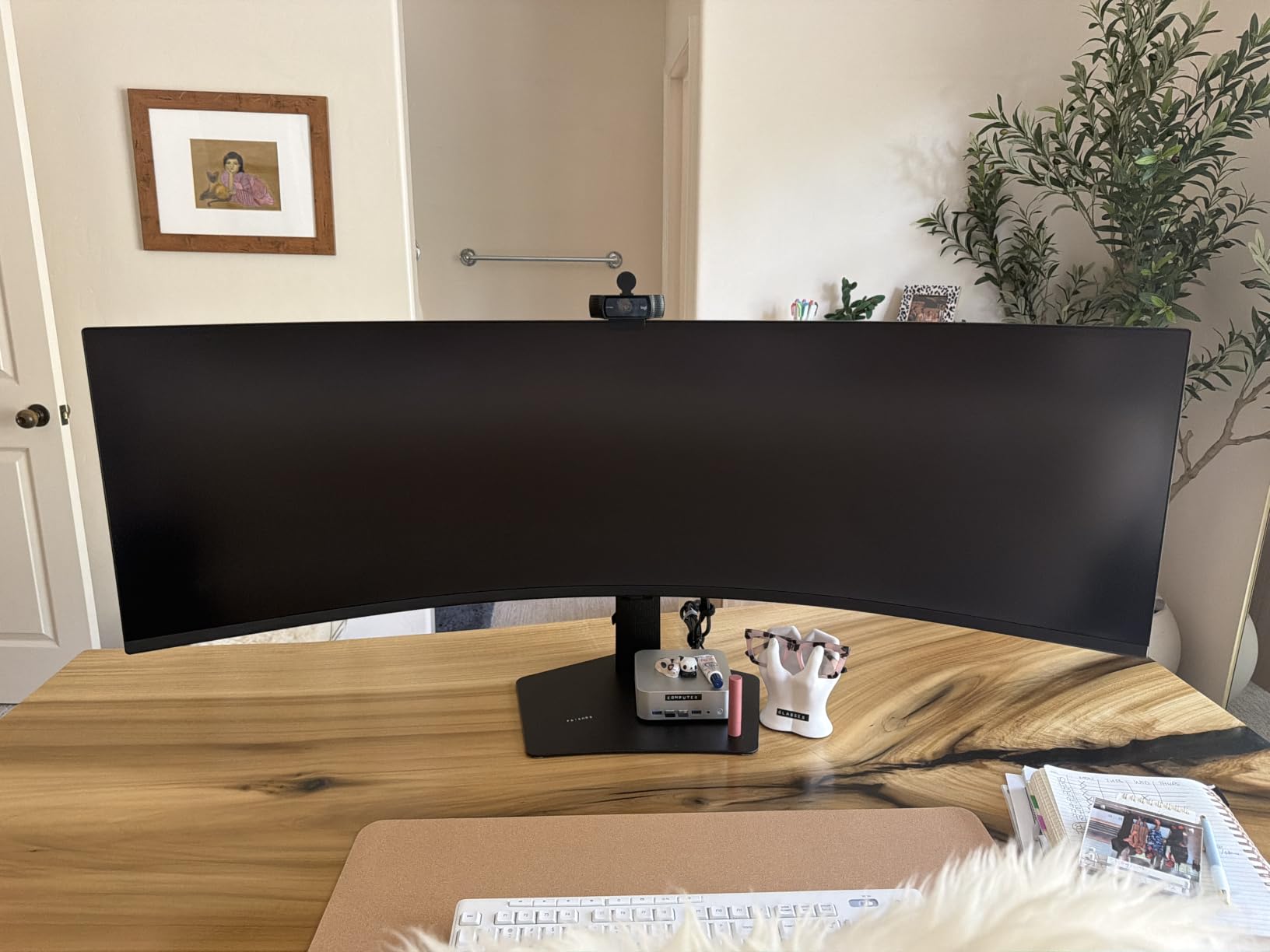
There are built-in stereo speakers, which sounds minor until you notice how many desks have no audio at all. For standups and media it removes a peripheral, and the monitor covers the full range of video input including two HDMI ports and DisplayPort. The stand adjusts for height and the panel is wall mountable for anyone who prefers an arm.
Think of the ports as the real product here. A developer who runs a laptop with a single USB-C lead gets display, network, three USB devices and 90W of charging from one connector, which is a cleaner desk than a dock plus a monitor plus a charger. That is a workflow win no amount of extra screen width provides on its own.
What you gain by switching to this panel
You gain desk simplification more than pixel count. Everything a typical developer needs plugged in during the day, the monitor handles, so your laptop has one port occupied instead of four. That single change removes the cable clutter that makes a dual-monitor setup annoying to live with.
The 32:9 canvas also supports a two-machine split without a physical bezel in the middle. Combined with 90W charging, this suits developers who alternate between a laptop and a desktop tower, or who dock at one desk and undock to travel at the end of the day without repatching anything.
Where it falls short for you
Colour gamut coverage is listed at 72 percent, which is modest for a display in this class. If you do any colour-critical work alongside development, or you want a panel that will keep up with future content, that number is worth checking before you commit.
At 32.2 pounds and 45 inches wide, repositioning is genuinely awkward and you need real desk depth plus a comfortable viewing distance. There is also no KVM switch despite the long input list, so switching between two machines means reaching for a peripheral or the on-screen menu rather than pressing one button.
5. Samsung ViewFinity S50GC – Best Budget Pick: Best Ultrawide Monitors for Programming
SAMSUNG 34″ ViewFinity S50GC Series Ultra-WQHD Monitor, 100Hz, 5ms, HDR10, AMD FreeSync, Eye Care, Borderless Design, PIP, PBP, LS34C502GANXZA, 2023, Black
34 inch 3440 x 1440 VA, 21:9
100Hz, 5ms response, HDR10, FreeSync
Ambient light sensor, Eye Saver mode, flicker-free
PIP and PBP, virtually bezel-free
Pros
- Widest code-and-document workspace per dollar in this group
- Three-column split suits programming and office work
- PBP shows two sources at native resolution
- 100Hz and 5ms look better than expected on VA at this tier
- Auto-scaling works reliably including 1080p sources
Cons
- VA panel smears on dark-over-light transitions
- Color accuracy and contrast unremarkable for critical work
- No USB-C so laptops need a charging cable and dongle
- Stand offers no height adjustment and PIP arrangement is awkward
The S50GC answers a simple question: how do you get 3440 x 1440 of desk area without paying premium money for it? Owners treat it as a straightforward route to that resolution, and programmers specifically like dividing the panel into three vertical columns for editor, terminal and browser. That layout is the reason a 34-inch 21:9 screen exists, and this one delivers it.
You also get features that normally cost more. PBP shows two sources at native resolution, so you can keep a remote pair session or a second project beside your editor without dropping either one. The ambient light sensor adjusts brightness automatically, Eye Saver mode trims blue light output and the backlight is flicker-free, all three of which reduce the fatigue of a long day.
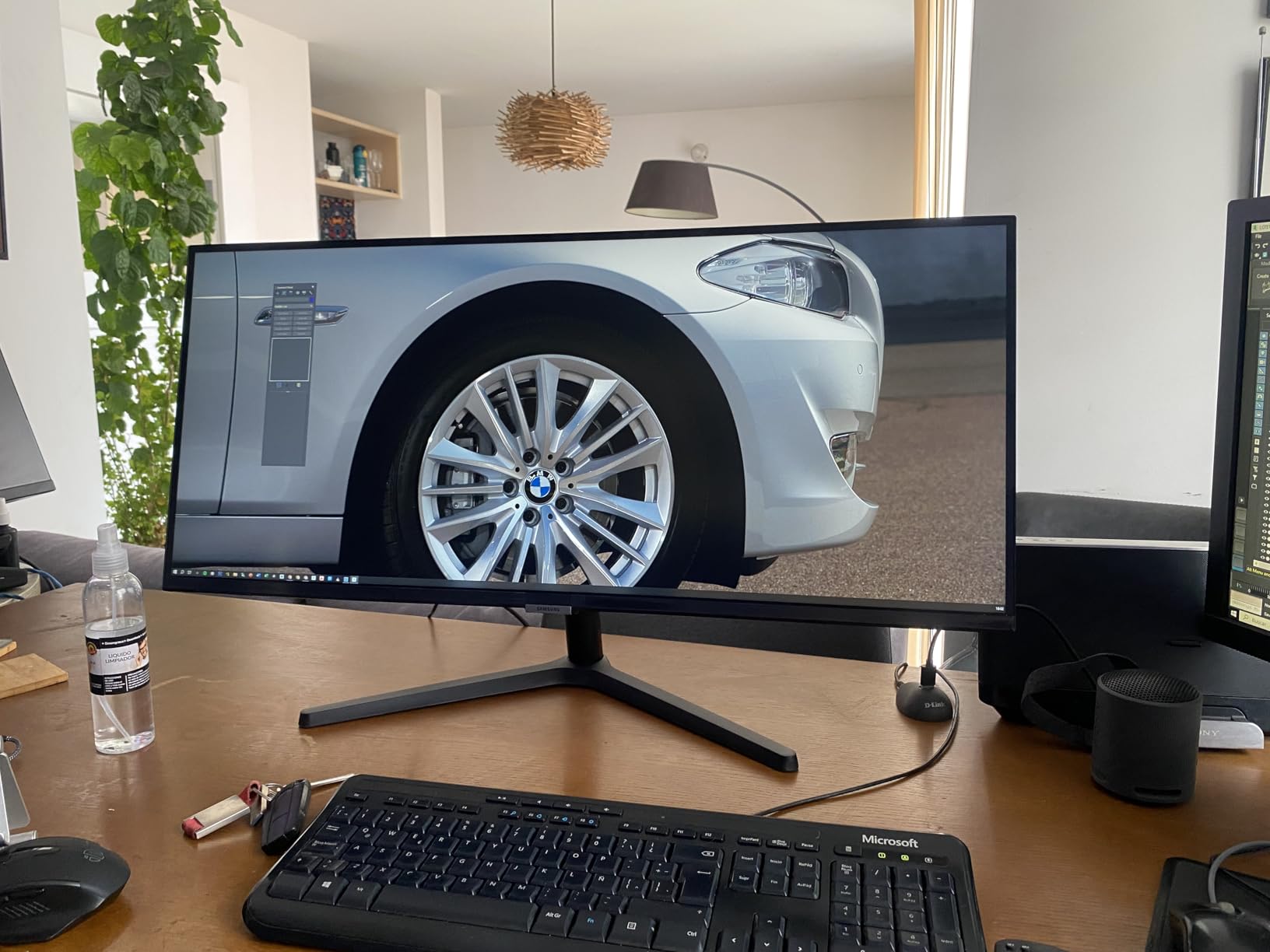
HDR10 support and a 3000:1 static contrast ratio give dark themes more depth than a typical entry-level IPS panel manages. Auto-scaling of incoming resolutions is reported as reliable, including 1080p sources, which matters when you occasionally plug in a laptop that does not output at full resolution. Connectivity is two HDMI 2.2 ports and DisplayPort 1.2 with a headphone out.
The three-sided virtually borderless design keeps the visual seam minimal when you split it into panes. At 100Hz with a 5ms response time and AMD FreeSync, scrolling is smooth enough that you will not think about it, which is the correct standard for a programming display. Weight of 10.8 pounds makes it easy to reposition.
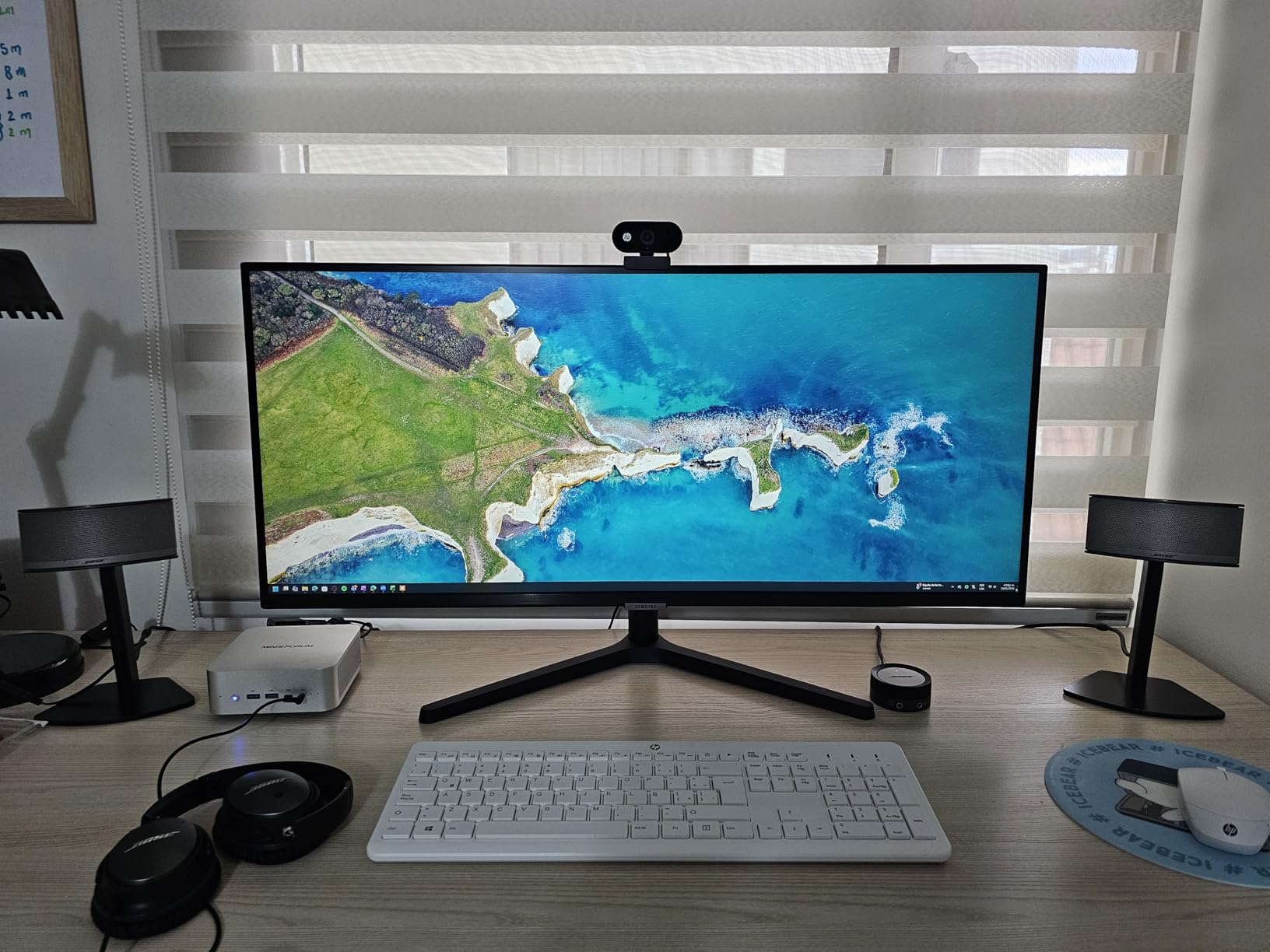
What you gain by switching to this panel
You gain the single biggest upgrade most developers ever make to their desk: 3440 x 1440 of horizontal space at a price that does not require a justification. Coming from a 27-inch 16:9 panel, the difference in usable window area is immediate, and the cost per pixel is lower than anything else in this roundup.
The eye-care features are the quieter win. An ambient light sensor plus Eye Saver mode plus flicker-free dimming means less end-of-day strain during the ten to sixteen hour sessions that serious developers routinely log. A three-year warranty would help here, but the practical protections against a tiring day are already present.
Where it falls short for you
VA smearing shows up in light themes. If you read code on a white background, scrolling dark text past light UI elements can trail visibly, and that is the main reason to move up an IPS panel instead. Colour accuracy and contrast are unremarkable, so this is not the display for design work next to development.
There is no USB-C, so a laptop user needs a separate charging cable and probably a dongle, which is the opposite of the one-cable story the bigger panels sell. The stand offers tilt only, with no height adjustment, and the picture-in-picture mode is reported as awkward rather than useful.
6. ASUS TUF Gaming VG34VQL1B – Best Coding and Gaming Pick: Best Ultrawide Monitors for Programming
ASUS TUF Gaming VG34VQL1B 34 Inch 1440p 165Hz Ultrawide HDR Gaming Monitor
34 inch 3440 x 1440 1500R curved VA
165Hz, 1ms MPRT ELMB, 120% sRGB
HDR with DisplayHDR 400, FreeSync Premium
2 x DP 1.4, 2 x HDMI 2.0, USB hub
Pros
- 165Hz keeps scrolling and code navigation fluid
- Extra width replaces a dual-monitor setup for browser-plus-editor layouts
- Accurate and vibrant colour profile with HDR that reads well
- Four-port USB hub reachable from the front
- Height-adjustable stand and under-cable routing
Cons
- VA panel shows dark-scene smearing unless overdrive is tuned carefully
- 165Hz mode limits colour depth to 8-bit while 10-bit needs 144Hz
- HDR enabled can cut frame rates sharply on some GPUs
- Warranty service reported as slow and hard to reach
If the same panel has to run a build at 8am and a game at 10pm, this is the one. At 165Hz with ASUS Extreme Low Motion Blur delivering 1ms MPRT, scrolling through a large file or dragging a window between panes feels noticeably more immediate than any 100Hz or 120Hz option here. Unreal Engine developers and programmers both call out running several editor windows side by side.
The panel is a 34-inch 3440 x 1440 VA at 1500R with 4000:1 contrast, which is strong for this class. Colour is listed at 120 percent sRGB with DisplayHDR 400 certification, so the picture is accurate rather than merely bright. Two DisplayPort 1.4 and two HDMI 2.0 ports give you flexibility on refresh rate, and a four-port USB hub sits conveniently near the front edge.
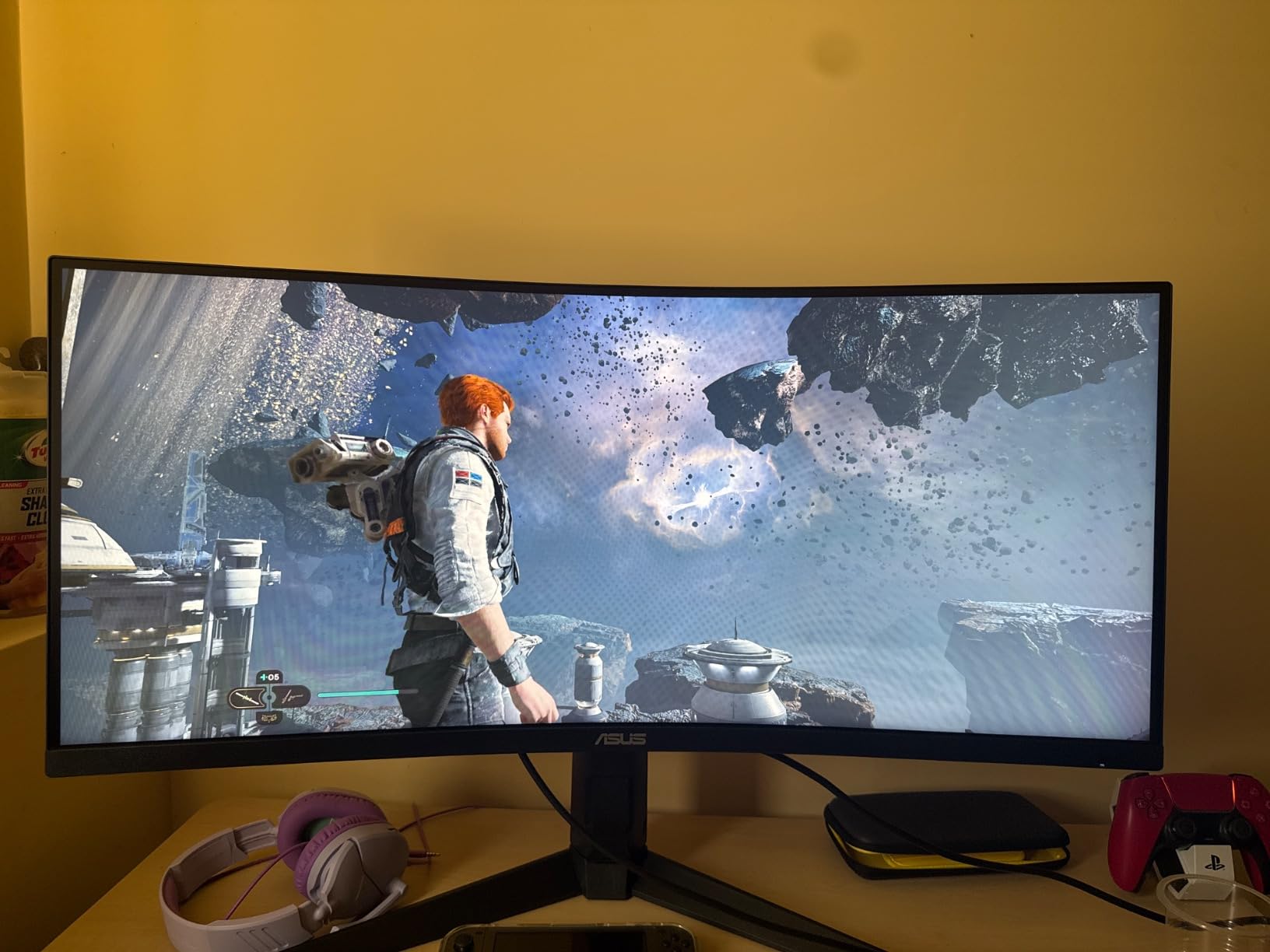
Ergonomics are handled properly: a height-adjustable stand with swivel and tilt, plus under-cable routing to keep a desk with four display cables from turning into a thicket. The panel is wall mountable, and the three-year warranty includes Advanced Replacement and Repair, which is the kind of term that matters most on a large curved display.
There is one technical trade worth understanding before you buy. Running at the full 165Hz ceiling limits colour depth to 8-bit, and full 10-bit output requires dropping to 144Hz. For code that is irrelevant; for photo or video colour work it is the setting you need to remember, and it is a refresh rate most panels cannot offer at all.
What you gain by switching to this panel
You gain smoothness that a 60Hz or 100Hz panel cannot give you, and that is not just a gaming benefit. Fast scrolling through long files, terminal output and browser history feels materially better above 144Hz, and programmers who moved up from 60Hz notice the difference within a day.
You also get the widest port selection among the 34-inch panels here, with two DisplayPort and two HDMI inputs alongside the USB hub. That matters if you rotate between a laptop, a desktop and a dock without wanting to re-plug anything, and it leaves headroom for a second high-refresh device later.
Where it falls short for you
VA smearing on dark scenes is the persistent complaint. ASUS Extreme Low Motion Blur masks motion but does not remove panel transitions, so dark-on-light content can still trail unless overdrive is tuned carefully. In a dark IDE theme you will not notice; in a light one you might.
Enabling HDR can cut frame rates sharply on some GPUs, and the built-in speakers are thin. The warranty service being slow and hard to reach is worth weighing if you travel, since a large curved panel is awkward to replace on short notice.
7. Dell S3425DW – Best MacBook Pick: Best Ultrawide Monitors for Programming
Dell 34 Monitor S3425DW, WQHD VA, 120Hz, FreeSync Premium, Eye Comfort
34 inch 3440 x 1440 curved VA, 300 nits
120Hz, 0.03ms, FreeSync Premium
USB-C with 65W power delivery, 2 x HDMI, 4 x USB
99% sRGB and 95% DCI-P3, ComfortView Plus
Pros
- Single USB-C cable powers and connects a laptop
- 120Hz over USB-C works on MacBooks that cap HDMI at 60Hz
- One panel is simpler than aligning two or three smaller monitors
- Height and tilt adjustment with a matte anti-glare surface
- ComfortView Plus cuts blue light output to 35 percent or less
Cons
- Limited ports with no DisplayPort
- VA panel not ideal for colour-critical work
- Recessed VESA mount makes arm installation awkward
- Built-in speakers are mediocre for voice
- Heavier and thicker than the previous Dell 34-inch
The S3425DW solves a specific Mac problem: many MacBooks output at 60Hz over HDMI regardless of what the monitor supports. Driving this panel over USB-C unlocks the full 120Hz, which owners call out directly as the reason the one-cable path is worth having rather than just convenient.
Connectivity is a single USB-C port carrying video, data and up to 65W of power delivery, plus two HDMI inputs and four USB ports. That 65W figure covers most ultraportable and mid-range laptops on a single charge, and the built-in hub removes the need for a separate dock in most desk setups. Colour coverage is listed at 99 percent sRGB and 95 percent DCI-P3.
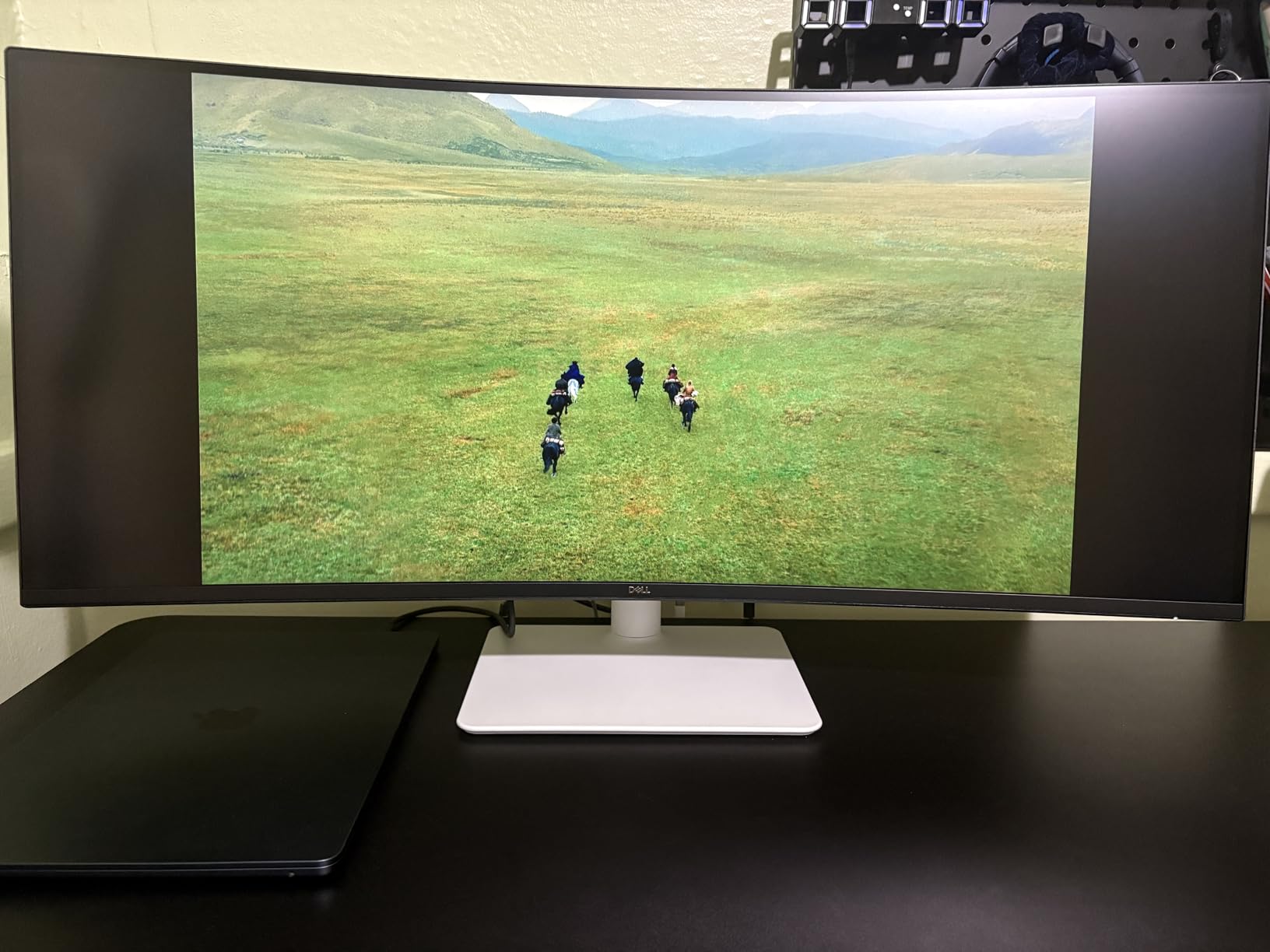
ComfortView Plus reduces blue light emission to 35 percent or less, and the matte anti-glare surface keeps reflections off a panel you are meant to stare at all day. Height and tilt adjustment is standard, and tool-free stand assembly takes about a minute. Programmers and spreadsheet-heavy users treat this as a one-cable productivity hub replacing several smaller monitors.
FreeSync Premium adaptive sync runs at 120Hz with a 0.03ms response time, so window dragging and scrolling stay smooth. At 31.78 inches wide and 20.7 pounds it is a normal-sized desktop panel rather than something that needs a reinforced desk, which is a practical advantage over the 49-inch options.
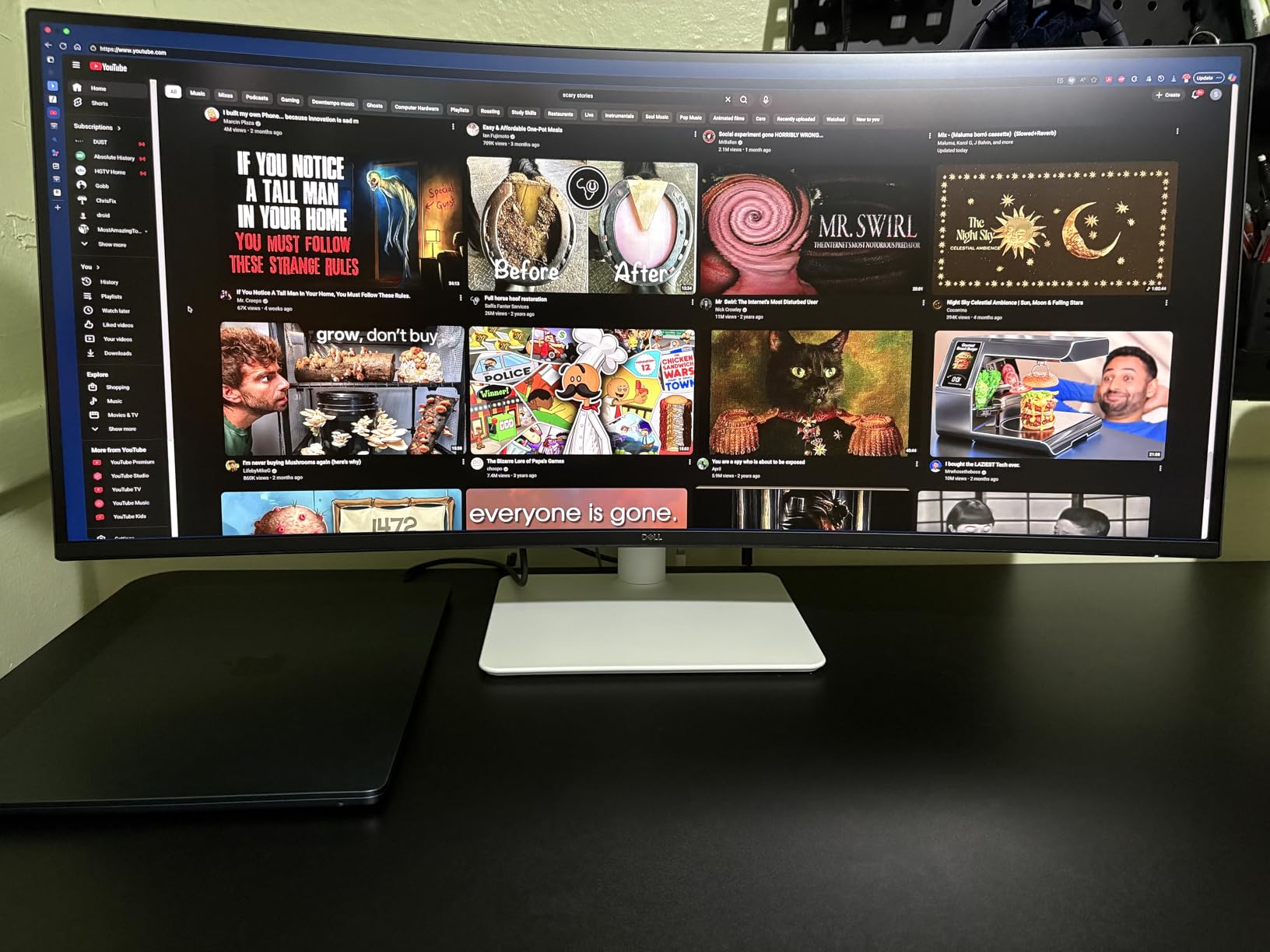
What you gain by switching to this panel
For Mac owners, you gain refresh rate you cannot get over HDMI. Going from a 60Hz-limited HDMI connection to 120Hz over USB-C makes scrolling and window management feel like a different display, and the same cable also charges the machine.
You also gain a simpler desk. One monitor, one cable, four USB ports. Users moving away from a multi-monitor arrangement cite the simplicity as much as the width, and a matte panel plus blue light reduction makes it a workable choice for the ten-plus hour days that prompt most monitor research.
Where it falls short for you
Port selection is thin. There is no DisplayPort, so if you need to drive two high-refresh machines or a KVM-style setup, you are limited. The recessed VESA mount bracket also makes arm installation awkward compared with a flat-back panel.
The VA panel is not suited to colour-critical or graphic work, and the built-in speakers are mediocre for voice, so you will still want a headset for calls. It is also thicker and heavier than the previous generation Dell 34-inch curved model, which matters if you move it between desks often.
8. SANSUI 34-Inch Curved 200Hz – Best High-Refresh Pick: Best Ultrawide Monitors for Programming
SANSUI 34-Inch Curved Gaming Monitor UWQHD 3440 x 1440P 200Hz Ultrawide
34 inch 3440 x 1440 Fast VA at 1500R
Up to 200Hz, OD 1ms response
131% sRGB, 96% DCI-P3, 300 cd
HDR, PIP/PBP, VESA 100x100, Kensington lock
Pros
- Lowest-cost 3440 x 1440 ultrawide here with 200Hz headroom
- One reviewer reports programming on it with many tabs open
- 1ms OD response and FreeSync keep motion clean
- DisplayPort 1.4 and HDMI 2.1 both present
- 30-day money-back and free replacement warranty
Cons
- No built-in speakers despite listings that imply audio
- Stand offers tilt only with no height adjustment
- HDMI is limited to 100Hz in practice so DisplayPort is required for full rate
- Some units needed sharpness and brightness tuning out of the box
- Quality control has been inconsistent with isolated failures within months
This panel answers a question buyers rarely ask out loud: how much does 3440 x 1440 cost when you strip away everything else? The canvas is identical to the models above, and it carries the highest refresh ceiling in the group at up to 200Hz with an overdrive response of 1ms. For scrolling-heavy work that headroom is simply unnecessary, but for hybrid code-and-game desks it costs little extra.
Connectivity is the best of the budget group: DisplayPort 1.4 alongside two HDMI 2.1 ports, with VRR over HDMI 2.1. Colour coverage is listed at 131 percent sRGB and 96 percent DCI-P3, and brightness sits at 300 cd. PIP and PBP are supported for comparing two sources, and a Kensington lock slot is included for a shared office.
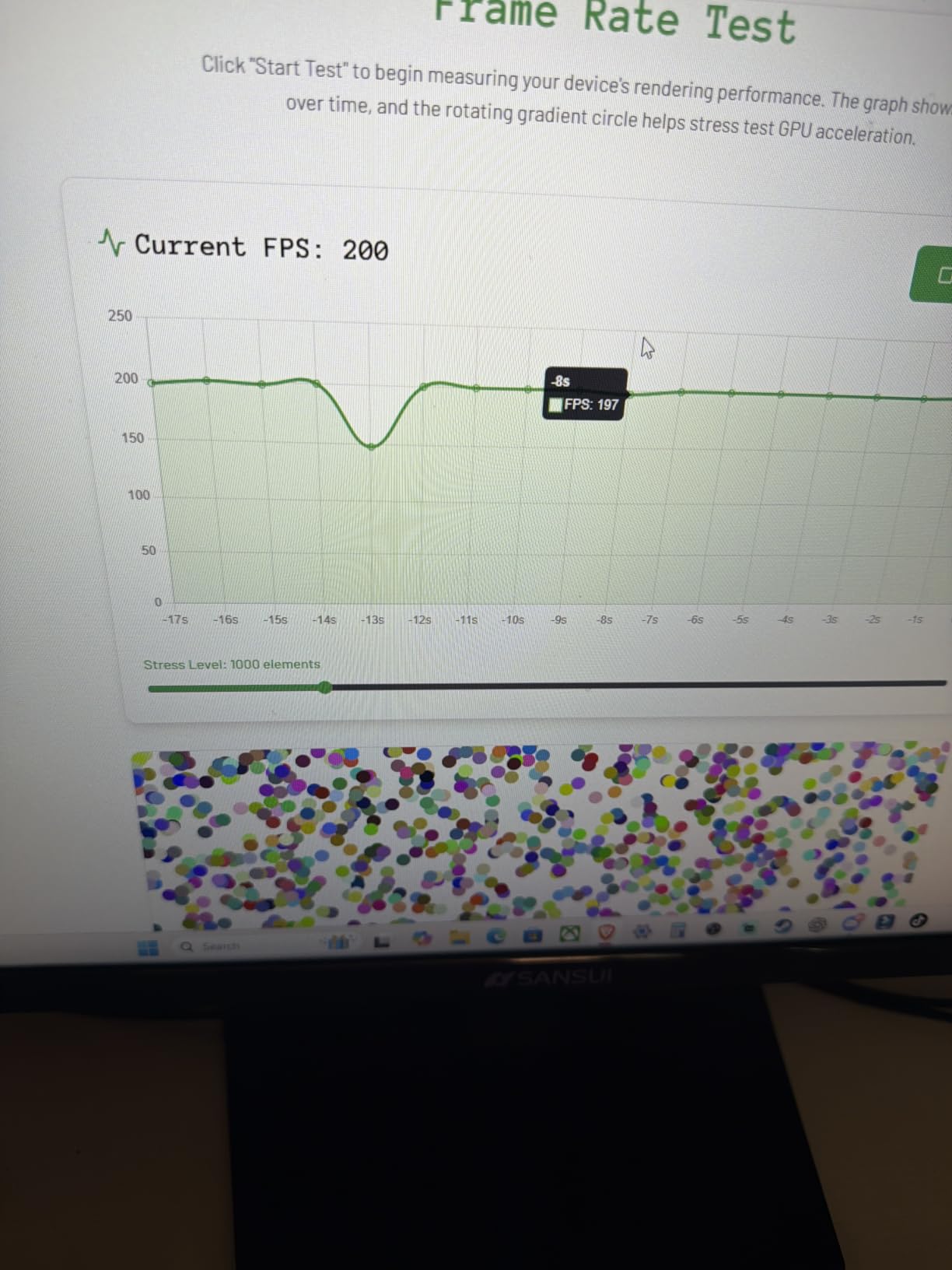
Eye-care features include AI blue light reduction, anti-flicker and HDR support, which together make long sessions more comfortable than the price would suggest. VESA 100×100 mounting is standard, and the tilt range is -5 to +15 degrees. The warranty is unusually generous for this tier: 30-day money-back, free replacement and lifetime technical support.
At 31.8 inches wide and 7.01 kg it is lighter than most 34-inch curved panels, which makes moving it between a home and an office desk straightforward. Panel type is Fast VA at 1500R, so expect the same transition smearing the other VA options in this roundup show, and out of the box some units need sharpness and brightness adjusting.
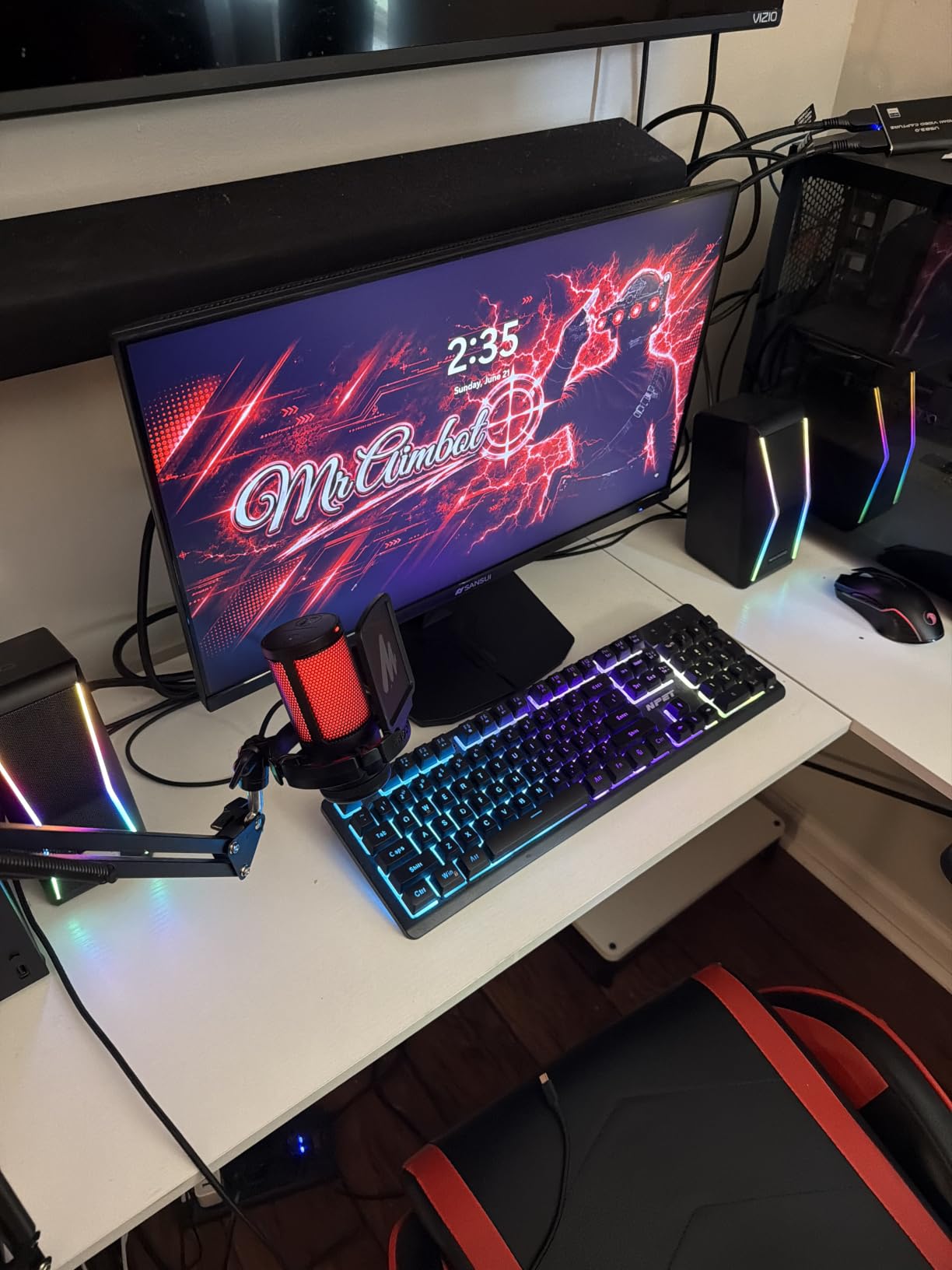
What you gain by switching to this panel
You gain screen width per unit of spend, which is the honest metric here. This is the lowest-cost way in the group to reach 3440 x 1440, and the extra budget you do not spend can go toward a laptop, an arm or a colour-accurate secondary panel for design work.
The warranty terms matter for this tier. A 30-day money-back window with free replacement and lifetime technical support removes the main risk of buying an unfamiliar brand, and reviewers do note people running this as a programming screen with editors and many tabs open.
Where it falls short for you
There are no built-in speakers, even though some listings imply audio, so you need a headset or separate speakers. The included stand is tilt-only with no height adjustment, which matters more at 34 inches than at a smaller size because you will be looking slightly down or up all day.
HDMI is limited to 100Hz in practice, so DisplayPort is required to reach the full rate. Some units needed sharpness and brightness tuning out of the box and showed dark edges, and quality control has been inconsistent with a small number of units failing within months. If reliability matters more to you than refresh ceiling, pick a longer-established brand.
9. Deco Gear 49 Inch Super Ultrawide 5K2K – Best KVM Switching Pick: Best Ultrawide Monitors for Programming
Deco Gear 49″ Super Ultrawide Curved Monitor, 5120×1440, 5K2K, 120Hz, 32:9
49 inch 5120 x 1440 curved VA at 1500R
120Hz, 1ms MPRT, FreeSync Premium
USB-C 65W PD, DP 1.4, HDMI 2.0, 3-port USB hub
KVM switch, PIP/PBP, 130mm height, VESA 100x100
Pros
- Widest canvas in the group for spreadsheets
- code and reference windows
- KVM switching lets one keyboard and mouse drive two machines
- 65W USB-C carries video
- data and charging on one cable
- Full ergonomic range with 130mm height and plus or minus 30 degree swivel
- Works with Linux as well as Windows and macOS
Cons
- Lowest-rated product here at 4.2 with a 12 percent one-star share
- Glossy finish reflects room light and hurts long coding sessions
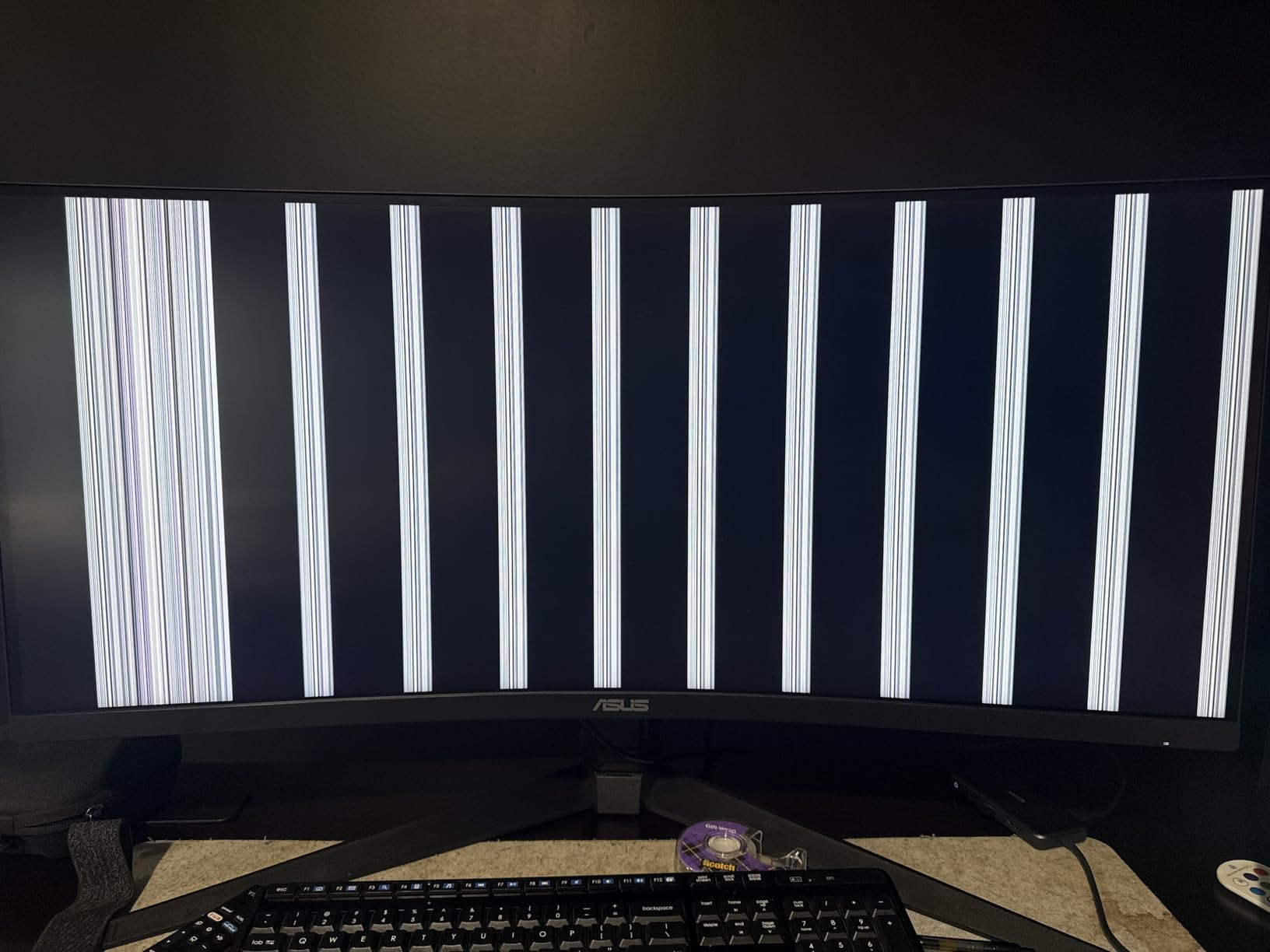
- One owner reported vertical line artifacts after disturbing the desk
- A unit arrived with a dead pixel and long-term build quality is unproven
The reason this panel is interesting is the KVM switch. On a 32:9 display that already behaves like two monitors, hardware KVM switching means one keyboard and one mouse control two connected machines with a single keypress, no peripheral switching and no extra software. For a developer moving between a Linux workstation and a Windows laptop, that removes a daily friction.
USB-C carries 65W of power delivery alongside video and data, so a laptop connects with one cable and still charges. PIP and PBP allow side-by-side source comparison, which pairs naturally with KVM for research and monitoring work. At 120Hz with 1ms MPRT and FreeSync Premium, scrolling across the full width stays smooth.
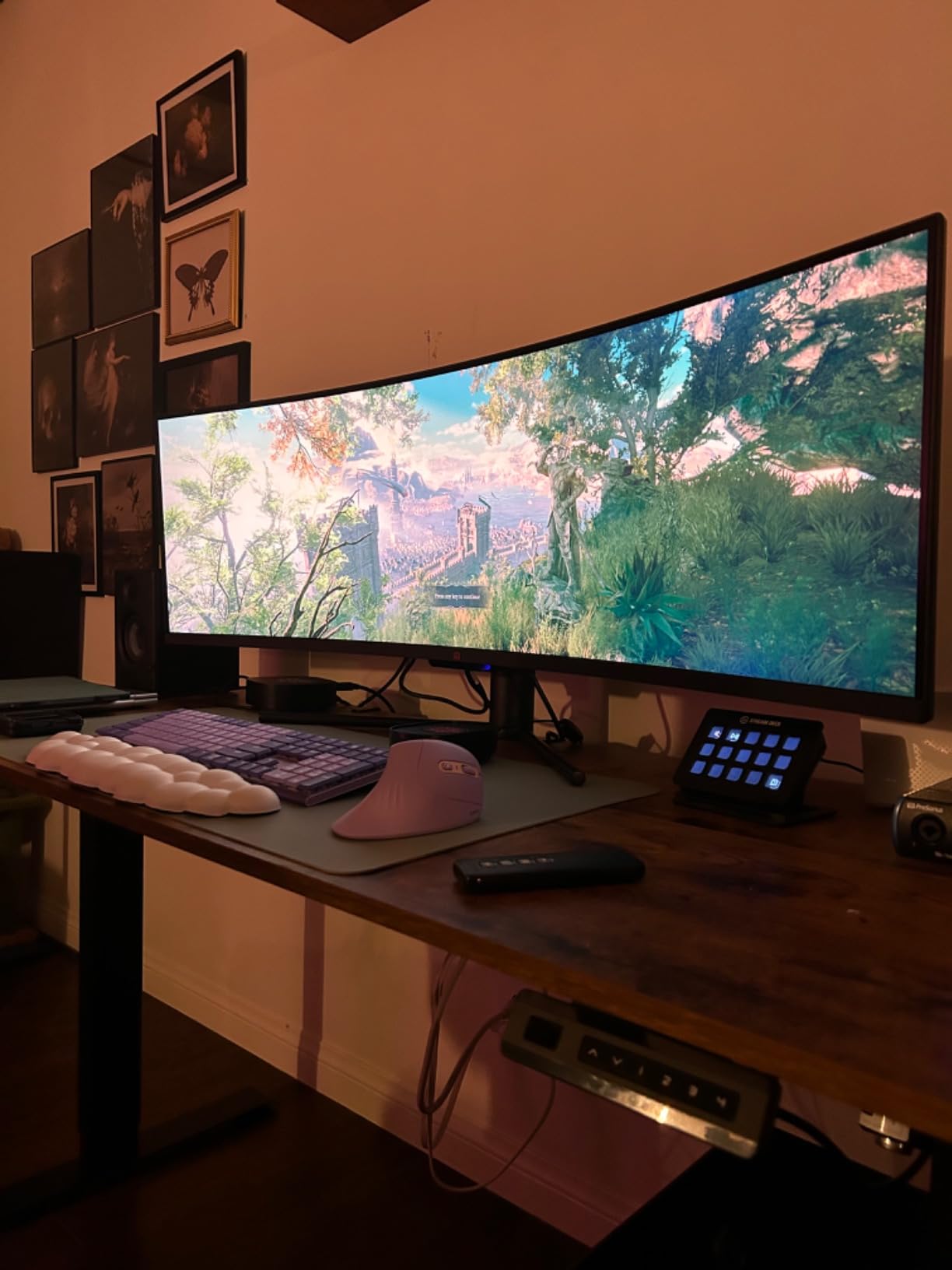
Adjustability is genuinely good for a 49-inch panel: 130mm of height adjustment, plus or minus 30 degrees of swivel and -5 to +15 degrees of tilt. With VESA 100×100 mounting and a 47-inch width, an arm is worth the effort because the included stand cannot fully solve a shallow desk. Colour is listed at 100 percent sRGB, 91 percent DCI-P3 and 85 percent NTSC.
Contrast is 3000:1, which gives dark themes real depth, and built-in speakers cover basic audio needs. Buyers confirm this is one of the more affordable routes to genuine 32:9 workspace, with the KVM and USB-C combination making it convenient for mixed laptop-and-desktop desks, spreadsheet work and programming.
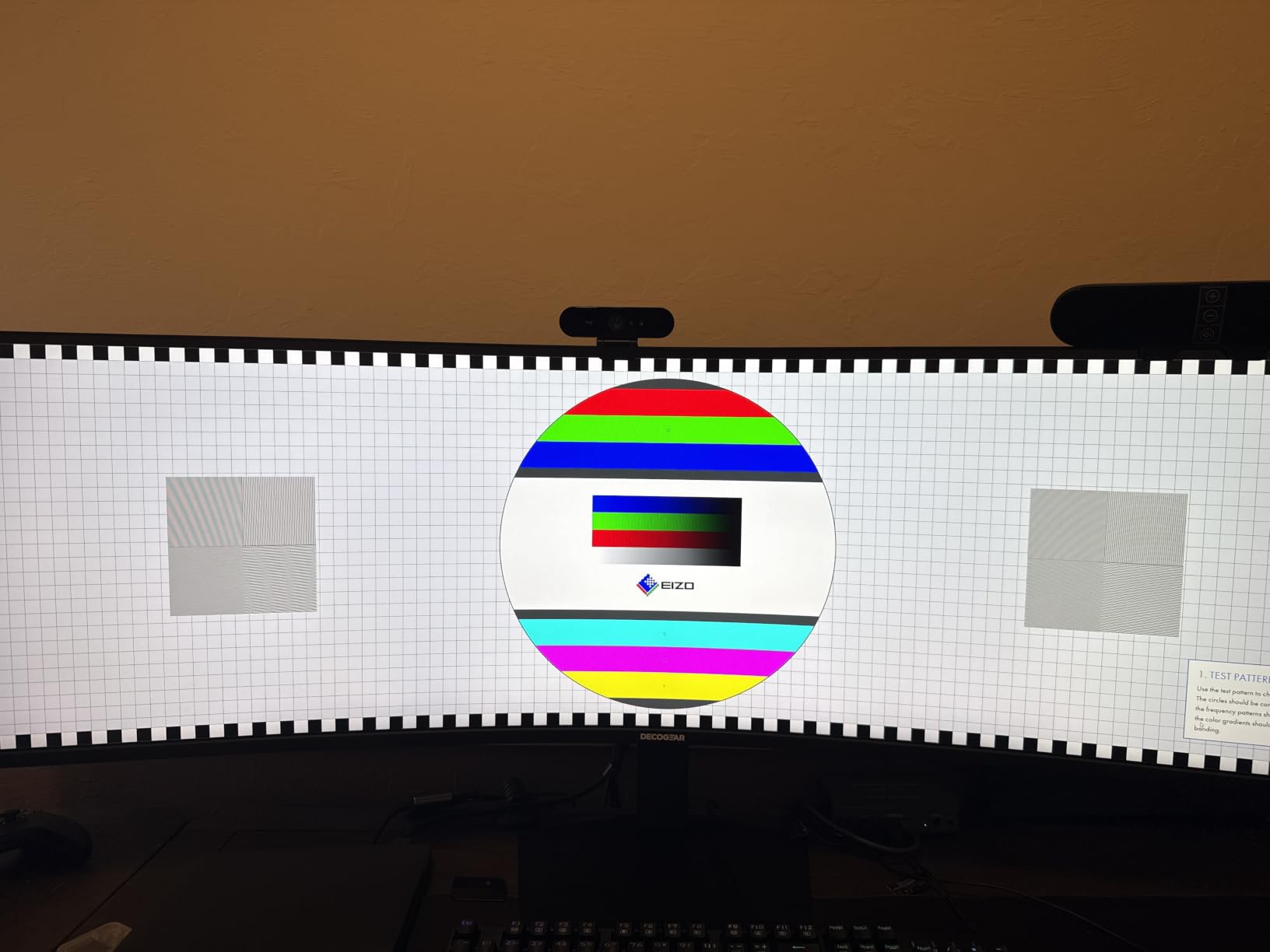
What you gain by switching to this panel
You gain the widest usable canvas in this group, and a switching mechanism no other 49-inch option here matches. Two machines, one keyboard, one mouse, one button. That is the setup developers describe when they say a single ultrawide replaced two separate monitors for them.
You also gain flexibility that single-source setups lack. Keeping a laptop and a desktop both connected, with PBP for source comparison and USB-C for charging, means you are not replugging anything at the start or end of a workday.
Where it falls short for you
This panel carries the lowest average rating in the roundup, and the one-star share sits at roughly 12 percent, which is worth taking seriously rather than dismissing. The glossy finish reflects room light, and reflections on a screen you use for ten hours a day are a real comfort problem, not a cosmetic one.
There are also reports of vertical line artifacts appearing when the desk or desk surface was disturbed, and one unit arrived with a dead pixel. Long-term build quality is unproven at this point, so if reliability is your priority, the brand names below carry more established support.
10. INNOCN 49C1R – Best Wired Networking Pick: Best Ultrawide Monitors for Programming
INNOCN 49″ Curved Monitor Ultrawide Gaming 5K2K 120Hz 32:9 QHD 5120 x 1440P Computer Monitor, R1800, 99% sRGB, HDR400, USB Type C, DisplayPort, HDMI, Built-in Speakers, Height/Tilt Adjustable – 49C1R
49 inch 5120 x 1440 curved VA at 1800R
120Hz over DP 1.4, 1ms response, HDR 400
USB-C 65W PD, HDMI 2.1, DP 1.4, 2 x USB-A, USB-B
RJ45 Ethernet, 3.5mm audio, built-in speakers
Pros
- True 5120 x 1440 at roughly 109 PPI makes three-way splits genuinely usable
- 120Hz is a large step up from dual 60Hz monitors
- Only 49-inch option here with an RJ45 Ethernet port
- Three-screw setup with clearly marked front-bezel controls
- Users report running it for over a year
- 1800R curve is gentle so timelines warp less
Cons
- One reviewer found a cluster of dead pixels in the top centre
- Clarity falls off when not viewing the panel dead centre
- Only one USB-C input so switching laptops means replugging
- Standby mode can disconnect and collapse window layouts
- Weak integrated speakers and mail-in after-sales service
The INNOCN 49C1R is the one 49-inch panel here with a real RJ45 Ethernet port, and that single socket changes the desk layout for anyone who has fought flaky Wi-Fi during a long debugging session. One USB-C lead gives video, data and 65W of charging, and the wired drop handles the network, so a laptop occupies a single port for an entire workday.
Resolution is a true 5120 x 1440 at roughly 109 pixels per inch, which makes three-way window splits genuinely usable rather than theoretical. Buyers split it into three panes for code and documents and single out the 120Hz step up from dual 60Hz monitors as the change they noticed first. Port selection is otherwise complete: HDMI 2.1, DisplayPort 1.4, two USB-A, USB-B and audio.
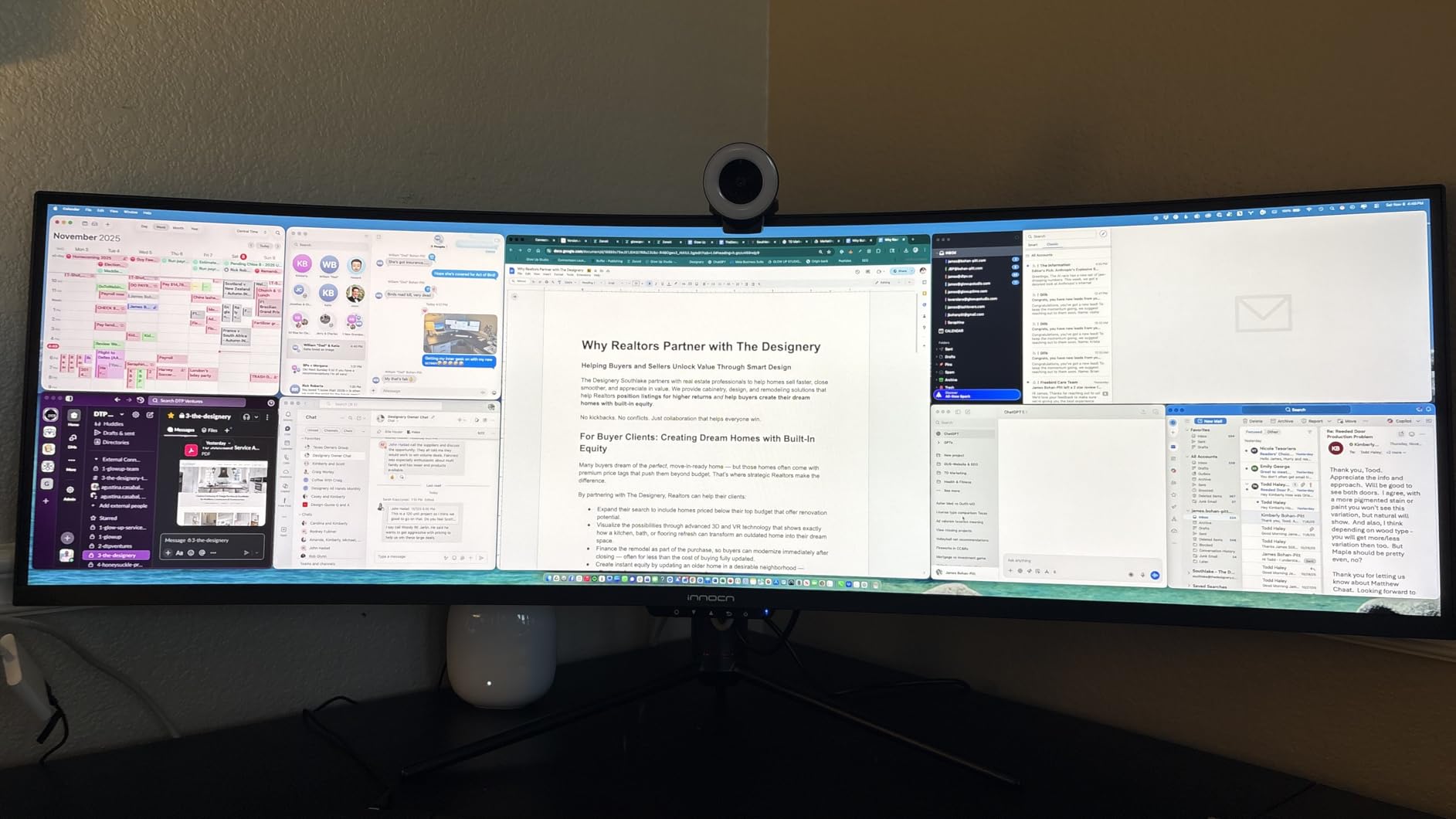
HDR 400 with 400 nits brightness and 3000:1 contrast gives dark themes enough depth to avoid the grey wash. PIP and PBP handle a second source, and built-in speakers cover basic audio. The stand adjusts for height, tilt and swivel and a VESA bracket is included, which is helpful on a panel this wide.
The 1800R curvature is gentler than the 1500R panels elsewhere in this list, so the far edges distort less and timelines stay more readable. Users report running it for over a year without issues, and setup is described as quick with clearly marked front-bezel controls and easy rear port access.
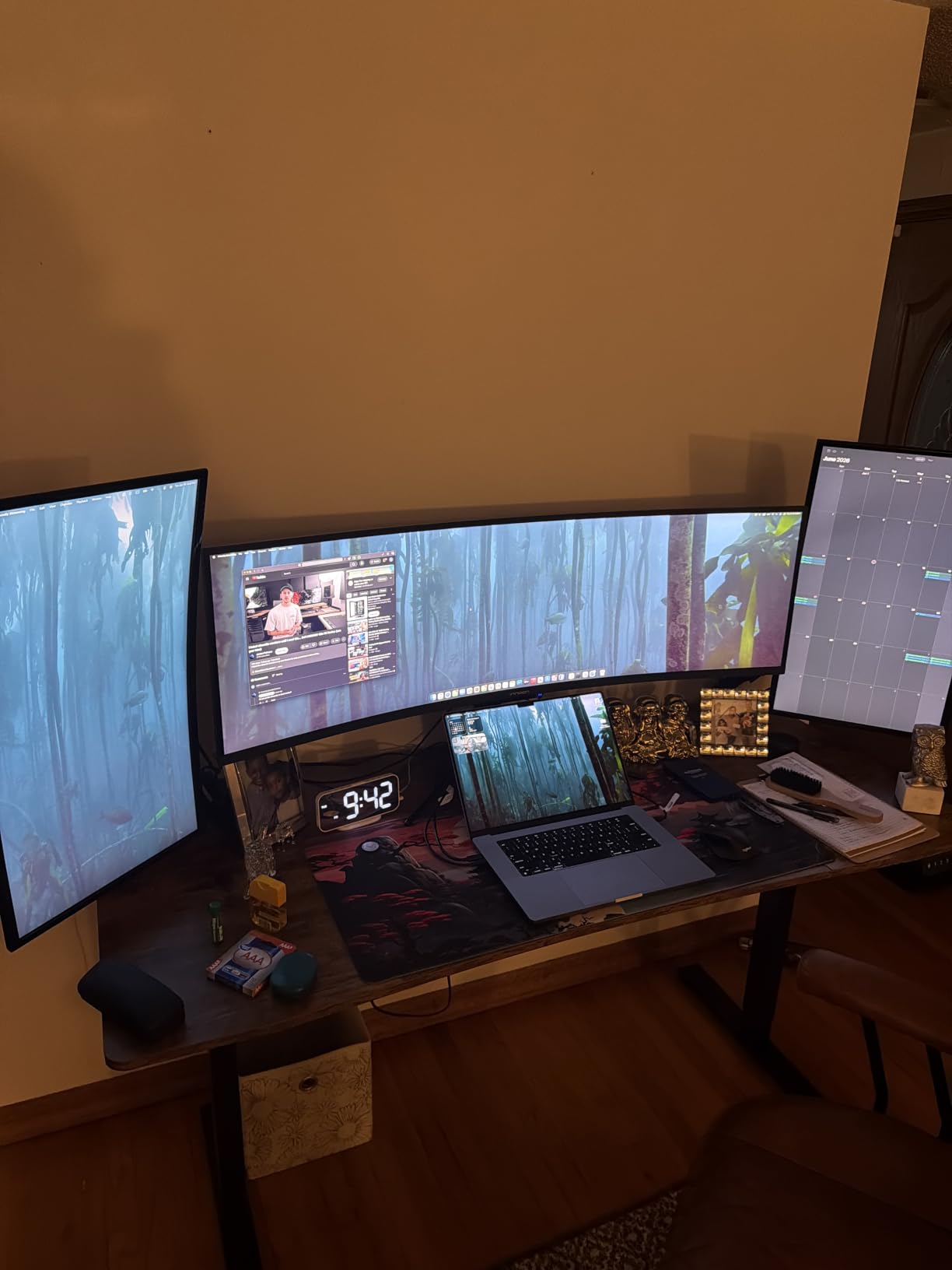
What you gain by switching to this panel
You gain the same usable three-pane workspace as the other 49-inch options plus the only wired network drop in the group. That combination suits developers who work in environments with unreliable wireless, or who simply prefer a wired connection for long-running tasks and file transfers.
The 1800R curve is a quiet advantage for text. A gentler radius means less geometric warping at the edges, so a reference pane sitting at the far left reads more naturally than on a 1500R panel, and colour stays more even across the width.
Where it falls short for you
Hardware quality is the concern. One reviewer found a cluster of dead pixels in the top centre of the panel, and after-sales service requires mailing the unit back for inspection. At 49 inches, that is a meaningful risk on a large curved panel where freight and panel exchange are less forgiving.
Clarity falls off when you are not viewing the panel dead centre, which is inherent to a display this wide, and there is only one USB-C input, so moving between two laptops means replugging. Standby mode can also drop the connection and collapse your window layouts back to the laptop screen, which is a mild annoyance at the start of each day.
Best Ultrawide Monitors for Programming: Ultrawide vs Dual Monitors vs 16:9 4K
This is the question raised at the top of search results, and the honest answer has three parts. The right comparison is not ultrawide versus dual monitors in general; it is ultrawide versus the specific alternative your workflow would otherwise use.
Ultrawide versus dual monitors. One 34-inch panel removes the bezel down the middle, the second power cable, the second stand and the alignment problem when one screen sits higher than the other. It also means one window manager instead of two, so a maximized window covers everything. What you give up is independent rotation and the ability to close one machine’s display to save power.
Ultrawide versus 16:9 4K. This is the trade developers argue about most. A 32-inch 4K panel packs about twice the pixel density of a 34-inch 3440 x 1440 screen, so text is visibly sharper, and you keep far more vertical space for tall IDE panes, stacked terminals and long file trees. A 31.5-inch 4K model like the BenQ RD320U is the pick when reading sharpness outweighs width. Our 4K monitor guide covers that tier in detail.
Ultrawide versus 16:9 at the same density. If you currently run two 24-inch 16:9 screens, a 34-inch ultrawide gives you comparable width with one panel and one power draw. If you currently run a 27-inch and value its pixel density, an ultrawide is a step down in sharpness even though it is a step up in area.
The practical rule: pick a 32-inch 4K panel if you spend your day in one application at a time and want maximum text crispness, and pick a 34-inch or 49-inch ultrawide if you switch between an editor, a terminal and documentation often enough that window switching has become a habit you notice.
Best Ultrawide Monitors for Programming: How to Choose the Right One
Start with pixels per inch, not inches. Pixel density decides whether text is comfortable, and the figures worth knowing are roughly 81 PPI for a 34-inch 3440 x 1440 panel, around 109 PPI for a 34-inch at that resolution when measured on the panel face, and roughly 109 PPI across a 49-inch 5120 x 1440 screen. Anything under about 90 PPI and small UI elements start to soften on a long day. Larger numbers are better, and the gap between a 3440 x 1440 34-inch and a 5120 x 1440 49-inch is real but not enormous.
Understand what 3440 x 1440 actually is. It is commonly called 2K or WQHD, sometimes UWQHD, and it is neither 2K nor 4K in the strict sense. The number refers to the horizontal pixel count, not the total, and 1440 is a shortened 1440p. For context, a 3840 x 2160 4K panel has about 78 percent more pixels than 3440 x 1440, spread differently across the screen.
Pick your panel type for your theme. IPS gives the most consistent text with no smearing on dark-over-light transitions, which is why the LG at number one is an IPS panel. VA delivers far higher contrast, typically 3000:1, so dark themes have real depth, but light themes can smear as content scrolls. QD-OLED is not represented here because at these sizes the panels exist mainly in gaming configurations.
Count your power delivery requirement. USB-C power delivery comes in tiers and the number matters for a docked laptop workflow. 60W suits ultraportables and thin laptops, 65W covers most business-class machines, and 90W gives heavier workstations headroom. Data-only USB-C carries video but charges nothing, so check the wattage before you assume a one-cable setup.
Do the desk maths. A 34-inch panel wants roughly 70 to 75 cm of viewing distance and a desk at least 60 cm deep. A 49-inch panel is 45 to 47 inches wide, which means a desk at least 90 cm deep with clear space either side of the monitor. Curvature helps at that size, since a 1500R or 1800R radius pulls the edges into your field of view instead of pushing them away.
Check mounting before you buy. VESA 100×100 and 75×75 are both common, but some panels recess the bracket, which makes arm installation awkward. Several 49-inch panels ship with a stand that most buyers replace within a week. On Linux, 21:9 fractional HiDPI scaling behaviour varies by desktop environment, so check how your editor handles it before committing to a resolution you cannot scale comfortably.
Budget your eye care, not your refresh rate. For programming, flicker-free dimming, a low blue light mode and a matte finish matter far more than a 165Hz ceiling. Users logging ten to sixteen hours a day consistently point at those three features as the difference between a comfortable evening and a headache. Adaptive sync is a nice extra; it is not a productivity feature.
For the wider roundup including gaming-focused picks, our full ultrawide monitor guide goes deeper on refresh rate and response time, which this list treats as secondary.
Frequently Asked Questions
Is an ultrawide monitor good for coding?
Yes, for most developers. An ultrawide gives you roughly 1.5 times the horizontal space of a same-height 16:9 display, which lets an editor, terminal and documentation sit side by side without constant window switching. The trade-off is vertical space and pixel density: a 34-inch 3440 x 1440 panel is less dense than a 32-inch 4K screen, so if you only use one application at a time and want maximum text crispness, 4K wins.
Is 3440 x 1440 considered 2K or 4K?
Neither, strictly. 3440 x 1440 is a WQHD or UWQHD resolution that many retailers casually call 2K, but the number describes horizontal pixels rather than total pixel count. A 3840 x 2160 4K panel contains about 78 percent more pixels. On a 34-inch screen, 3440 x 1440 works out to roughly 109 PPI, which is a reasonable density for code text.
What is the best ultrawide monitor for programming?
The LG 34WN80C-B is our pick, and it earns the top spot on text quality and docking rather than raw size. Its 3440 x 1440 IPS panel stays crisp corner to corner with no subpixel fringing, and a single USB-C cable carries video, 60W of charging and USB peripherals. If you need more workspace, the 49-inch 5120 x 1440 panels split into two full-height panes.
Is 3440 x 1440 harder to run than 4K?
No, it is easier. A 3440 x 1440 panel has around 4.95 million pixels against 8.29 million for 3840 x 2160, so your GPU renders about 40 percent fewer pixels per frame. That headroom matters most in games, where 4K can drop you below a smooth frame rate on mid-range hardware. For desktop work and code, neither resolution puts meaningful load on a modern GPU.
Which monitor is best for coding and programming?
For a single-screen developer setup, a 34-inch 3440 x 1440 IPS panel with USB-C power delivery is the best balance, and the LG 34WN80C-B is exactly that. If your workload demands maximum text sharpness in one application at a time, a 32-inch 4K panel such as the BenQ RD320U is the stronger pick, since it keeps vertical space and roughly double the pixel density. Ultrawide wins on breadth, 4K wins on crispness.
Should I get a curved or flat ultrawide monitor for programming?
Curved is the norm at these sizes and usually the better choice. A 1500R or 1800R radius keeps the outer edges of a wide panel within your field of vision, so a second editor pane at the far side is not viewed at an awkward angle. On a flat 49-inch panel, text toward the edges distorts more noticeably. Flat panels remain the preference only for colour-critical work.
Best Ultrawide Monitors for Programming: The Short Answer
The LG 34WN80C-B is the best ultrawide monitor for programming overall. Its 3440 x 1440 IPS panel renders code text cleanly corner to corner, and its USB-C port turns a laptop into a one-cable desk. That combination, backed by the largest owner base in this roundup, is why it holds the top spot.
Match the rest to your workload rather than to size. Take the Samsung CH890 for a curved 3440 x 1440 with a business warranty, the Samsung S50GC if budget decides, the ASUS TUF VG34VQL1B if you game, and the Dell S3425DW if you use a MacBook and want 120Hz over USB-C. Go 49-inch only if your desk is deep enough: the Amzfast for two-source work, the Samsung LS49C954UAN for 90W docking, the Deco Gear for KVM switching, or the INNOCN 49C1R for a wired network drop.
One last check before you buy: sit at the desk and confirm the panel fits your viewing distance. A 34-inch works almost anywhere, and a 49-inch works almost nowhere until you measure. Our broader ultrawide guide covers the refresh-rate and gaming side in more depth.