
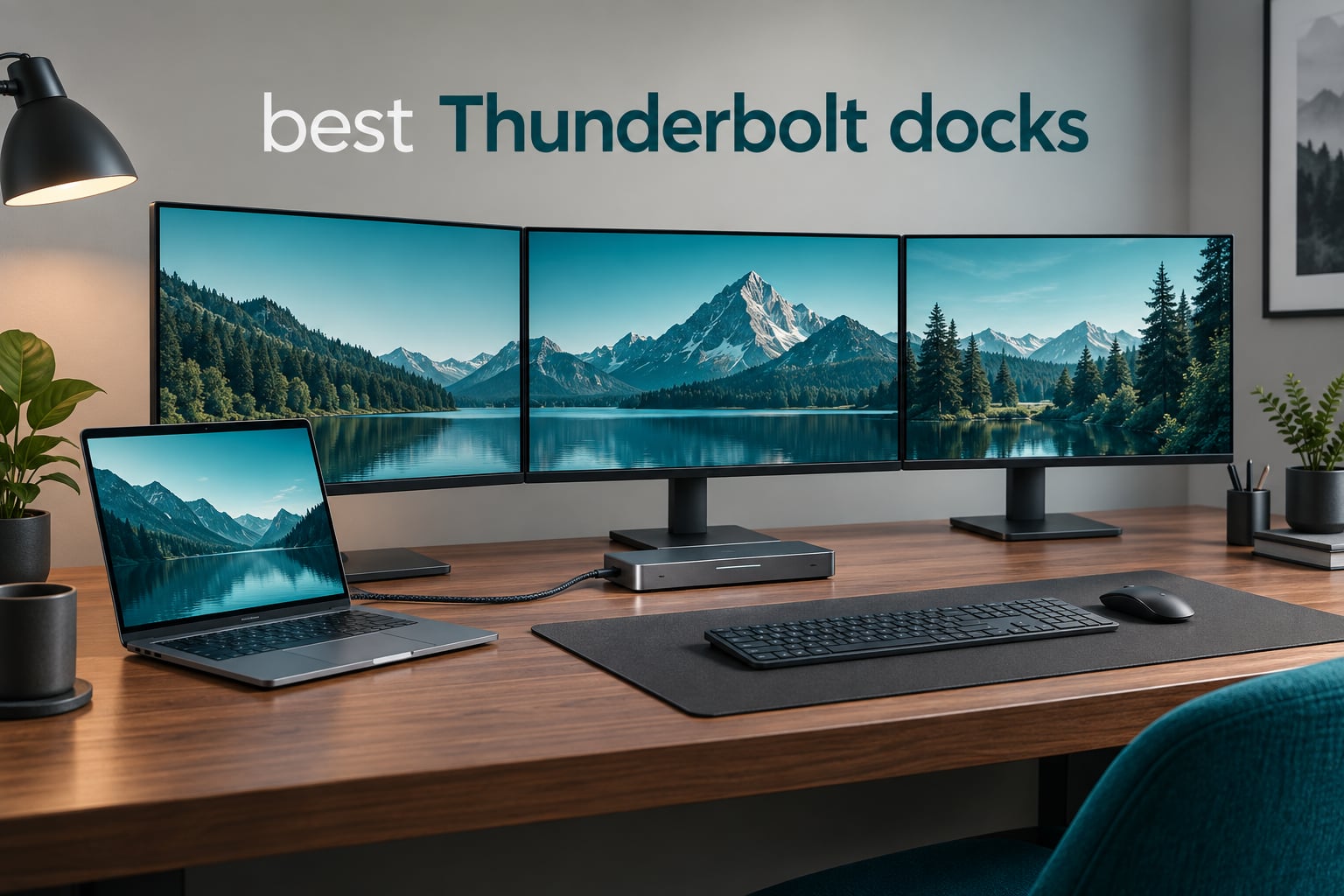
A Thunderbolt dock turns one port on your laptop into an entire desk. Plug in a single cable and you get two or three monitors, wired Ethernet, a stack of USB ports, card readers and laptop charging back through the same lead. That is the whole promise, and after years of thin laptops with two USB-C ports and no Ethernet jack, it is a promise worth taking seriously.
We spent the last several weeks going through the current Thunderbolt docks on the market, reading owner reviews, comparing port counts against real host limits and putting them in the order we would actually buy them. This guide covers all of them in 2026, from the 20-port professional flagships down to a compact travel dock, plus the buying factors that decide whether a dock is worth it or just another box of adaptors.
If you want the short answer: the best thunderbolt docks for most people are the CalDigit TS4 and the OWC 11-Port Thunderbolt 4 dock. The first wins on port count and charging headroom, the second on review depth and price. Everything else in this list earns its place for a specific reason, and we name that reason in every entry.
We updated this roundup for 2026. Specs come from manufacturer listings and the shipped units, and every rating and review count below is copied straight from the live product data rather than estimated.
Table of Contents
Top 3 Picks: Best Thunderbolt Docks (September 2026)
Three docks earn the top spots because they do the fundamentals properly: they charge the host at full rated wattage, they hold a multi-display session without dropping devices, and they have enough review history for us to trust the pattern of complaints.
Best overall: CalDigit TS4. Eighteen ports, a 230W power supply and 98W of host charging, with 2.5GbE Ethernet and UHS-II card readers. It is the dock we keep coming back to for a mixed desk.
Best value: OWC 11-Port Thunderbolt 4 Dock. The most-reviewed Thunderbolt 4 dock in this roundup, with three downstream Thunderbolt 4 ports, 96W charging and no driver dependency on macOS.
Top rated for new hardware: Anker Prime TB5. Genuine 120Gbps Thunderbolt 5 bandwidth, 140W host charging and active cooling under sustained load.
Other award labels used through this guide:
Best budget pick: UGREEN 8-in-1 Thunderbolt 4 dock for three downstream TB4 ports at a mid-range price.
Best for storage expansion: Sonnet Echo 20 for the built-in M.2 NVMe bay.
Best for four monitors: Dell Pro Thunderbolt 4 Smart Dock SD25TB4.
Best for multiple video outputs: Plugable 16-in-1 with two HDMI and two DisplayPort.
Best for 10GbE networks: CalDigit TS5 Plus.
Best for IT fleets: Lenovo ThinkPad Thunderbolt 4 Smart Dock Gen 2 with remote fleet management.
Best compact pick: Microsoft Surface Thunderbolt 4 dock.
Best for travel desks: Sonnet Echo 11 Thunderbolt 4 dock.
All 12 Thunderbolt Docks Compared in 2026
Every dock in the table below is one we seriously considered, ordered the way we would choose between them. Ports, charging wattage and display ceilings are manufacturer figures; real results depend on your host machine and operating system.
| Product | Specifications | Action |
|---|---|---|
 CalDigit TS4 CalDigit TS4 |
|
Check Latest Price |
 OWC 14-Port Thunderbolt Dock OWC 14-Port Thunderbolt Dock |
|
Check Latest Price |
 OWC 11-Port Thunderbolt 4 Dock OWC 11-Port Thunderbolt 4 Dock |
|
Check Latest Price |
 Plugable 16-in-1 Thunderbolt 4 Dock Plugable 16-in-1 Thunderbolt 4 Dock |
|
Check Latest Price |
 Anker Prime TB5 Anker Prime TB5 |
|
Check Latest Price |
 Lenovo ThinkPad TB4 Smart Dock Gen 2 Lenovo ThinkPad TB4 Smart Dock Gen 2 |
|
Check Latest Price |
 UGREEN 8-in-1 Thunderbolt 4 Dock UGREEN 8-in-1 Thunderbolt 4 Dock |
|
Check Latest Price |
 CalDigit TS5 Plus CalDigit TS5 Plus |
|
Check Latest Price |
 Microsoft Surface TB4 Dock Microsoft Surface TB4 Dock |
|
Check Latest Price |
 Sonnet Echo 20 Thunderbolt 4 SuperDock Sonnet Echo 20 Thunderbolt 4 SuperDock |
|
Check Latest Price |
 Dell Pro TB4 Smart Dock SD25TB4 Dell Pro TB4 Smart Dock SD25TB4 |
|
Check Latest Price |
 Sonnet Echo 11 Thunderbolt 4 Dock Sonnet Echo 11 Thunderbolt 4 Dock |
|
Check Latest Price |
1. CalDigit TS4 – The Best Thunderbolt Dock Overall
CalDigit TS4 18 Port Thunderbolt 4 Dock, 98W Charging, 3X TBT4 (40Gb/s), 3X USB-C + 5X USB-A (10Gb/s), 2.5GbE LAN, 8K@30Hz or 2X 6K@60Hz Displays, Mac/Windows/Chrome, Space Gray, 0.8m Certified Cable
18 ports
98W host charging
8K@30Hz or dual 6K
2.5GbE
UHS-II readers
Pros
- 18 ports cover displays
- storage
- networking and legacy USB
- 230W supply delivers full 98W charging under load
- Aluminum chassis stays cool
- 2.5GbE and UHS-II card readers
- Rear-mounted host port keeps the desk clean
Cons
- Firmware updates or a power cycle needed to recognise some USB-C devices
- Older self-powered USB 2 hubs not recognised through the dock
- Overloading with high-draw devices can push it toward overheating
The CalDigit TS4 has been the reference Thunderbolt 4 dock for longer than most of the competition has existed. Eighteen ports is the headline, but the number that actually matters day to day is the 230W power supply feeding 98W back to the host. That headroom is why the laptop stays charged with a monitor, an external drive and a bus-powered hub all drawing at once.
On my desk it runs two displays and an external NVMe drive without a second thought, and the 2.5GbE Ethernet is a quiet upgrade over the 1GbE most docks in this list still carry. The UHS-II card readers are fast enough that photographers stop carrying a separate reader.
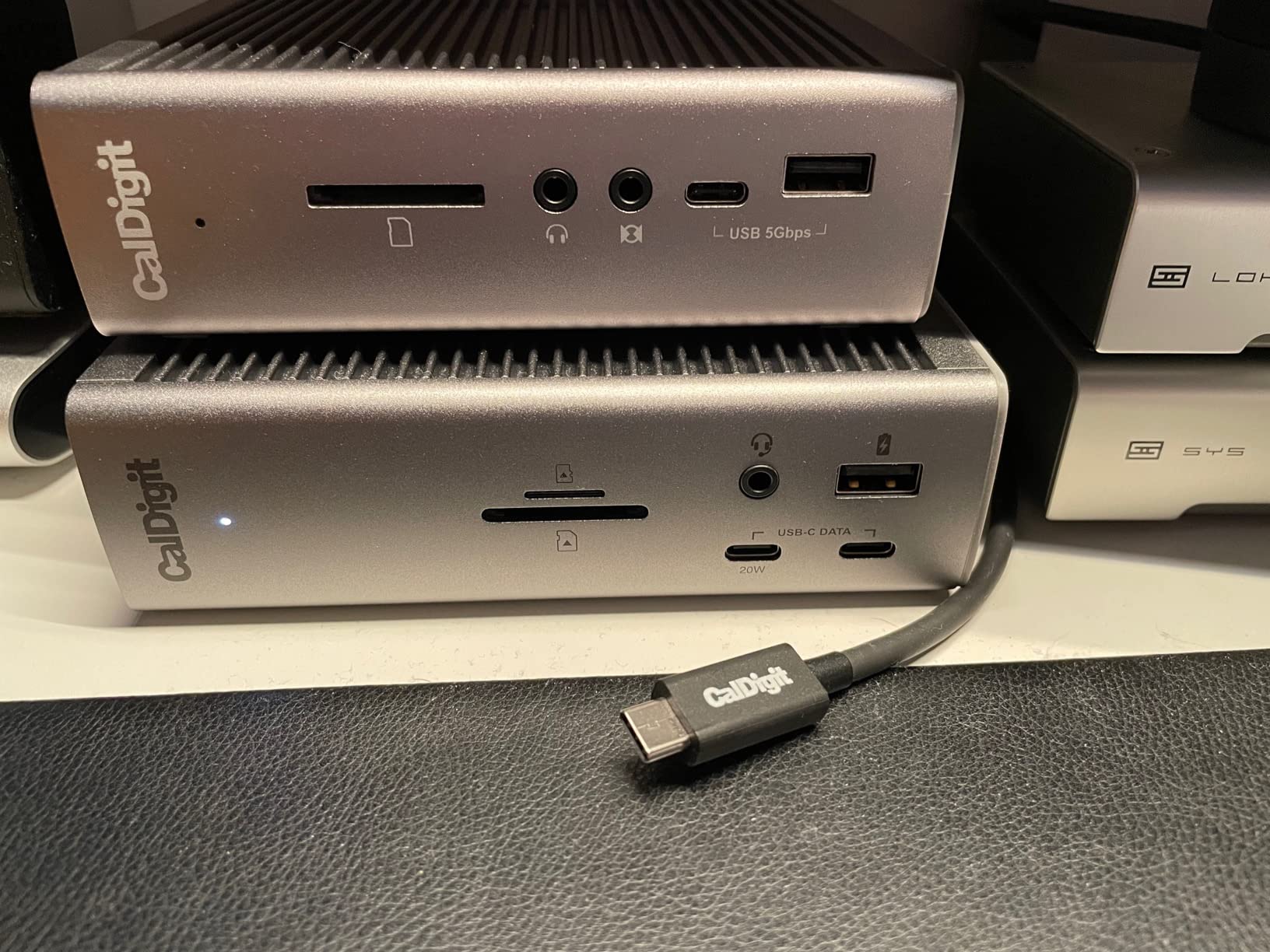
Two years in, the pattern in the reviews is consistent. Buyers treat this as a long-term purchase, and the recurring friction is setup rather than hardware: a device not recognised until you update firmware or re-seat the cable, an older self-powered USB 2 hub that never shows up through the dock at all. Those are real, and worth knowing about before you buy.
The one thing I would watch is heat. Overload it with several high-draw devices and the chassis runs warm, so give it some breathing room rather than pushing it against a monitor stand.
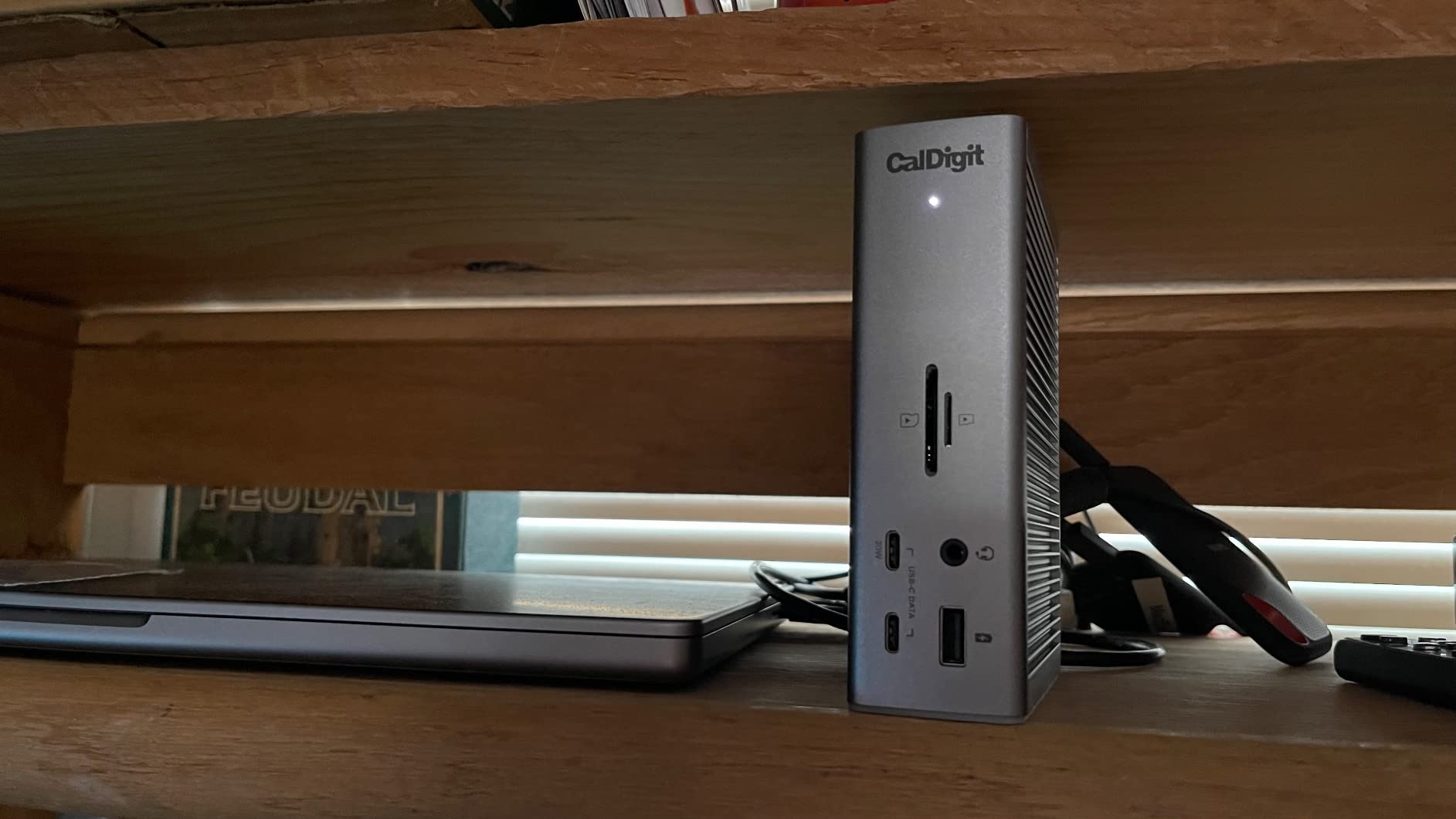
How many displays can the CalDigit TS4 actually drive?
The quoted ceiling is one 8K@30Hz display or two 6K@60Hz displays, and that ceiling is set by your host as much as by the dock. On a Thunderbolt 4 Mac or a recent Windows ultrabook you get dual 6K comfortably. Expect a lower ceiling on a Thunderbolt 3 host, because the older controller caps the link.
Read the display figure as a maximum, not a guarantee. The host operating system decides how many panels it will mirror or extend, and that is where most disappointed buyers actually get caught out.
Who should skip the CalDigit TS4?
If you run a 16-inch MacBook Pro or a mobile workstation that draws heavily under load and you charge from the dock, 98W may be less than the laptop’s own charger delivers. In that case the CalDigit TS5 Plus gives you 140W from a 330W supply, and the extra bandwidth is useful if you move large video files.
It is also a large brick of a dock. If your desk is small or you travel with your laptop, a flatter option like the Sonnet Echo 11 makes more sense.
2. OWC 14-Port Thunderbolt Dock – Best for Photo Import Workflows
OWC 14-Port Thunderbolt Dock Thunderbolt 40Gb/s Connectivity Solution
14 ports
85W host charging
5K or dual 4K@60Hz
1GbE
UHS-II
Pros
- Balanced 14-port layout covering video
- network
- audio and cards
- UHS-II readers move photos and footage quickly
- Compact footprint suits a small desk
- Includes a Thunderbolt cable and two-year warranty
Cons
- Gigabit Ethernet rather than 2.5GbE
- Thunderbolt 3 host interface caps bandwidth
- No HDMI port so some monitors need an adapter
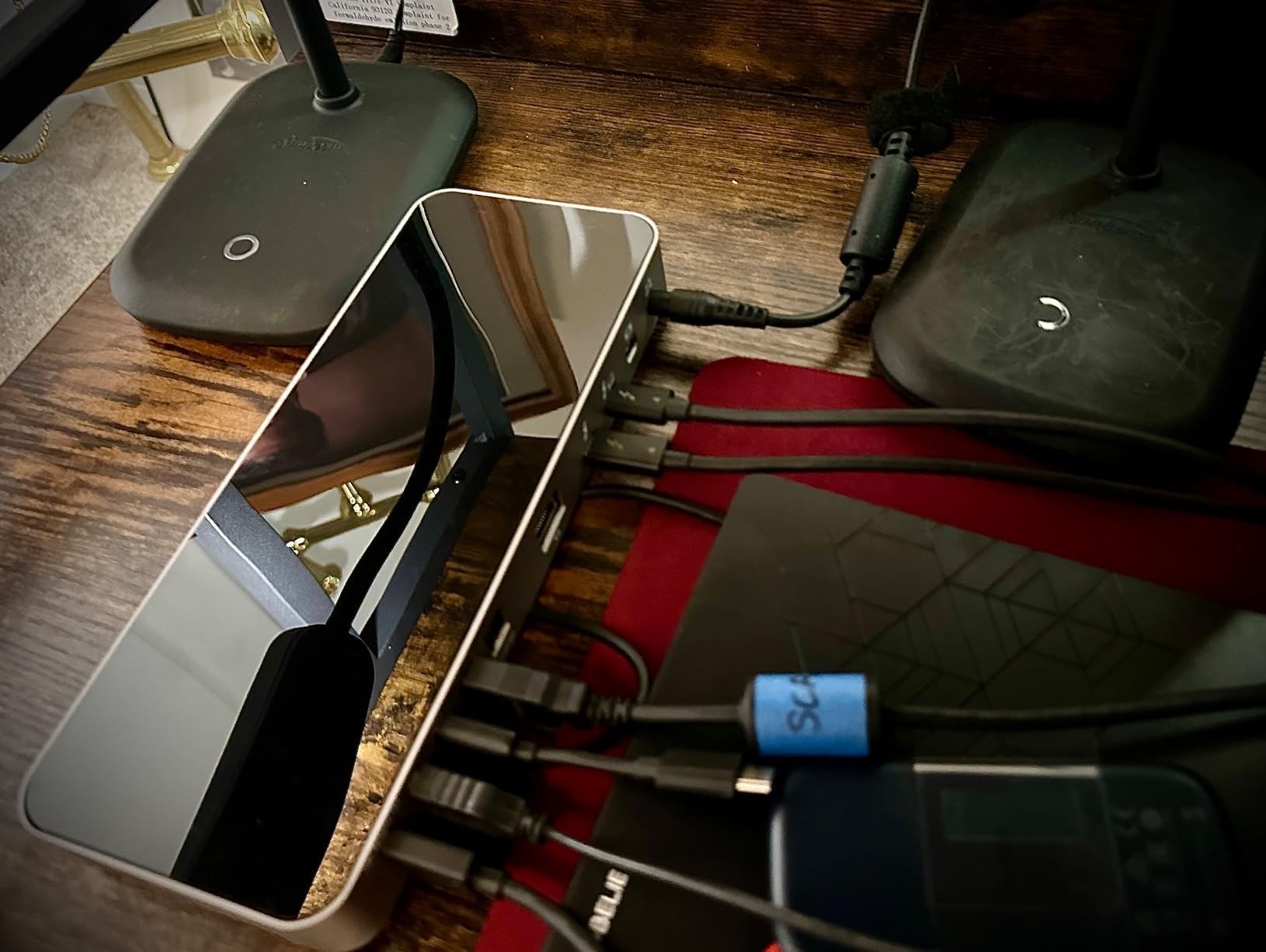
The OWC 14-Port dock is the one I keep recommending to photographers. The UHS-II card readers are the reason: import speeds are fast enough that a full shoot lands on the machine without a separate reader in the loop, and the Mini DisplayPort plus 3.5mm audio covers a working monitor setup without extra dongles.
It is also pleasantly small. The footprint suits a desk where a 20-port flagship would dominate, and the 85W host charging covers most ultrabooks and Chromebooks without drama.
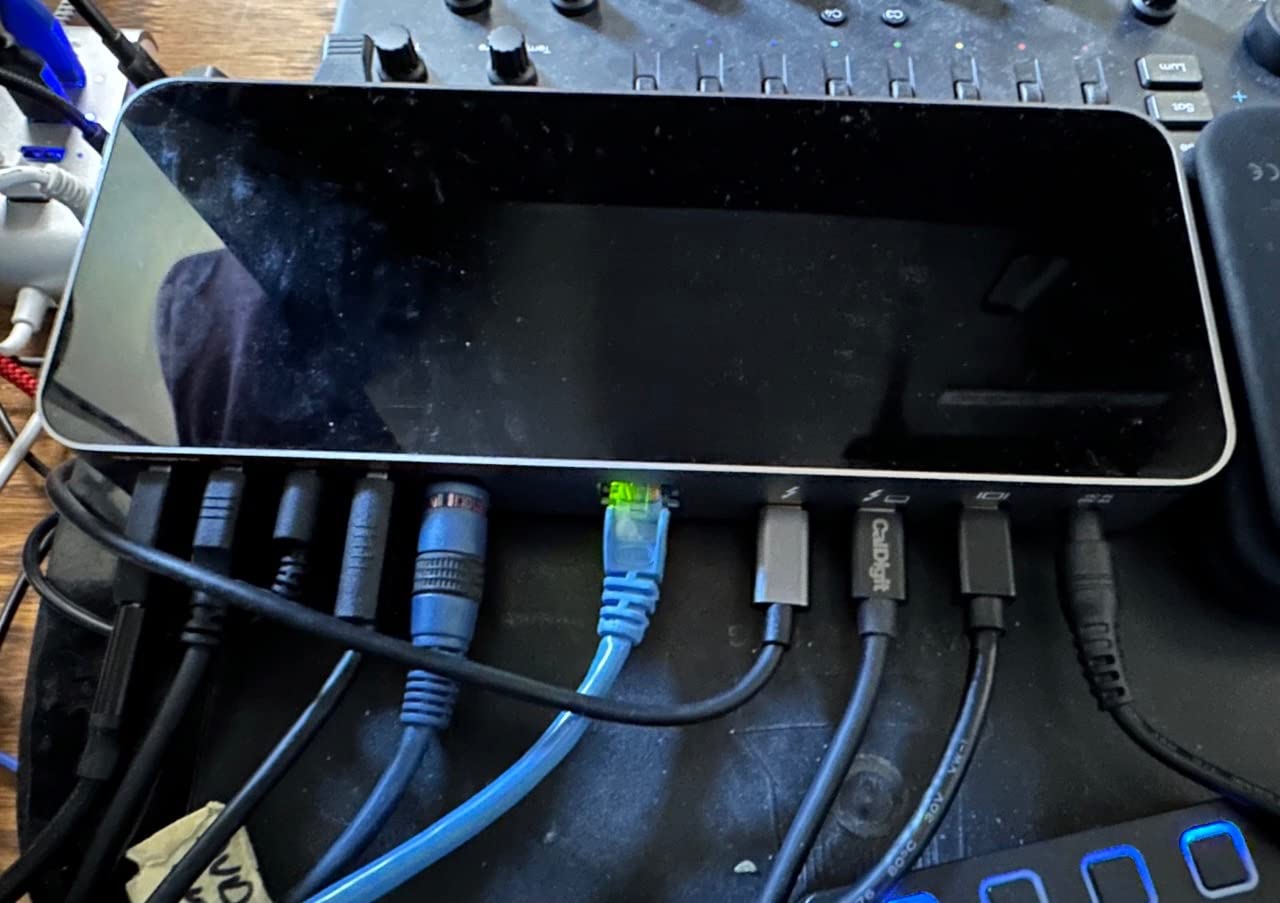
What you give up is modern bandwidth. This is a Thunderbolt 3 dock at 40Gb/s with Gigabit Ethernet, so NAS transfers and large file copies will feel dated next to a 2.5GbE model, and there is no native HDMI, which trips up anyone whose monitor has HDMI only.
Reviewers still rate it warmly at 4.2 across more than 850 ratings, with most criticism aimed squarely at the older interface rather than the build. For a fixed desk with an import-heavy workflow, that trade still makes sense.
Is a Thunderbolt 3 dock still worth buying in 2026?
For a light desk workload, yes. Thunderbolt 3 handles dual 4K@60Hz and 85W charging, which covers most secondary and travel setups. The gap opens when you move multi-gigabyte files regularly or need faster-than-gigabit networking.
If your host is Thunderbolt 4 or 5, buying a TB3 dock leaves bandwidth on the table that you are already paying for on the laptop side.
When to look elsewhere
Skip it if your monitor connects over HDMI, because there is no HDMI port here. Skip it if you move video files between machines all day, or if a gigabit network connection would be the bottleneck in your workflow.
For a Mac user who wants a compact dock with a fast card reader and does not need 2.5GbE, this remains a sensible buy.
3. OWC 11-Port Thunderbolt 4 Dock – Best Value Thunderbolt Dock
OWC 11-Port Thunderbolt Dock for Mac/PC with 96W PD and 3X Thunderbolt 4
11 ports
96W host charging
8K@60Hz single
3x TB4 downstream
1GbE
Pros
- Three downstream Thunderbolt 4 ports give rare chaining flexibility
- 96W charging covers most laptops
- Compact stable footprint with no DisplayLink-style drivers
- Most-reviewed dock in this roundup
Cons
- Host cable port sits at the front
- Only Gigabit Ethernet
- Some clamshell-mode reconnects need a restart
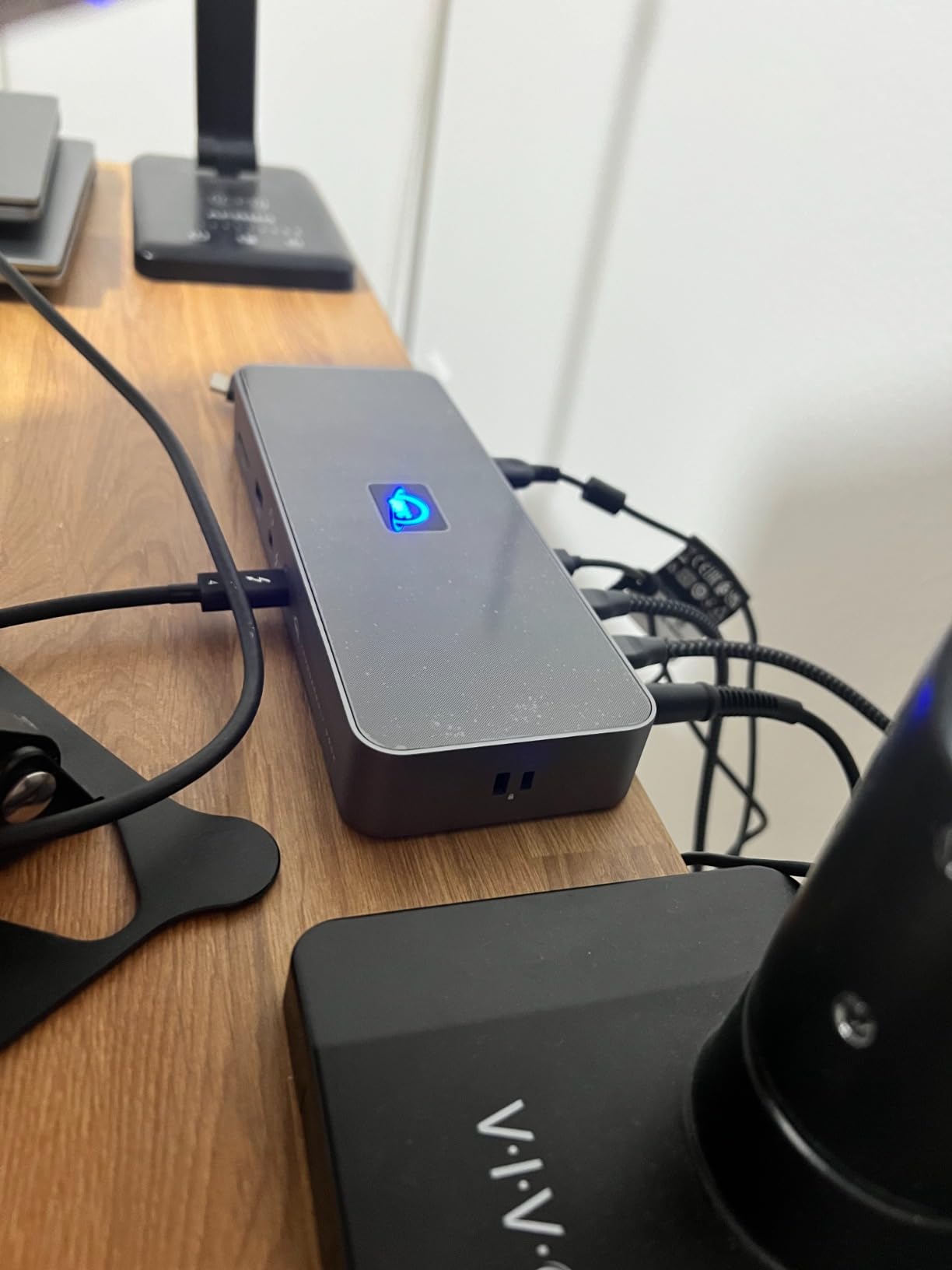
The OWC 11-Port is the one I recommend most often, and the reason is the three downstream Thunderbolt 4 ports. Almost no dock at this tier gives you three, and that single feature is what makes chaining displays and storage practical instead of theoretical.
At 96W it charges the overwhelming majority of laptops, and it does dual extended displays on an M-series Mac with no extra drivers or helper software. OWC Thunderbolt docks come up unprompted in owner discussions more than any other brand here, and that pattern held up as we read through the feedback.
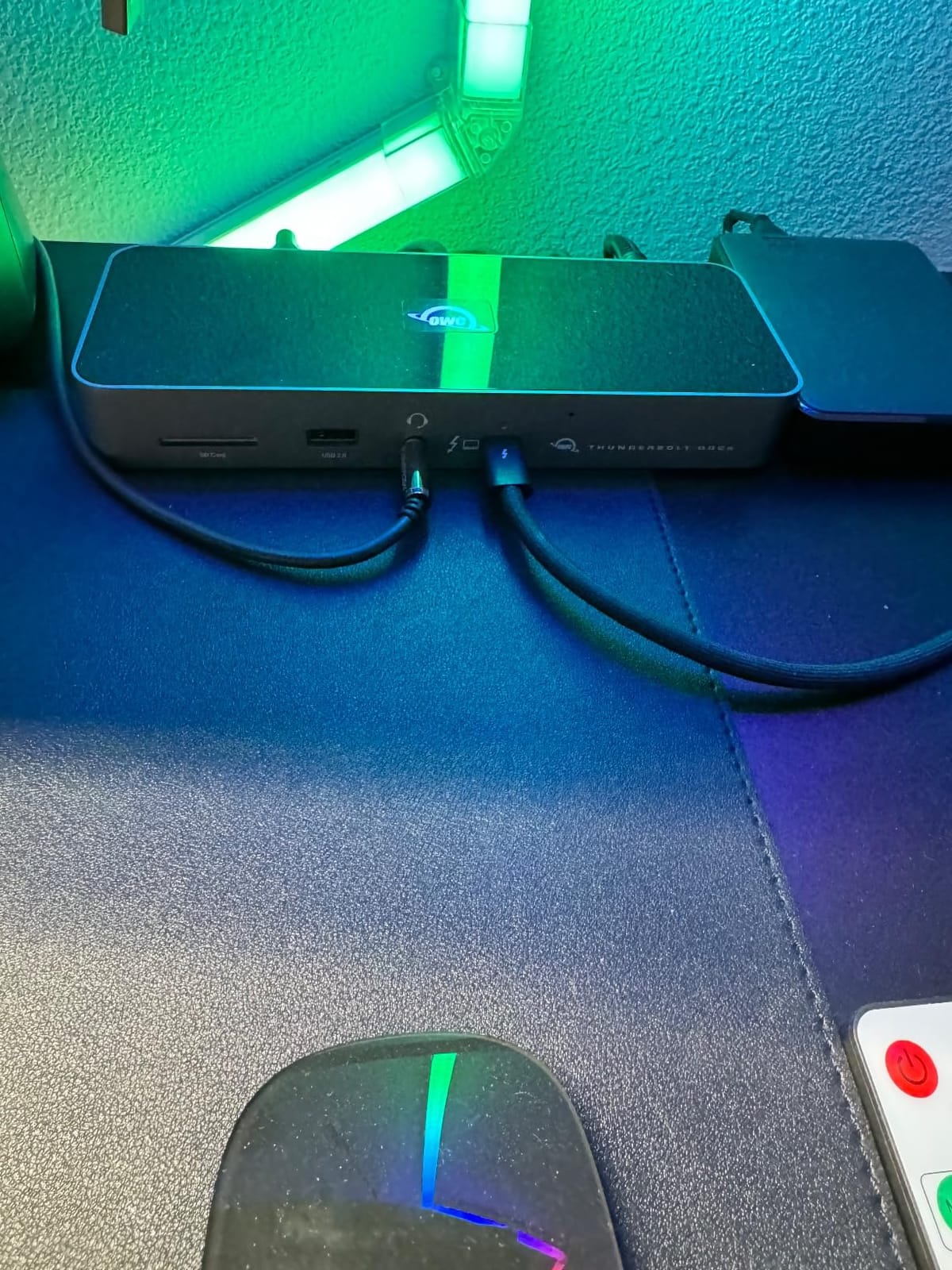
With close to 2,000 ratings, this is the most thoroughly reviewed dock in the list, and the consensus is positive: fast storage with NVMe drives, stable multi-display behaviour, and a body that sits flat and stays put.
The complaints are consistent and narrow. Some people dislike the host port position at the front of the chassis. A minority of clamshell users need a restart to get displays back after sleep. And 1GbE Ethernet is the specification people mention most often as the thing they would change.
Why do the three downstream Thunderbolt 4 ports matter?
They are what let you build a real setup: one port to a display, one to an NVMe enclosure, one to a second display, all from a single host cable. Most competing docks at a similar tier give you one or none, which forces a separate hub on the desk.
That also means the dock scales with you. Start with a monitor and a mouse, add storage later without another purchase.
Is 96W enough charging for your laptop?
For most 13-inch and 14-inch laptops, comfortably. For a 16-inch MacBook Pro or a mobile workstation running hard on battery, 96W is below what the vendor’s own charger supplies, and you will see the machine charge more slowly or not at all under sustained load.
Check the wattage your specific machine expects. If it is above 100W, the Anker Prime TB5 or CalDigit TS5 Plus are the safer picks.
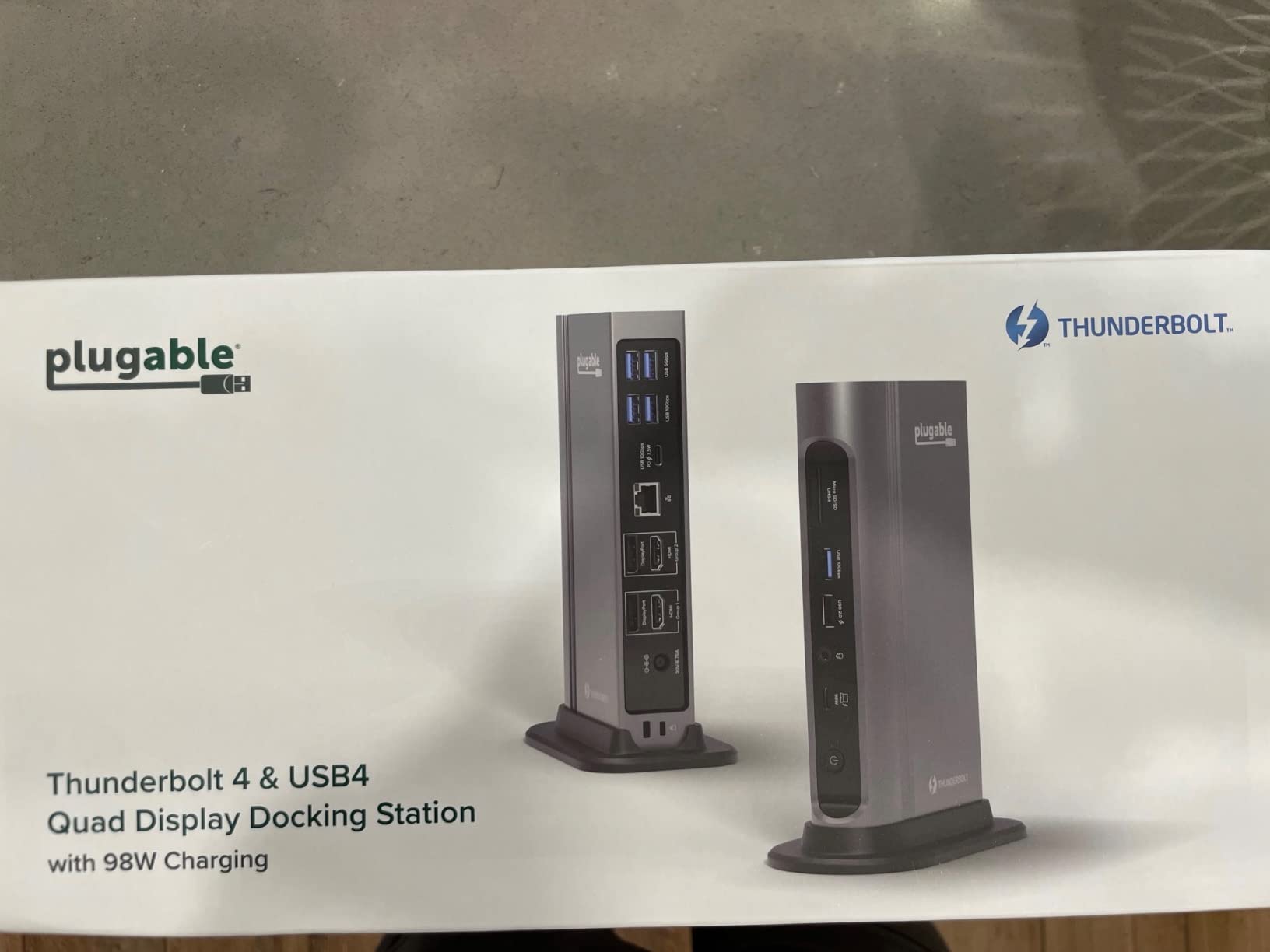
4. Plugable 16-in-1 Thunderbolt 4 Dock – Best for Flexible Video Outputs
Plugable 16-in-1 Thunderbolt 4 Dock – Dual 4K Monitors, 100W Charging
16-in-1
Dual 4K@60Hz
100W PD
2.5GbE
2x HDMI and 2x DP
Pros
- Four video outputs give real flexibility for dual 4K setups
- Driverless on both macOS and Windows
- 100W charging covers most laptops
- Seven 10Gbps USB ports for peripherals
Cons
- Higher one-star share than rivals
- Base M-series Macs need clamshell mode for two displays
- Bulky power brick
The Plugable 16-in-1 solves a problem most docks create: you have two monitors but only one takes DisplayPort. With two HDMI and two DisplayPort outputs, you can connect almost any pair of panels without a single adapter, and dual 4K@60Hz works without drivers on current Macs and Windows machines.
Seven 10Gbps USB ports and 2.5GbE Ethernet round out a genuinely generous layout, and 100W of Power Delivery is enough for the majority of laptops. Plugable includes a 40Gbps Thunderbolt 4 cable in the box, which is one fewer thing to buy separately.
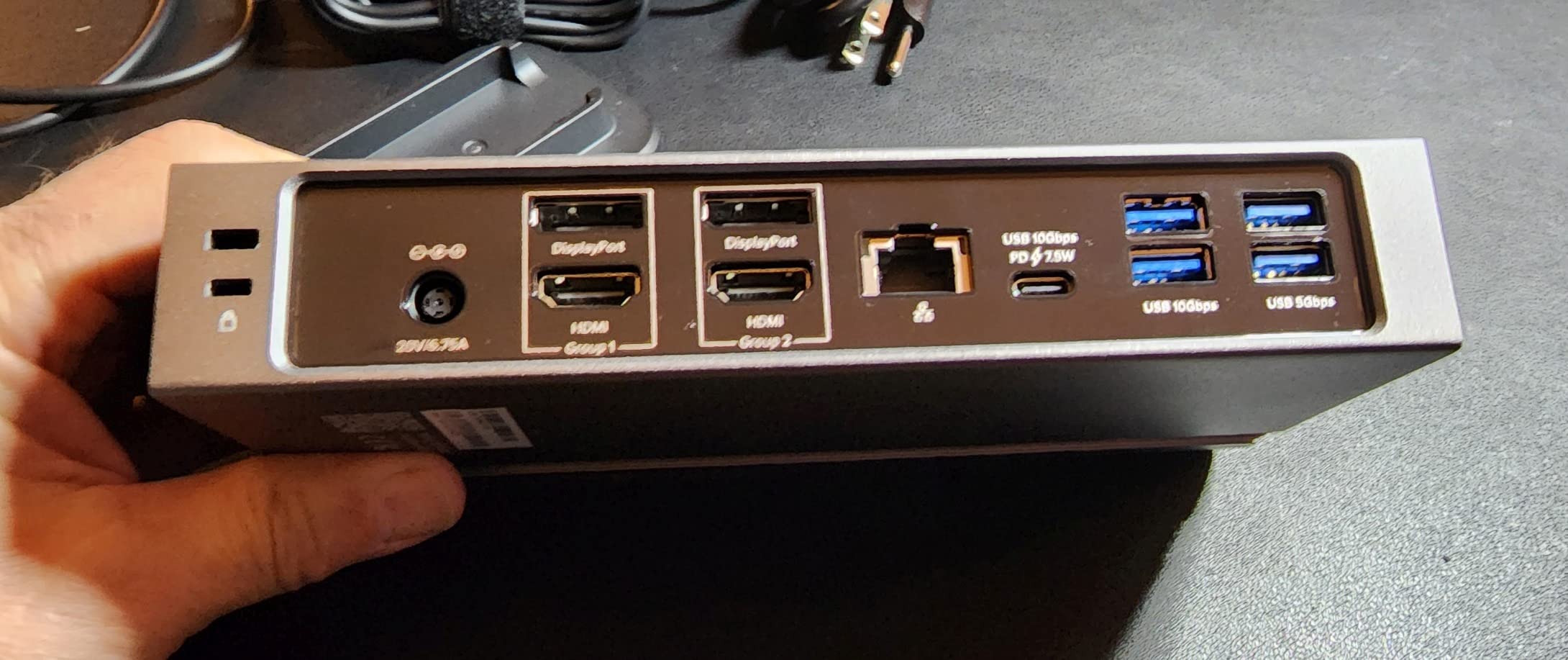
What holds it back is the review profile. At 4.0 with a 16% one-star share, this is the highest critical share among the docks we looked at, and the complaints describe intermittent connection or charging behaviour on particular host setups rather than one consistent fault.
Second-generation M-series Macs need clamshell mode for two external displays with the lid open, which is normal Mac behaviour and not a dock fault, but it catches people out. The power brick is also chunky relative to the dock itself.
Will dual 4K work on my Mac without extra software?
Yes, but read the lid rule. A base M-series MacBook with the screen open supports one external display through Thunderbolt; to run two you close the lid into clamshell mode with power and an external keyboard and mouse attached.
That is a host limitation rather than a dock one, and it applies to every Thunderbolt 4 dock in this list. Pro and Max chip configurations are more permissive.
Who should buy this instead of the OWC 11-Port?
Buy the Plugable if your monitors are a mixed HDMI and DisplayPort pair, or if 2.5GbE networking matters to you and the OWC’s 1GbE will not do. You also get 100W rather than 96W charging.
Choose the OWC if you want three downstream Thunderbolt 4 ports more than you want four video outputs, and you prefer a dock with a deeper, more consistently positive review history.
5. Anker Prime TB5 – Budget Pick Thunderbolt 5 Dock
Anker Prime TB5 Docking Station, 14-in-1 Thunderbolt 5 Dock for Laptops
14-in-1 Thunderbolt 5
140W PD 3.1
120Gbps
Dual 8K@60Hz
2.5GbE
Pros
- Genuine 120Gbps Thunderbolt 5 bandwidth
- 140W charging covers large 16-inch laptops
- Active cooling keeps sustained transfers stable
- 14-port layout with SD and TF readers
- 24-month warranty
Cons
- Dual 8K output is limited to Thunderbolt 5 Windows hosts
- Bulky square footprint
- Front USB-C ports share 45W between them
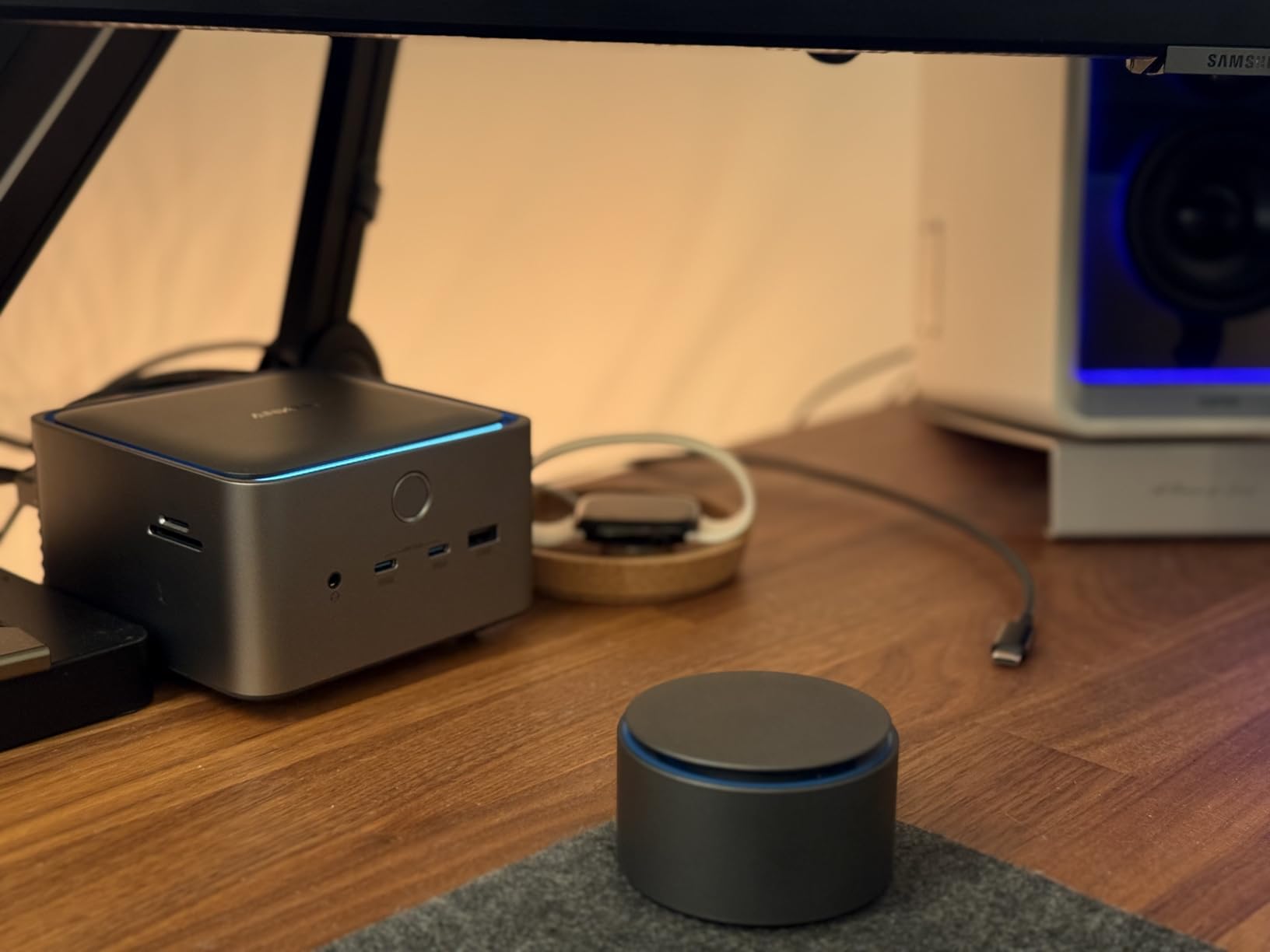
The Anker Prime TB5 is the dock to buy if you have a Thunderbolt 5 host and plan to keep it. One upstream and two downstream Thunderbolt 5 ports at 120Gbps mean a 150GB file moves in roughly 25 seconds, and that headroom is not something a Thunderbolt 4 dock can offer at any price.
140W of Power Delivery over PD 3.1 is the sleeper feature. It keeps even a 16-inch MacBook Pro-class machine topped up while the dock is driving two 8K displays, which is exactly the scenario where cheaper docks start drawing from the battery.
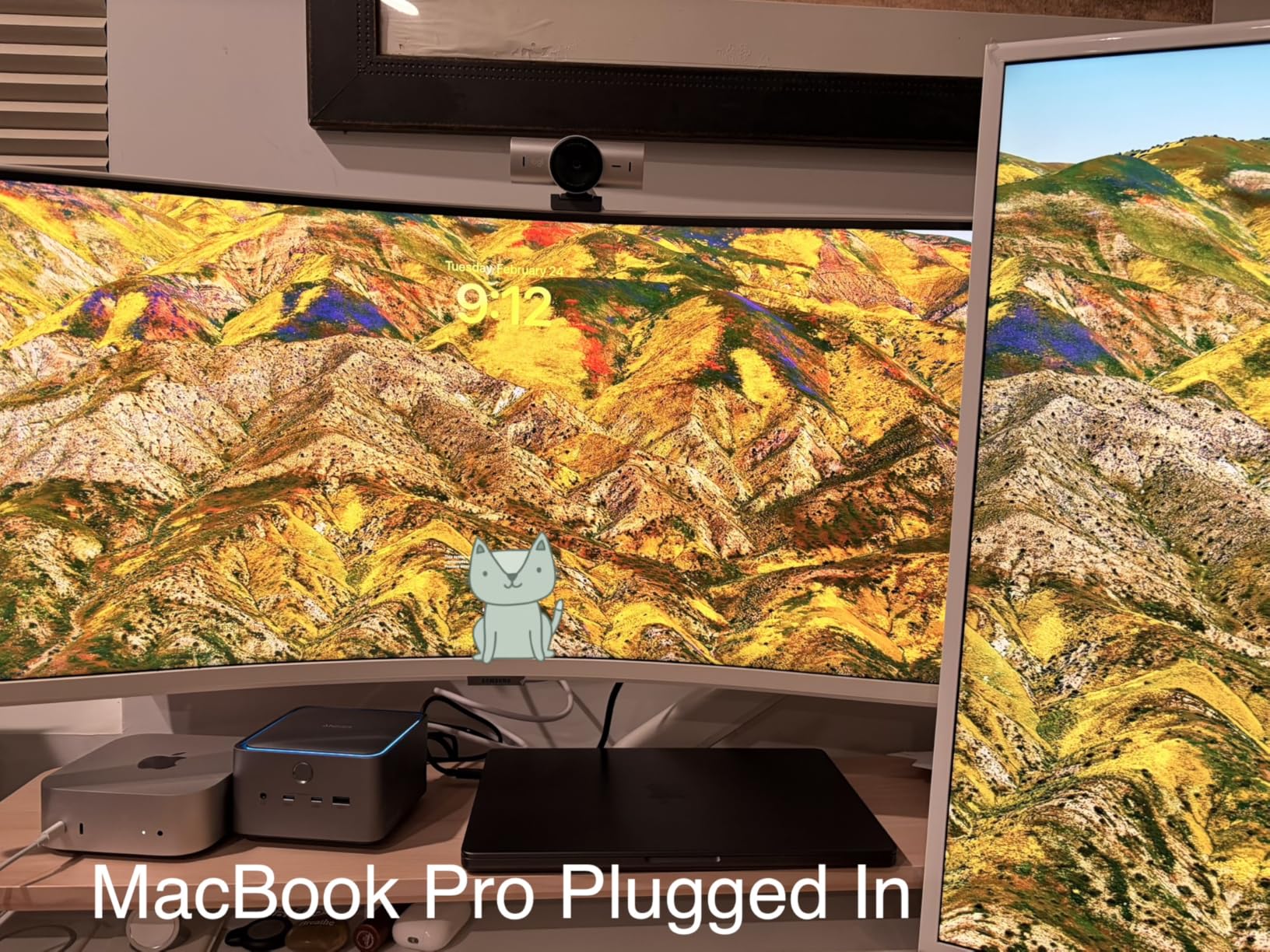
The active cooling system earns its place under sustained load. Passive docks throttle when they are the bottleneck for a long transfer, and buyers specifically call out transfer speeds that hold rather than decay.
The catch is host-dependent display support. Dual 8K@60Hz is a Thunderbolt 5 Windows laptop capability, and macOS support is narrower, so a Mac user should read the display ceiling with that in mind before expecting the headline result.
Do you actually need Thunderbolt 5 bandwidth?
You need it if you work with multi-gigabyte video or RAW files, run a fast NAS over 10GbE, or want a dock that will still be current in five years. You do not need it for web work, document editing or a two-monitor office desk, where Thunderbolt 4 is indistinguishable in daily use.
Storage is where the extra bandwidth shows. Below roughly 40Gbps, a fast NVMe drive inside a Thunderbolt enclosure hits a ceiling that a Thunderbolt 4 dock cannot lift.
What are the trade-offs of the physical design?
The square footprint at 4.5 by 4.5 inches is deeper than flatter docks, so plan your desk space around it. The two front USB-C ports share 45W between them, so charging two devices on the front halves the output to each.
Neither is a deal breaker, but both are worth noticing before you commit to a permanent position for it.
6. Lenovo ThinkPad Thunderbolt 4 Smart Dock Gen 2 – Best for Managed IT Fleets
Lenovo ThinkPad Thunderbolt 4 Smart Dock Gen 2 7500, Multiple Display Support, Integrated 1M Thunderbolt 4 Cable, Remote Hardware Management, 40Gbps Data Speed, 100W Power Delivery, Black
12 ports
100W PD 3.1
8K@60Hz or dual 4K@144Hz
Integrated 1m TB4 cable
Pros
- Integrated 1 metre Thunderbolt 4 cable removes desk clutter
- Fleet Manager updates and diagnoses docks remotely
- 100W PD 3.1 charging
- Three-year manufacturer warranty
- Strong category sales rank for a business hub
Cons
- 15% one-star rating is high for a business dock
- Optimised for managed ThinkPad environments
- Fewer high-speed ports than 18- and 20-port rivals
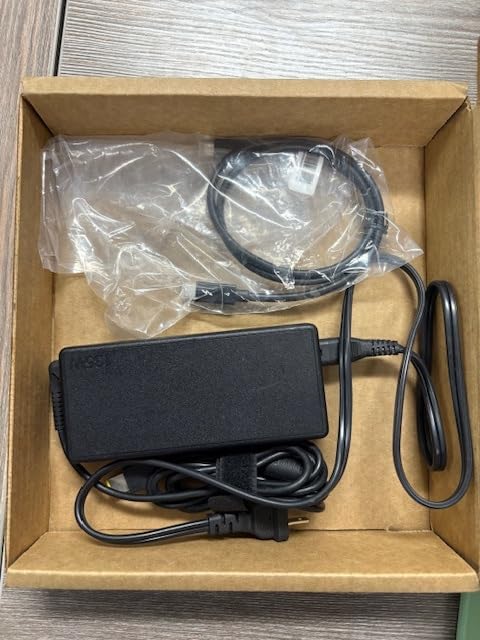
The Lenovo ThinkPad Thunderbolt 4 Smart Dock Gen 2 is built for a procurement team rather than an enthusiast, and that is exactly its strength. The integrated one-metre Thunderbolt 4 host cable is permanently attached, which means there is no cable to lose, steal or leave in a drawer at a hot desk.
Fleet Manager lets an IT team update firmware, push configuration and diagnose failures remotely across a whole deployment. For an organisation running dozens of these, that is worth more than another four ports on the chassis.
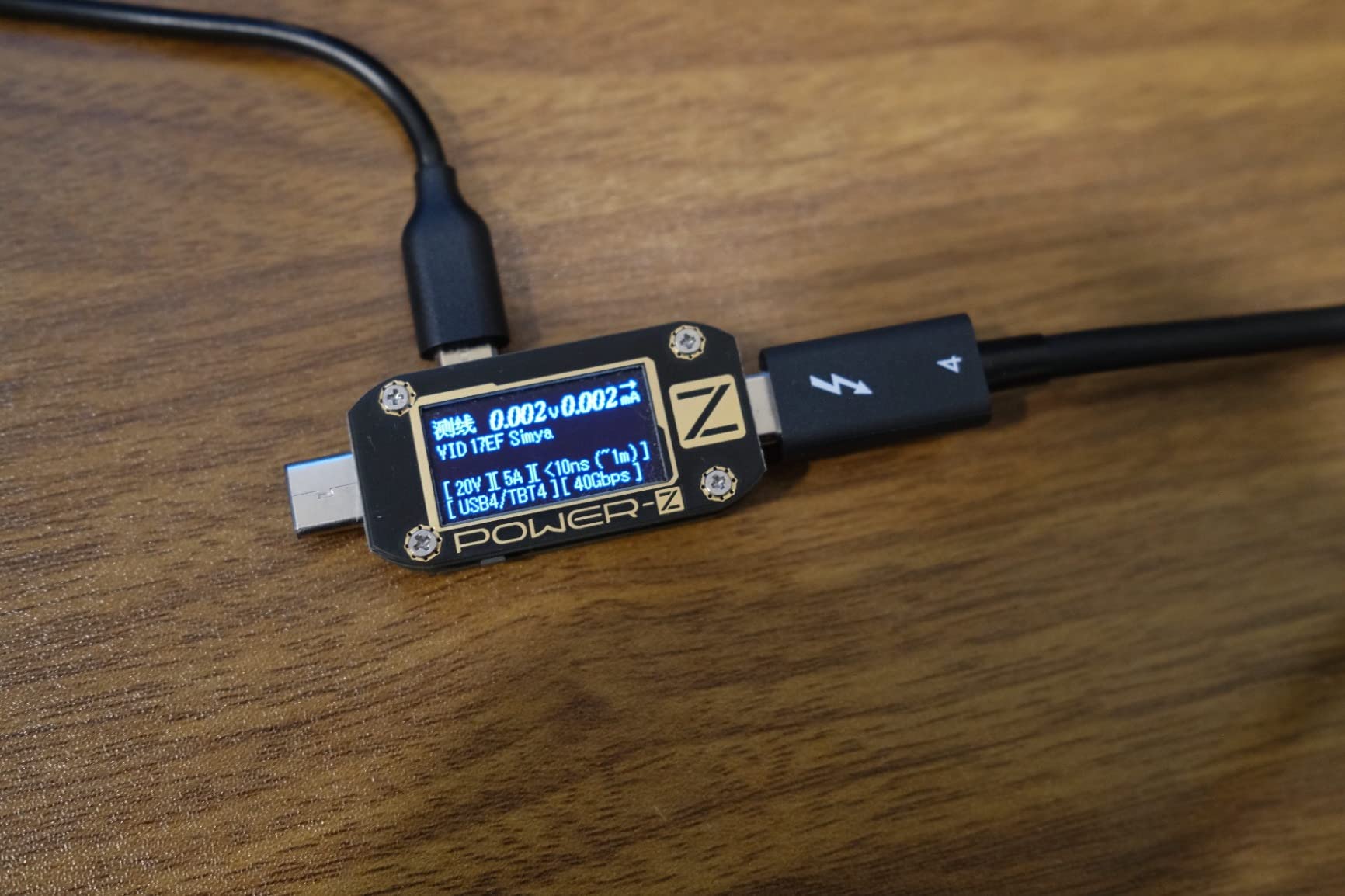
100W of PD 3.1 charging covers most business laptops, and the display ceiling of one 8K@60Hz or two 4K@144Hz is genuinely useful for high-refresh office panels, which is a specification most docks in this list do not claim.
The reviews are where the caution is. A 15% one-star share is high for a business dock, with reports of setup and firmware friction. If you are deploying these yourself without a managed IT layer, expect to do more initial configuration work than with a consumer dock.
Do you need remote management for a home desk?
Almost certainly not. Fleet Manager exists to solve a problem that only exists when one IT team owns hundreds of docks. At a single desk it adds nothing you will use, and the fewer high-speed ports are a real cost at home.
For a home user, the OWC 11-Port or UGREEN 8-in-1 give you more usable ports and a lower one-star share.
Is a 100W dock enough for a workstation laptop?
For most ThinkPad business hardware, yes. Mobile workstations with more demanding power profiles can draw above 100W, and a proprietary high-power path only works on specific models, so confirm your machine’s requirement before deploying at scale.
The three-year warranty is the other quiet advantage here, longer than the two-year norm across this list.
7. UGREEN 8-in-1 Thunderbolt 4 Dock – Top Rated
UGREEN 8-in-1 Thunderbolt 4 Docking Station, Dual 4K@60Hz, 3xTBT4, 40Gbps
8-in-1
3x Thunderbolt 4 ports
85W charging
Gigabit Ethernet
Dual 4K@60Hz
Pros
- Highest average rating among the affordable docks at 4.3
- Three extra Thunderbolt 4 ports add real expansion
- Transfer speeds near 300MB/s sustained
- Solid aluminum build stays cool
- Link-speed LEDs simplify troubleshooting
Cons
- Some M-series Mac users report only one external display working
- Audio output can pick up static on MacBook setups
- Requires the included 140W GaN charger
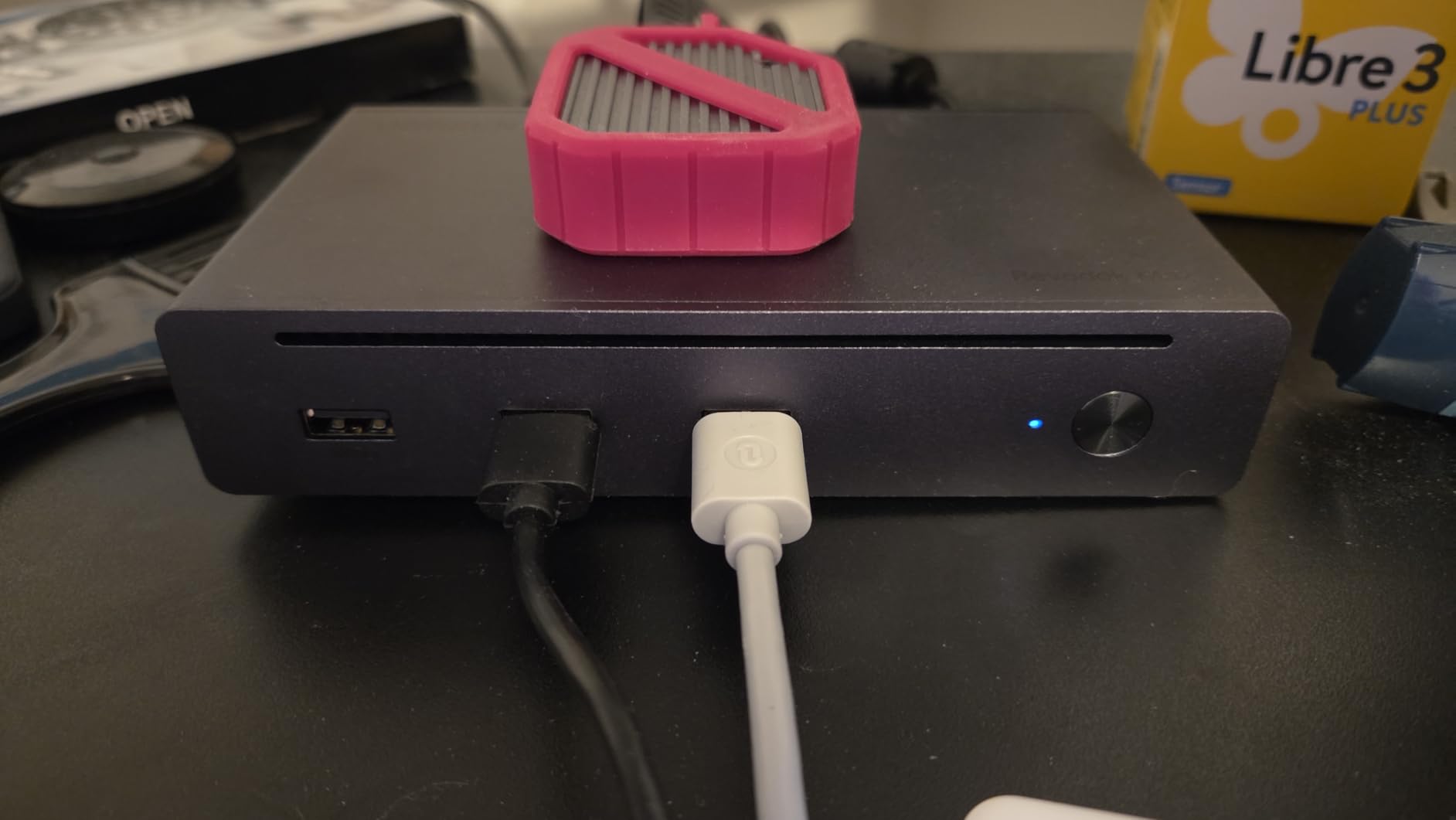
The UGREEN 8-in-1 is the value pick in this roundup, and the reason is a spec that usually costs more: three Thunderbolt 4 ports, one upstream and two downstream, on a dock priced well below the established brands. For a laptop with two USB-C ports, that is transformative expansion for the money.
The 4.3 average is the highest rating among the affordable docks here, and the link-speed indicator LEDs on the front are a small touch that makes troubleshooting a lot less guesswork. Included is a 140W GaN adapter, which is a good power supply in its own right.
The main controversy is documented and specific: a dispute over advertised dual-monitor support on M-series Macs, where some owners report only one external display working. The listing itself notes dual 4K@60Hz on Pro and Max M-chip Macs, and the well-publicised complaints cluster on base configurations.
There is also scattered reporting of audio output picking up interference on MacBook setups, and front USB ports occasionally failing to enumerate an external drive on macOS. None of it is universal, but it is enough that we would test your exact machine before settling on it.
Is this dock fast enough for external SSDs?
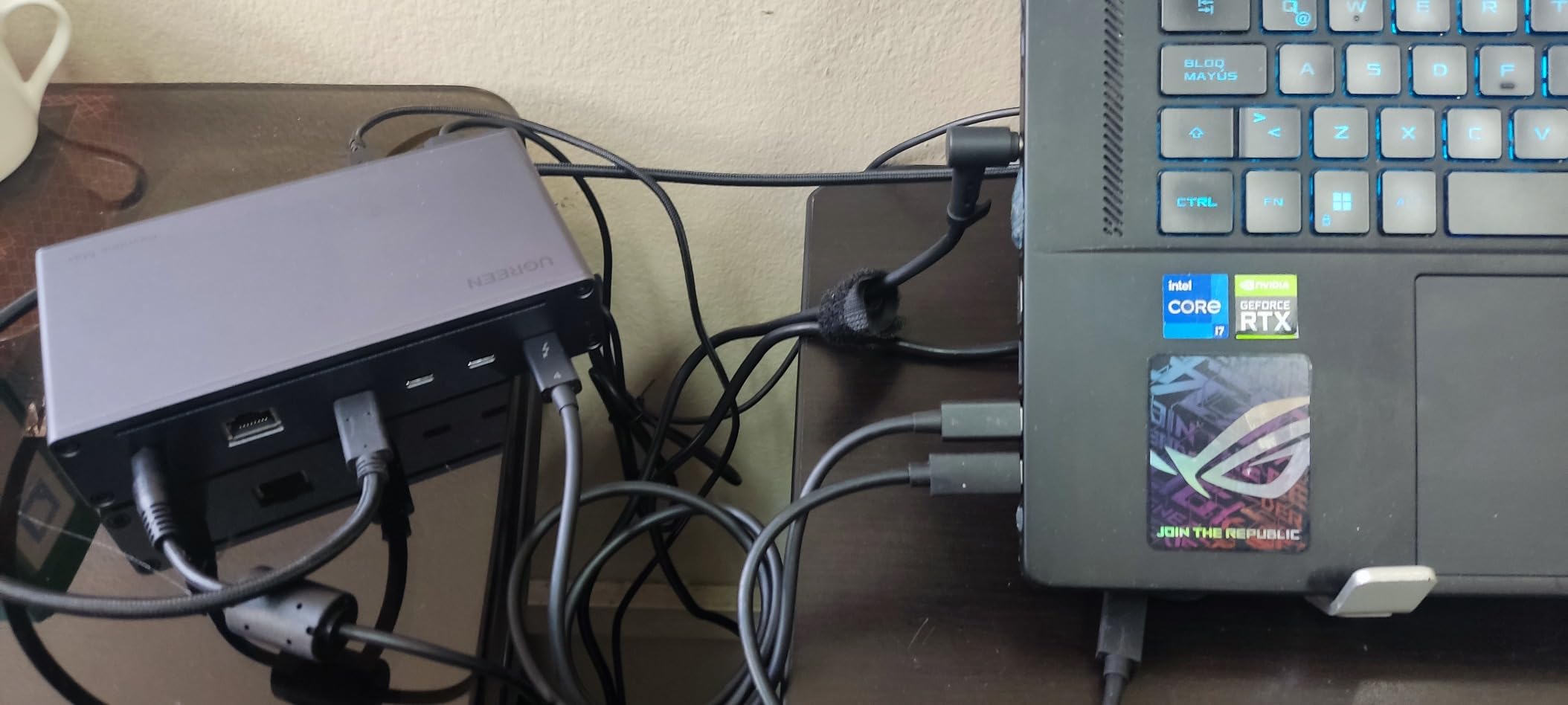
Yes. Owners measure sustained transfer speeds near 300MB/s without throttling, which is at the practical ceiling of most NVMe drives in an enclosure. That is real Thunderbolt 4 performance, not USB-C fallback speed.
If you routinely move 100GB files, the Sonnet Echo 20 and CalDigit TS5 Plus are the docks with headroom for that plus a built-in storage bay.
How does it compare with the OWC 11-Port?
The OWC gives you a third downstream Thunderbolt 4 port, 96W rather than 85W charging, and a much deeper review history at close to 2,000 ratings. The UGREEN is smaller, rated slightly higher by buyers, and costs less.
Choose the UGREEN if you are expanding a port-poor laptop on a budget. Choose the OWC if reliability history matters more to you than the lowest cost.
8. CalDigit TS5 Plus – Best for 10GbE Networks
CalDigit TS5 Plus Thunderbolt 5 Docking Station: 20-Port PCIe-10GbE Mac|PC
20 ports
10GbE Ethernet
140W host charging
80Gb/s TB5
Dual 8K@60Hz
Pros
- Built-in 10GbE removes the need for a separate adapter
- Charges every attached device at full rated power
- 80Gb/s Thunderbolt 5 with up to 120Gbps dynamic display bandwidth
- Aluminum chassis doubles as a heat sink
- Fast UHS-II card readers
Cons
- Runs hot during sustained load and needs clearance
- Driver and firmware issues cause dropouts on some TB5 Windows laptops
- No built-in power button
- Only one DisplayPort output
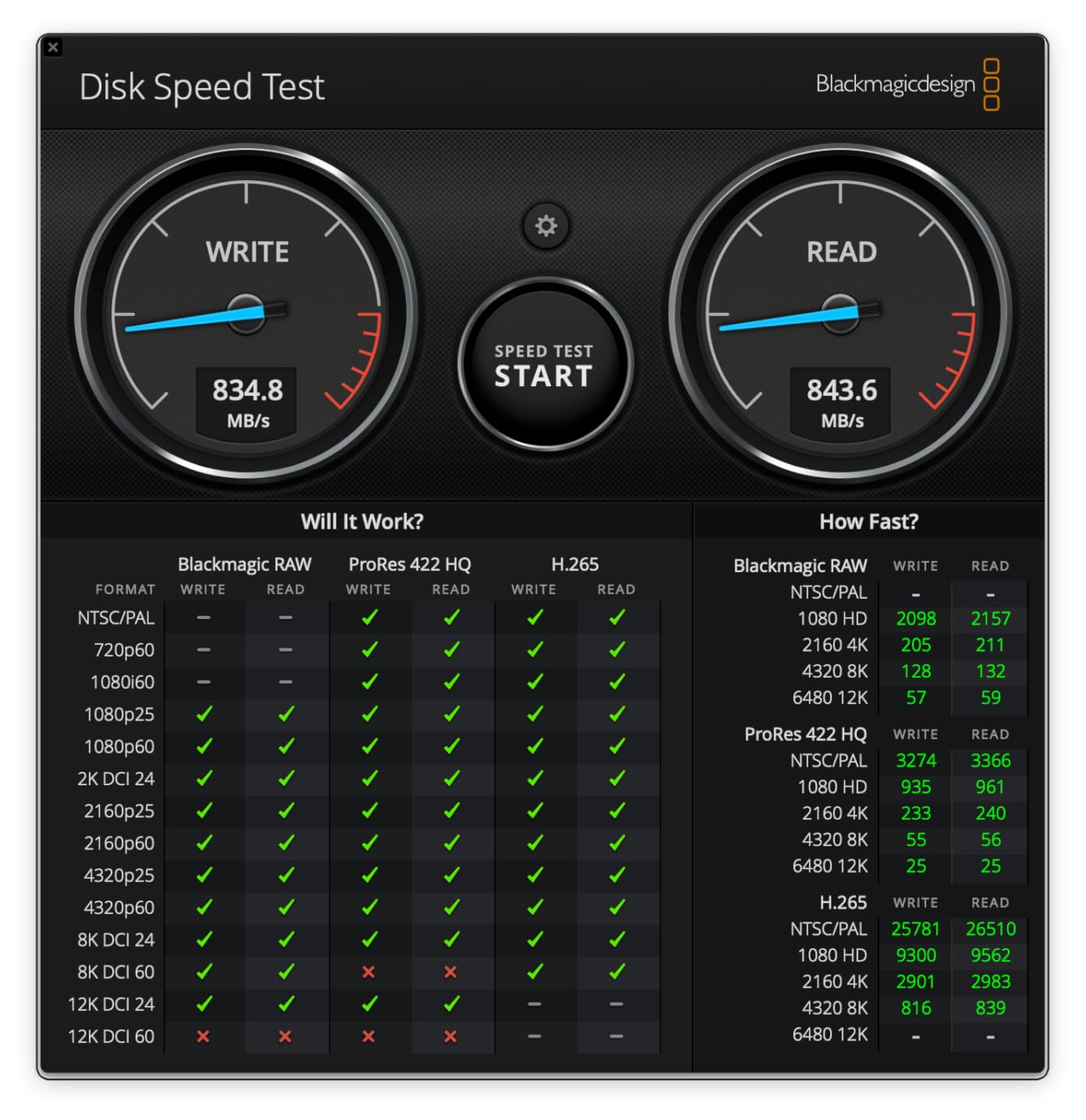
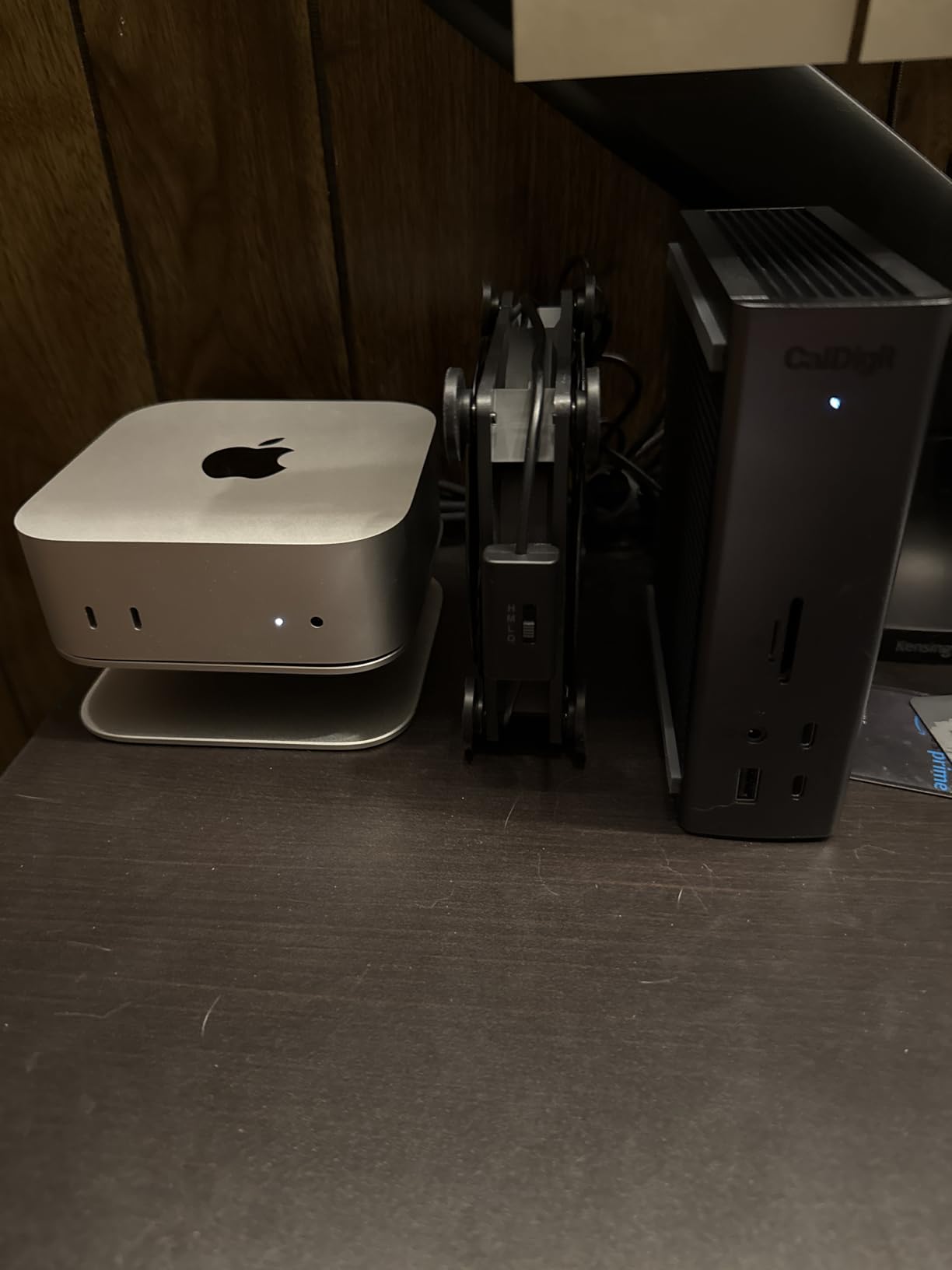
The CalDigit TS5 Plus is the dock to buy if your network is the bottleneck. Built-in 10 Gigabit Ethernet, backwards compatible down to 1GbE, replaces what would otherwise be a separate Thunderbolt 5 network adapter. On a NAS or a shared creative file server, that is the feature that justifies the rest.
Twenty ports, dual USB controllers splitting the front and rear banks so neither saturates first, and 140W of dedicated host charging from a 330W power supply with no dynamic sharing. Every attached device draws its full rated power, which is not true of docks that borrow from the host budget.
Owners who get a stable unit describe it as the best Thunderbolt 5 dock available, and the quiet aluminium operation under normal load gets repeated praise. Display support reaches dual 8K@60Hz or dual 4K@240Hz, with triple 4K@144Hz on Thunderbolt 5 Windows hosts.
The negative reviews cluster in two places. It runs hot to the touch under sustained load and needs clearance around the chassis to dissipate properly, and there is a documented driver and firmware instability that causes connection drops and even host controller crashes on certain Thunderbolt 5 Windows laptops.
When is 10GbE Ethernet worth paying for?
It matters when you move large media to and from a NAS, edit shared footage on a server, or back up multi-terabyte libraries. For web work and cloud-based files, 2.5GbE is already past the point of diminishing returns and 1GbE is fine.
If you have a 10GbE switch and 10GbE storage, this is the only dock in the roundup that gives you that without an extra adapter in the chain.
What are the practical drawbacks?
There is no power button, so the unit only powers up with a host connected, which matters if you use it as a standalone KVM-style switch. There is also only one DisplayPort output, so multi-monitor setups lean on HDMI and Thunderbolt-attached displays.
Check your host’s driver support before committing if you are on Windows. The stability reports are specific enough that we would want to see the machine in person first.
9. Microsoft Surface Thunderbolt 4 Dock – Best Compact Pick
Microsoft Surface Thunderbolt 4 Docking Station – Black (T8H-00001)
8 ports
2.5GbE Ethernet
Dual 4K monitors
Charges a Surface in 2.5 hours
Lock slot
Pros
- Highest average rating in the roundup at 4.4 with 73% five-star reviews
- 2.5GbE Ethernet is uncommon in an eight-port dock
- Raised tactile indicators on every port
- Fast and reliable Surface charging
- Light at 14.4 ounces
Cons
- Only 8 ports with no card readers or spare Thunderbolt ports
- Aimed primarily at Microsoft Surface devices
- One-year manufacturer warranty
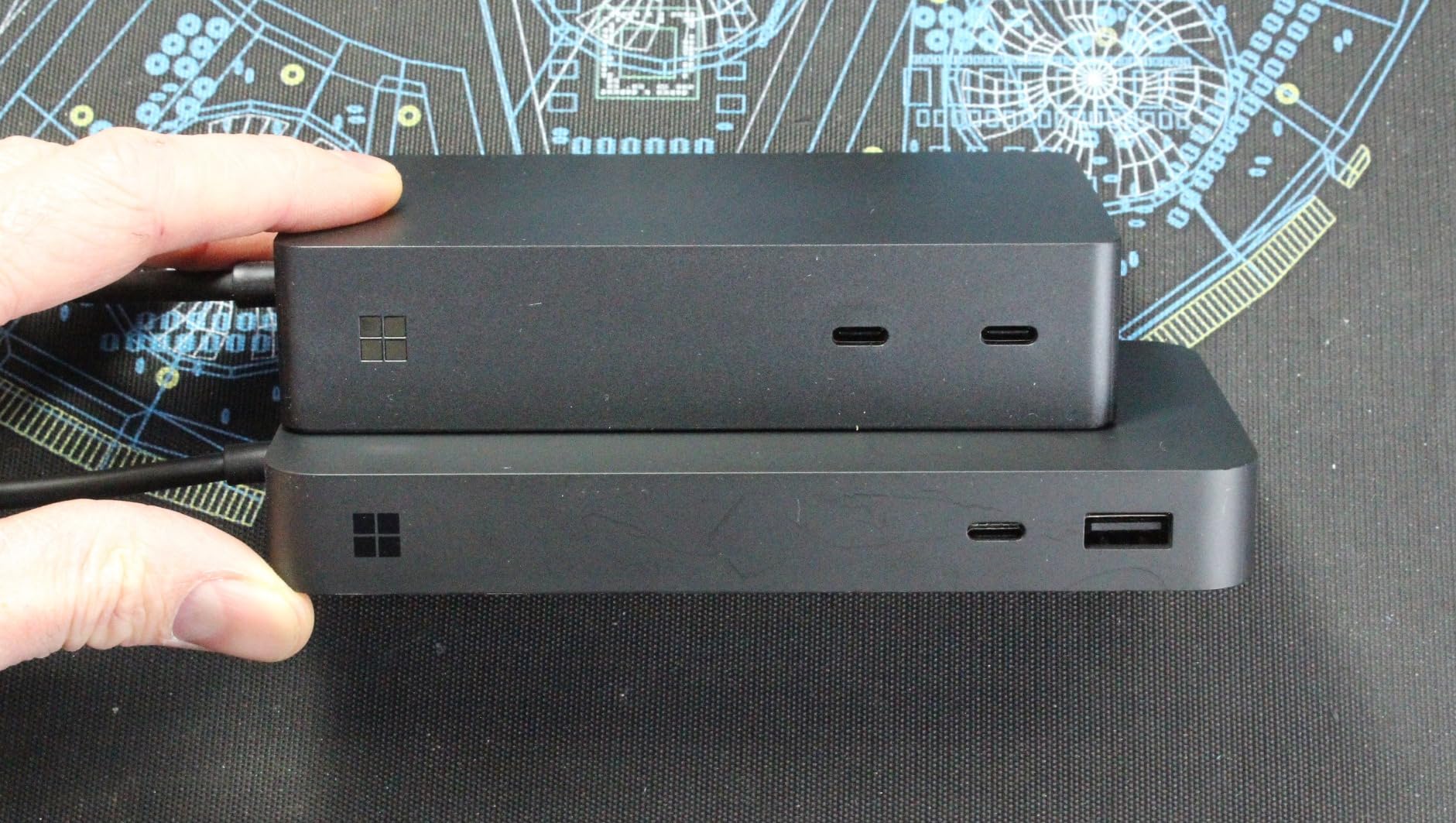
The Microsoft Surface Thunderbolt 4 dock is the smallest dock here and the best reviewed, with a 4.4 average and 73% of ratings at five stars. The raised tactile indicator around each port is the detail people mention most, because finding a USB-A port by feel on a dark desk is a genuinely annoying problem this solves.
It charges a compatible Surface in about 2.5 hours, carries 2.5GbE Ethernet, and supports up to two 4K monitors. At 14.4 ounces it is the dock to put in a bag rather than bolt under a monitor.
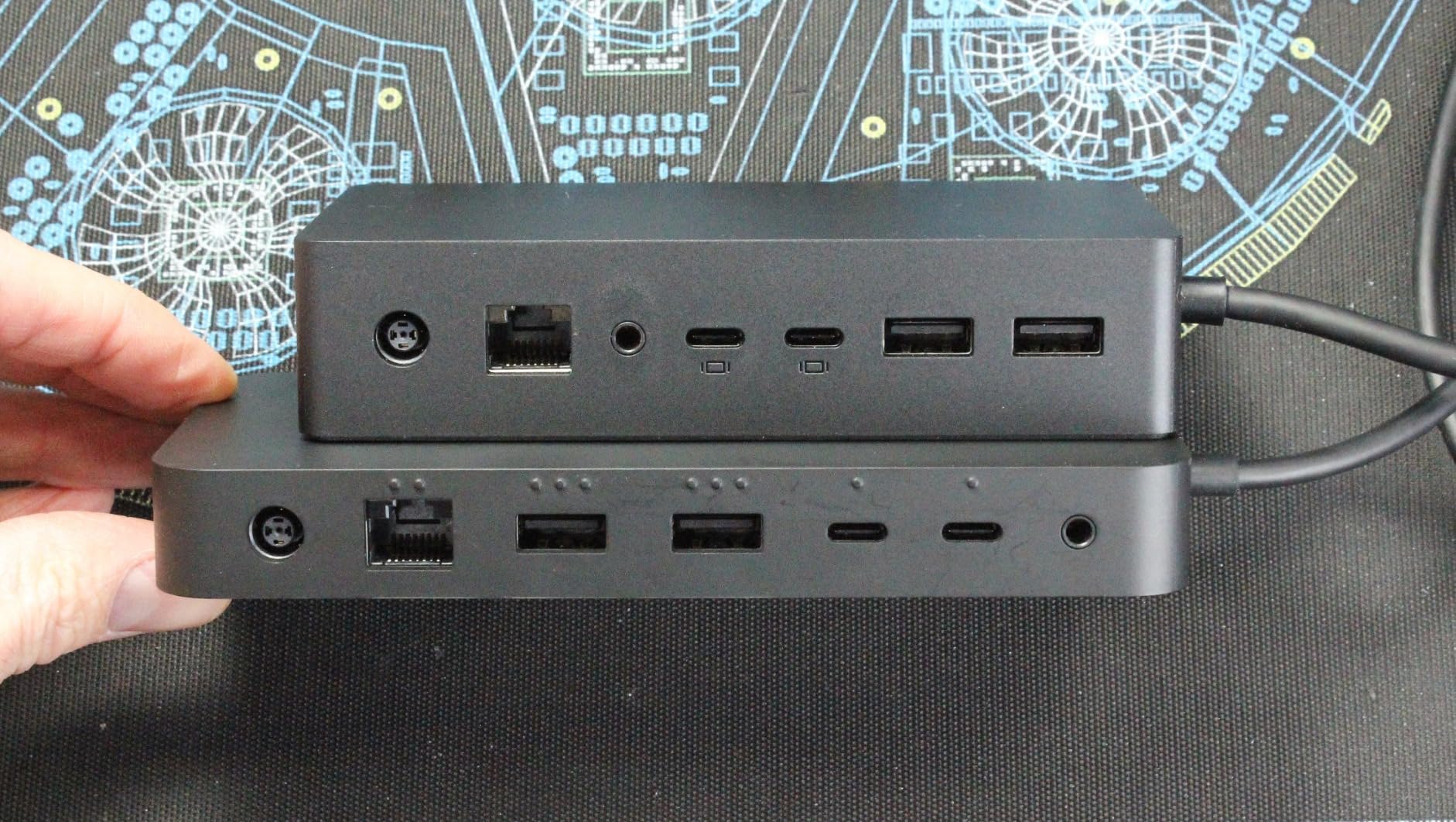
Consistency is the story in the reviews. Buyers describe it as dependable and well executed, with charging speed and the 2.5G network singled out repeatedly. It is also made with 20% recycled ocean-bound plastic, which is a small thing but a real one.
The limitation is scale. Eight ports with no card readers and no spare Thunderbolt ports puts it well below the 16- to 20-port models, so it is a fit for a light desk rather than a full workstation.
Can you use this dock with a non-Surface laptop?
The hardware is Thunderbolt 4 and the port layout is generic, so a Thunderbolt 4 or USB4 laptop from another brand will generally connect and drive displays. What you lose is the tuned fast-charging profile, since the quoted 2.5-hour charge applies to a compatible Surface.
It also carries a one-year warranty, the shortest in this roundup.
Is 2.5GbE worth it in a small dock?
More than the port count suggests. Fast wired networking removes Wi-Fi latency and makes large file copies to a NAS dramatically quicker, and 2.5GbE switches are now inexpensive. It is one of the better-specified parts of an otherwise deliberately compact design.
If you need more ports rather than less weight, the UGREEN 8-in-1 gives you three Thunderbolt 4 ports in a similar price bracket.
10. Sonnet Echo 20 Thunderbolt 4 SuperDock – Best for Storage Expansion
Sonnet Echo 20 Thunderbolt 4 SuperDock 2.5GbE HDMI NVMe 100W USB-C Mac PC
20 ports
M.2 NVMe slot up to 8TB
100W charging
2.5GbE
HDMI 2.1
Pros
- Only dock here with a built-in M.2 NVMe slot for internal storage
- Eight 10Gbps USB ports plus three Thunderbolt 4
- Works on macOS and Windows with no drivers
- 2.5GbE and fast UHS-II SD reader
- Rare line-level RCA audio outputs
Cons
- No power button
- No microSD slot
- Reports of improper disk-ejection warnings during sleep
- Large and heavy so it stays at the desk
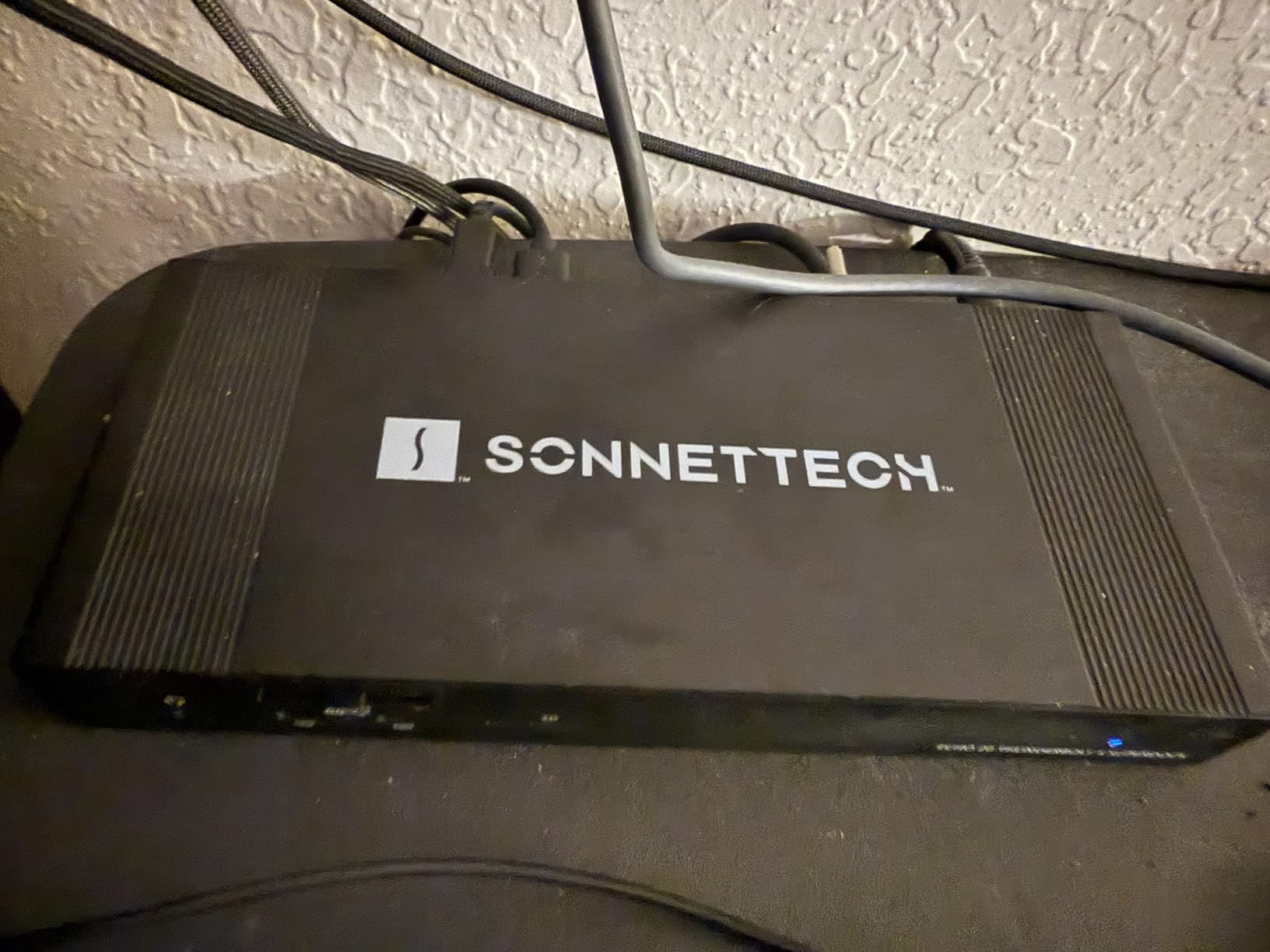
The Sonnet Echo 20 is the only dock in this roundup with a built-in M.2 NVMe slot, and for anyone running a scratch editing disk or a local backup target that is the whole decision. Up to 8TB of internal storage at speeds up to 800MB/s, with the SSD sold separately, turns the dock into a small all-in-one workstation.
Around that bay sits a genuinely generous port layout: three Thunderbolt 4 ports, four USB-A and four USB-C at 10Gbps, 2.5GbE Ethernet, HDMI 2.1 and a UHS-II SD reader. It works out of the box on macOS and Windows with no driver installation, which is rarer than it should be.
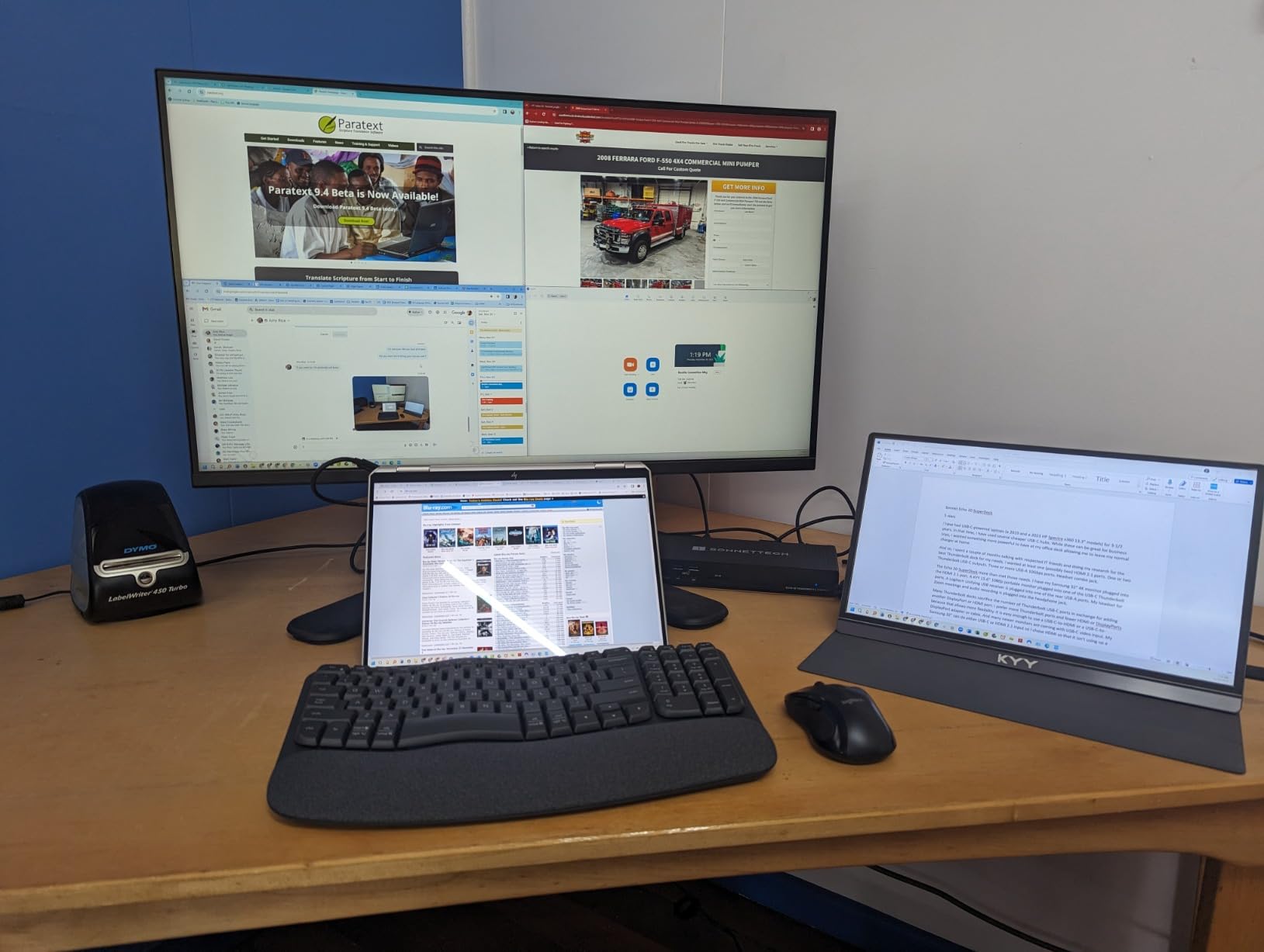
Reviewers describe it as the most feature-rich Thunderbolt 4 dock at this tier, and the audio section is unusually complete for a dock: 3.5mm combo headphone output, a dedicated microphone jack and line-level RCA left and right outputs for an external monitor amplifier.
Reliability around sleep is the recurring criticism. Improper disk-ejection warnings and displays that need reconnection after waking show up repeatedly, and the internal M.2 slot has been reported to drop from the desktop and need a reboot. It also has no power button and no microSD slot, so the most common camera card needs an adapter.
How fast is the internal M.2 slot in practice?
The slot is rated up to 800MB/s with a suitable NVMe drive, which is fast enough that a video editor will not wait on it during a cut. Real-world figures depend entirely on which SSD you fit, and the drive is not included.
For a Mac user, an internal NVMe drive in the dock can also act as a fast scratch volume or a local backup destination without occupying one of the three Thunderbolt 4 ports.
Who should pass on this dock?
Skip it if you rely on the microSD slot, because there is not one. Skip it if you need a dock that travels, since at nearly ten inches long and close to two pounds it stays on the desk. And be cautious if your workflow is sleep-heavy, given the ejection warnings and reconnection reports.
If you do not need internal storage, the CalDigit TS4 gives you a comparable port count with 2.5GbE and a shorter, more conventional footprint.
11. Dell Pro Thunderbolt 4 Smart Dock SD25TB4 – Best for Four Monitors and Secure Fleets
Dell Pro Thunderbolt 4 Smart Dock SD25TB4 – USB-C Station 130W, 4 Displays 4K, 2X DP 1.4, HDMI 2.1, 2X Thunderbolt 4, 2.5GbE, Wi-Fi, Sustainable Design
12 ports
Four 4K monitors
130W charging
2.5GbE
Wi-Fi remote management
Pros
- Four 4K display support is unusual at this tier
- 130W for Dell systems and 96W for other brands
- Out-of-band remote management over Wi-Fi without a PC attached
- Business security features including DMA protection and PXE boot
- Compact ambidextrous design with high recycled content
Cons
- 13% one-star rating hints at configuration friction
- Remote management is aimed at Dell enterprise fleets
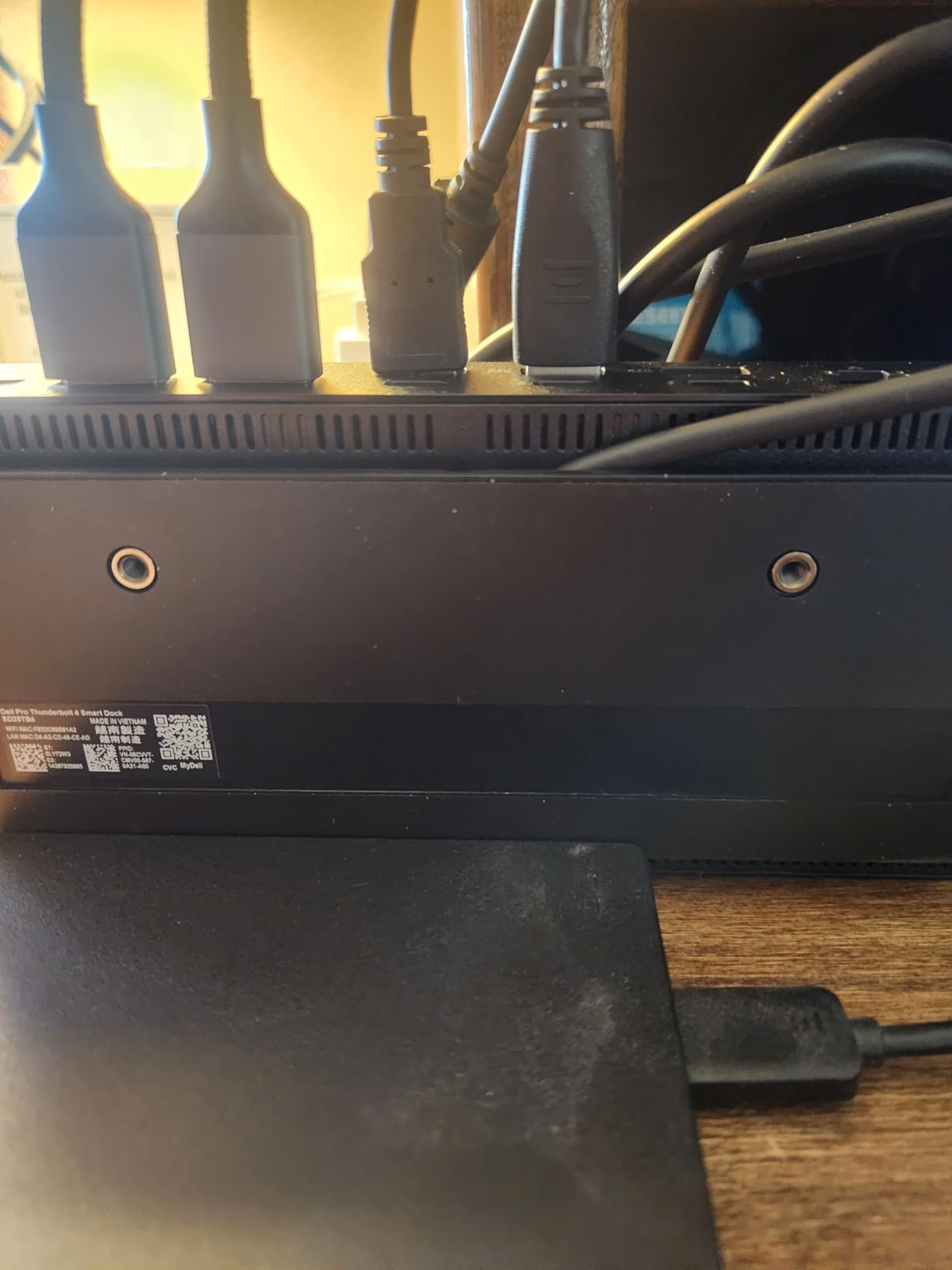
The Dell Pro Thunderbolt 4 Smart Dock SD25TB4 does something no other dock in this list manages: four 4K monitors. It combines HDMI 2.1, dual DisplayPort 1.4, a USB-C output and a Thunderbolt 4 port to cover the common finance, control-room and trading-desk layout where four panels are the minimum.
Charging is unusually generous for a four-display dock, at 130W for Dell systems and 96W for everything else. Two Thunderbolt 4 data ports allow daisy-chaining as many as six devices behind them, and 2.5GbE handles the network side.
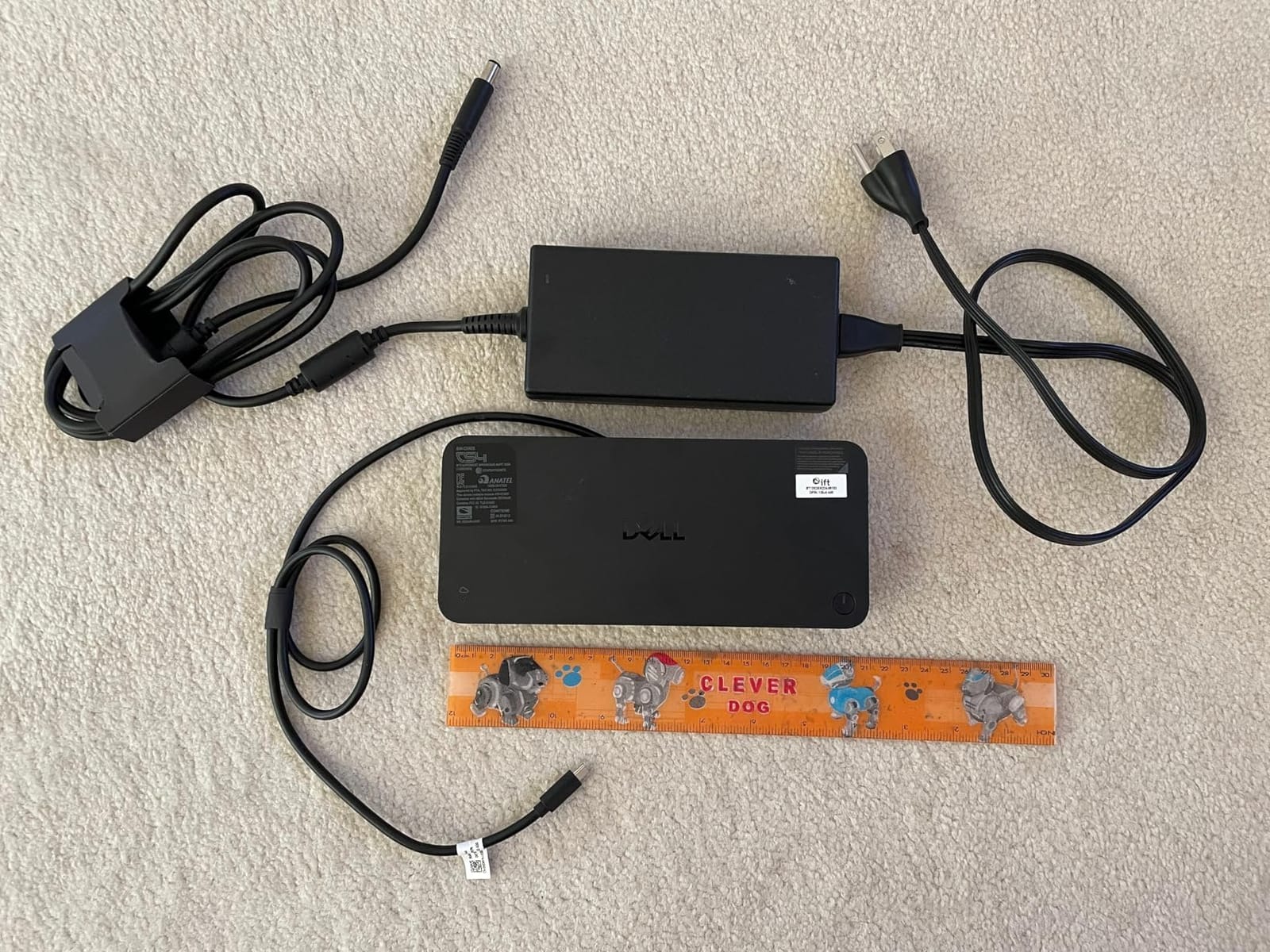
The security story is what makes this a serious business purchase rather than a consumer one. Wake-on-LAN, PXE boot, MAC filtering, DMA protection, WPA3 and a secure enclosure are all present, and out-of-band management runs over Wi-Fi through Dell Console and Intel AMT, meaning IT can reach the dock without a host machine attached to it.
Construction is 65% recycled plastic with 100% recycled packaging, which matters more than it sounds in an organisation with procurement standards.
Will four monitors work on any laptop?
No, and this is where the marketing number needs a reality check. Four 4K outputs is a dock capability, not a host capability. You need a Windows machine with a Thunderbolt 4 controller and a discrete or capable integrated GPU, and even then the arrangement of outputs matters.
On a Mac, treat the four-monitor figure as theoretical. Verify the display ceiling on your exact host before buying for that reason alone.
Is the security feature set useful outside IT?
Partly. PXE boot, Wake-on-LAN and MAC filtering are genuinely handy for anyone running a home lab or a small managed business, and the 13% one-star share mostly reflects configuration friction outside a managed Dell environment rather than a hardware fault.
For a home desk with two monitors, this is more dock than you need. The OWC 11-Port and Plugable 16-in-1 serve that case better.
12. Sonnet Echo 11 Thunderbolt 4 Dock – Best for Travel and Hot Desks
Sonnet Echo 11 Thunderbolt 4 Dock 90W USB-C Gigabit Ethernet SD Mac Windows
11 ports
4x Thunderbolt 4
90W charging
UHS-II SD reader
1GbE
Pros
- Four Thunderbolt 4 ports including three downstream at this tier
- UHS-II SD reader for fast media import
- Supports a single 8K@60Hz or two 4K displays
- Works with M1 Macs
- Intel Thunderbolt 3 Macs and Windows systems
- Simple compact design covering common desk needs
Cons
- Only 1GbE Ethernet
- 90W charging is below several rivals
- No HDMI or DisplayPort so displays need USB-C cables
- Smallest review base here at 117 ratings
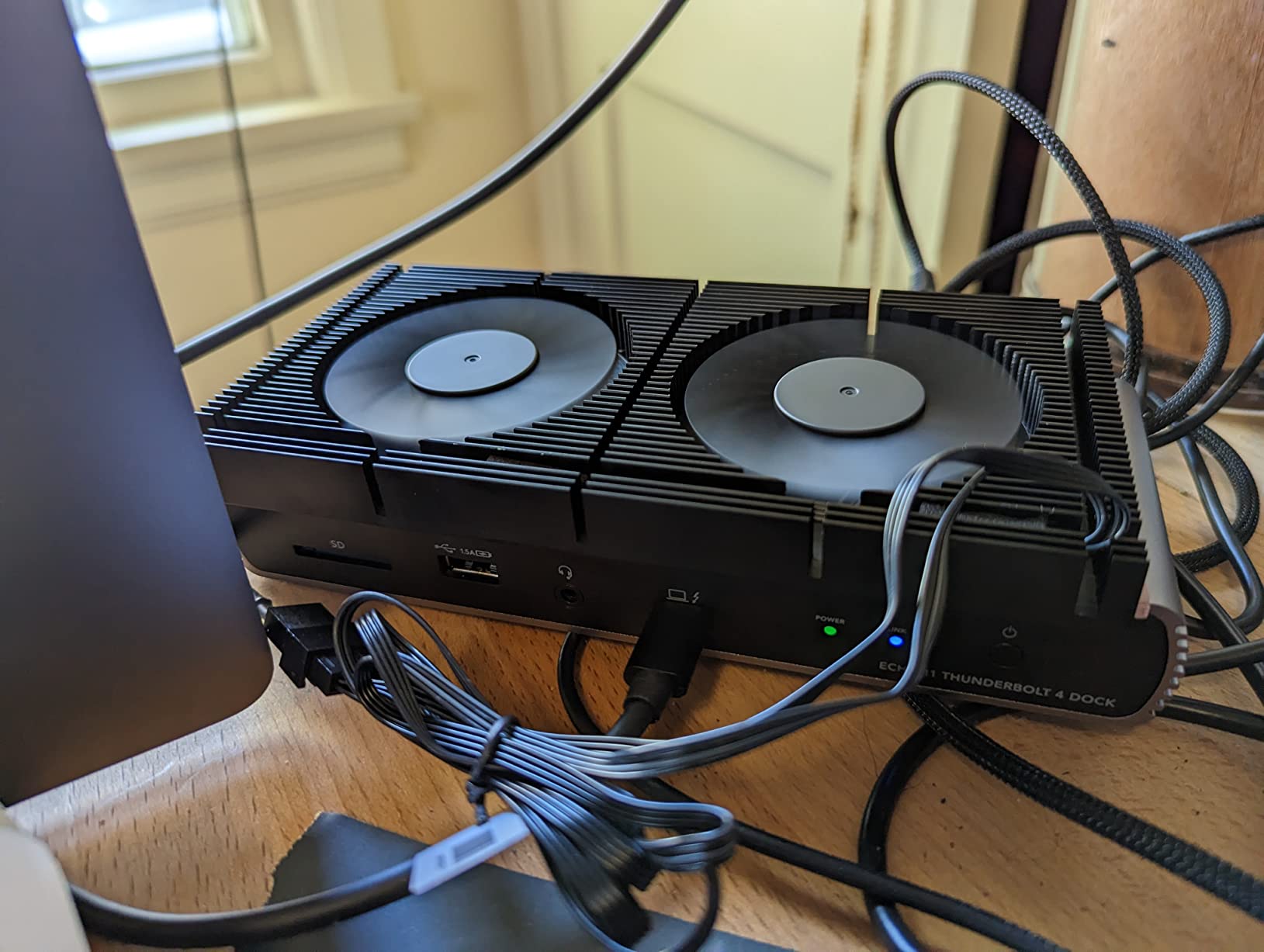
The Sonnet Echo 11 is the dock I would put in a bag. It covers the common desk without dragging a large power brick across the country: three 10Gbps USB-A ports, a USB-A charging port, a UHS-II card slot, Gigabit Ethernet and 3.5mm audio, with 90W of host charging through the included 0.7 metre Thunderbolt 4 cable.
What makes it interesting is the port philosophy. Four Thunderbolt 4 ports, three of them downstream, is a generous allocation for a compact dock, and it means displays and storage chain off the single host lead without a secondary hub.
It carries a 4.3 average with only 4% one-star ratings, which is the best critical-reaction profile in the roundup. Buyers call the design simple and well built rather than loaded, and the compatibility list is broad, from M1 Macs through Intel Thunderbolt 3 hardware to Thunderbolt 4 Windows systems.
The trade-offs are all about omissions. There is no HDMI or DisplayPort, so your monitors need USB-C cables or adapters. Ethernet is 1GbE rather than 2.5GbE, and 90W of charging sits below the 100W-plus several rivals offer, which matters on a larger workstation laptop.
Is 90W enough charging for travel use?
For most 13-inch and 14-inch laptops, yes, including while you are working. It will not keep a 16-inch MacBook Pro or a mobile workstation at full speed under a heavy workload, and in that case the OWC 11-Port at 96W or the Dell SD25TB4 at 96W for non-Dell hosts is the better travel companion.
Check the wattage your machine expects before you commit to a long trip.
How does it compare with the UGREEN 8-in-1?
Both sit in the same bracket and both rate around 4.3. The Sonnet ships a Thunderbolt 4 cable and a card reader; the UGREEN gives you three Thunderbolt 4 ports, 85W charging and front link-speed LEDs instead.
Choose the Sonnet for a media-import workflow and choose the UGREEN for maximum expansion on a port-poor laptop. If you want a documented view of the wider home setup, our guide to dock-side water filtration for well properties covers the other kind of docking decision entirely.
How to Choose a Thunderbolt Dock in 2026
The specifications on a dock listing are only half the equation. The other half is your host machine, and most buyer regret we see traces back to a mismatch between the two rather than a fault in the dock.
Display output: read the ceiling as a maximum
Every dock here advertises a display ceiling, and every one of them is capped by the host. An M-series MacBook with the lid open generally supports one external display through Thunderbolt regardless of dock. Running two usually means clamshell mode with the lid closed, power connected, and an external keyboard and mouse.
Windows behaves differently and depends on the laptop. Thunderbolt 4 and 5 Windows machines typically allow two external displays with the lid open, and some discrete-GPU configurations push to three. Four displays, as the Dell SD25TB4 claims, needs a specific class of Windows hardware.
Then there is the refresh rate question. A dock quoted at dual 4K@60Hz may drive a 4K@144Hz panel only on one output, at reduced resolution, or not at all. Ultrawide monitors at full refresh often need the DisplayPort 1.4 path specifically, which is why docks with a mix of HDMI and DisplayPort outputs, like the Plugable 16-in-1, earn their place.
Host charging: two different numbers
Every dock lists a power supply wattage and a host charging wattage, and those are not the same figure. The CalDigit TS4 pairs a 230W supply with 98W of host power delivery. The extra capacity is not wasted: it covers the monitors, hard drives and bus-powered peripherals that draw from the same supply.
What you need to know is the wattage your specific laptop expects. A 14-inch ultrabook is fine on 85W. A 16-inch MacBook Pro or a mobile workstation wants 100W or more, and on some proprietary high-power paths the higher wattage only works on specific models. Check the vendor specification for your machine before buying on charging headroom alone.
Ports, bandwidth and daisy-chaining
Count the downstream Thunderbolt ports first, because they determine how much you can chain. Two or three downstream ports let you attach a display, storage and a second display from one host cable. One downstream port means everything else needs a separate hub.
Card readers are worth checking for UHS-II rather than UHS-I, and Ethernet speed matters more than most guides admit. 2.5GbE is a genuine improvement for NAS and large file transfers; 10GbE only makes sense with matching network hardware. A built-in M.2 NVMe bay, as on the Sonnet Echo 20, is a different category entirely and gives you internal storage without consuming a port.
Thunderbolt 5 versus Thunderbolt 4: is the newer generation worth it?
Thunderbolt 4 runs at 40Gbps in both directions. Thunderbolt 5 offers 120Gbps bi-directional bandwidth, with up to 80Gbps display-only, and that difference shows up in two places: very large file transfers, and very high refresh multi-panel displays.
For general office work, browsing, document editing and a dual-monitor desk, Thunderbolt 4 is genuinely enough and you should not spend more for the generation badge. For multi-gigabyte video timelines, high-resolution RAW photography, 10GbE NAS work, or a hardware platform you intend to keep for years, Thunderbolt 5 earns its place.
One critical compatibility point: a Thunderbolt 5 dock works with a Thunderbolt 4 host. The link simply negotiates down to 40Gbps, so you keep every port, you keep charging, you lose the extra bandwidth and the higher display ceilings. Nothing breaks.
Operating system and host compatibility
All twelve docks here are built to work driverless on macOS and Windows, and the native Thunderbolt path on Linux is well supported in current kernels. The variables to check are narrower than people expect: the host’s display ceiling, the charging wattage your laptop demands, and whether you need DisplayLink-style software, which none of these docks require.
Two laptop-specific notes. Base M-series Macs need clamshell mode for dual external displays, and some Mac users report audio interference through certain dock outputs. Enterprise fleet docks add remote management that is only useful if someone actually manages the fleet.
Reliability and known failure modes
This is where owner reports are more useful than spec sheets, and where most roundups stay silent. Four patterns show up repeatedly across this category.
Devices dropping after sleep or wake. The most common complaint in the entire category. Displays stay dark, mice and keyboards lag, external drives disappear from the desktop until the dock is re-seated. It appears across brands and price tiers rather than concentrating in one model.
Firmware and driver friction on first connection. Several docks need a firmware update or a full power cycle before a USB-C peripheral or a display output is recognised. Budget twenty minutes with any new dock before concluding it is faulty.
Charging negotiation failures. A dock that does not deliver its rated wattage to a particular laptop usually means a host-side limitation rather than a broken dock, and it is a common reason enterprise models disappoint outside the fleet they were designed for.
Heat under sustained load. High-bandwidth docks running 24/7 get warm. The CalDigit TS5 Plus runs hot enough that users are advised to keep clearance around the chassis, and the Anker Prime TB5 uses active cooling specifically to avoid the throttling that passive designs hit. Check the enclosure material and cooling design if your dock will run hot all day.
Troubleshooting common dock problems
If a dock is not behaving, work through these in order before returning it.
Confirm the host port is a Thunderbolt port rather than a plain USB-C port, and check the negotiated link speed if the dock has indicator LEDs for it.
Power cycle the full chain: shut down the host, unplug the dock power supply, wait, then reconnect power before the host cable.
Update the dock firmware and the host’s graphics and Thunderbolt controller drivers, then reconnect.
Swap the host cable. A degraded Thunderbolt cable is a common and invisible cause of dropped displays.
Test with one display and no peripherals attached, then add devices back one at a time to isolate the failure.
Check the host display ceiling and clamshell rules for your specific laptop before suspecting the dock.
For charging problems, confirm the wattage your laptop model expects and whether it needs a proprietary high-power path.
When a plain USB-C dock is enough
Not every desk needs Thunderbolt. If you drive a single external display, plug in a mouse and a keyboard, and charge your laptop, a USB-C dock with one DisplayPort, two or three USB-A ports and 65W of Power Delivery does the same job for a fraction of the money.
The category that justifies spending on Thunderbolt is specific: two or more external displays at high refresh, sustained external storage transfers, wired networking above gigabit, or a host laptop with very few ports. If none of those apply, the money is better saved.
Value tiering without talking about price
Value tiering is about what a dock earns you per port and per watt, not about sticker numbers. The UGREEN 8-in-1 gives three Thunderbolt 4 ports at a mid-tier cost, which is the strongest expansion-per-pound-of-spend in this roundup. The OWC 11-Port combines similar expansion with the deepest review history available, which reduces the risk of an unlucky unit.
At the professional tier, the CalDigit TS4 and the Sonnet Echo 20 are differentiated by the same question: do you need 2.5GbE networking, or internal NVMe storage? The CalDigit TS5 Plus answers a third question, 10GbE, that only one dock in the list answers at all.
Frequently Asked Questions
Is a Thunderbolt dock worth it?
A Thunderbolt dock is worth it if your laptop has few ports and your desk needs more. You get monitors, wired networking, USB peripherals, card readers and laptop charging from one cable, and you disconnect the whole setup with a single pull. It is not worth it for a single monitor and a mouse, where a basic USB-C dock does the same job. The bigger the gap between what your laptop offers and what your desk needs, the faster the payback.
What is the best docking station for a laptop with Thunderbolt?
For most people the CalDigit TS4 is the strongest all-round choice, with 18 ports, 98W host charging from a 230W supply, 2.5GbE Ethernet and UHS-II card readers. The OWC 11-Port Thunderbolt 4 dock is the better value pick, matching most of that capability with three downstream Thunderbolt 4 ports and the deepest review history in the category. Choose the TS4 for port count and charging headroom, the OWC for expansion ports and consistency.
Do I need a Thunderbolt 5 dock or is Thunderbolt 4 enough?
Thunderbolt 4 is enough for general office work, browsing, document editing and a dual-monitor desk. You want Thunderbolt 5 for multi-gigabyte video or RAW file transfers, 10GbE NAS workflows, very high refresh multi-panel displays, or a platform you plan to keep for years. A Thunderbolt 5 dock also works with a Thunderbolt 4 host, negotiating down to 40Gbps, so it is a safe purchase if you expect to upgrade your laptop later.
What is the best Thunderbolt dock for Macs?
For M-series Macs the OWC 11-Port Thunderbolt 4 dock is the easiest recommendation, with three downstream Thunderbolt 4 ports, 96W charging and dual extended displays with no DisplayLink-style driver. The CalDigit TS4 is the choice when you want more ports, 2.5GbE and UHS-II readers. Either way remember the host rule: a base M-series MacBook with the lid open supports one external display, so two displays means clamshell mode with power and an external keyboard attached.
Can I use a Thunderbolt 5 dock with a Thunderbolt 4 laptop?
Yes. The connection negotiates down to the Thunderbolt 4 link speed of 40Gbps, and every port, every display output and host charging keep working normally. What you lose is the extra bandwidth and the higher display ceilings that Thunderbolt 5 hosts can reach, such as dual 8K@60Hz. Docks in this roundup are built driverless, so no extra software is needed to make the connection.
What are common problems with Thunderbolt docks?
The most reported issues are devices dropping after sleep or wake, with displays staying dark or drives disappearing from the desktop until the dock is re-seated. Others include firmware or driver friction where a peripheral is not recognised until the dock is updated or power cycled, charging that fails to reach the rated wattage on a specific laptop, and heat under sustained load. Most of these are host or firmware related rather than hardware failure.
The Bottom Line on the Best Thunderbolt Docks in 2026
If you want one dock and no further deliberation, the CalDigit TS4 is the answer. Eighteen ports, 98W of host charging backed by a 230W supply, 2.5GbE Ethernet and UHS-II card readers cover almost any desk configuration, and 1,741 ratings give you enough history to trust it.
Match it to your situation instead. Buy the OWC 11-Port Thunderbolt 4 dock if you want three downstream Thunderbolt 4 ports and the most reviewed option in the category. Buy the Anker Prime TB5 for genuine 120Gbps bandwidth and 140W charging on a Thunderbolt 5 host. Buy the Sonnet Echo 20 if you need internal NVMe storage, and the CalDigit TS5 Plus if your network is the bottleneck at 10GbE.
For IT teams, the Lenovo ThinkPad Thunderbolt 4 Smart Dock Gen 2 and the Dell Pro SD25TB4 earn their place through remote management, security features and warranty length rather than ports. For a bag-friendly desk, the Sonnet Echo 11 and the Microsoft Surface dock keep the footprint small.
Whichever you choose, check the display ceiling and the charging wattage against your specific laptop before you order. Those two numbers, not the port count, decide whether the dock is the right fit. Our best thunderbolt docks shortlist above is updated for 2026, and we will keep revising it as the Thunderbolt 5 generation spreads to more host machines.